
Item Tracker: find any item to make
The big picture
The Batches view is for baking in bulk — it groups the same item together across orders. Item Tracker is the opposite: it shows each item on its own line, so you can answer the everyday question "where's that one cake, and what does it need?"
Open Items → filter to what you're after → open a cake to see everything about it.
There's nothing to set up. It reads your confirmed orders and leaves out quotes and cancelled orders automatically.
1. Open the Items view
Click Production in the sidebar, then the Items tab at the top. You'll see one line for every item due, drawn straight from your orders.
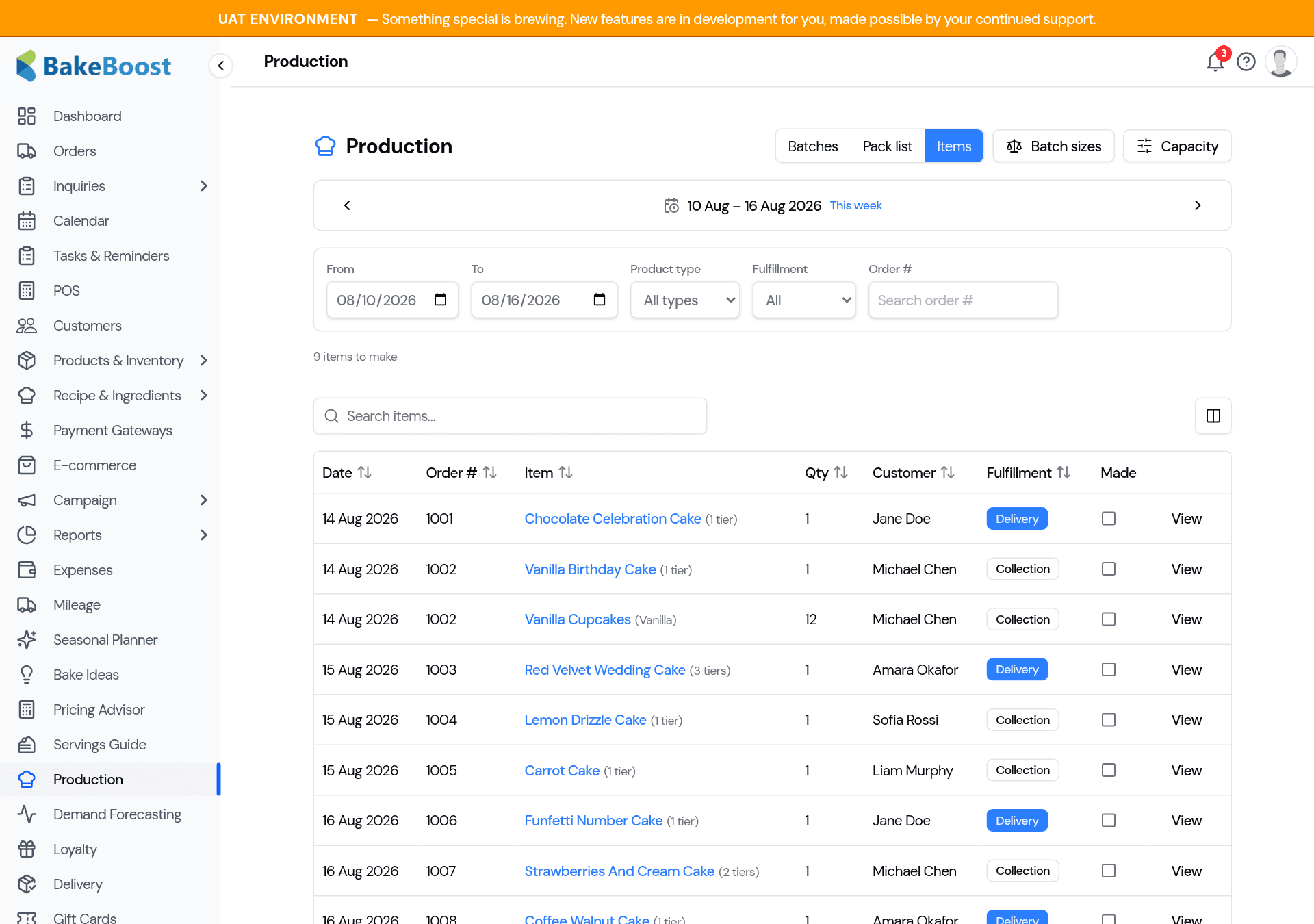
Each line shows the delivery date, order number, the item (with its number of tiers), the quantity, the customer, whether it's for delivery or collection, and a Made marker — this ticks once you mark that item's batch done over in the Batches view, so it's a read-only heads-up here rather than something you tick. An order with several items shows each item on its own line. Click a column heading to sort by it.
2. Filter to what you need
Use the filter bar to narrow the list to exactly what you're working on:
- From / To — the delivery dates to include. It opens on the current week.
- Product type — recipe, quick cake, standard, composite, or untyped.
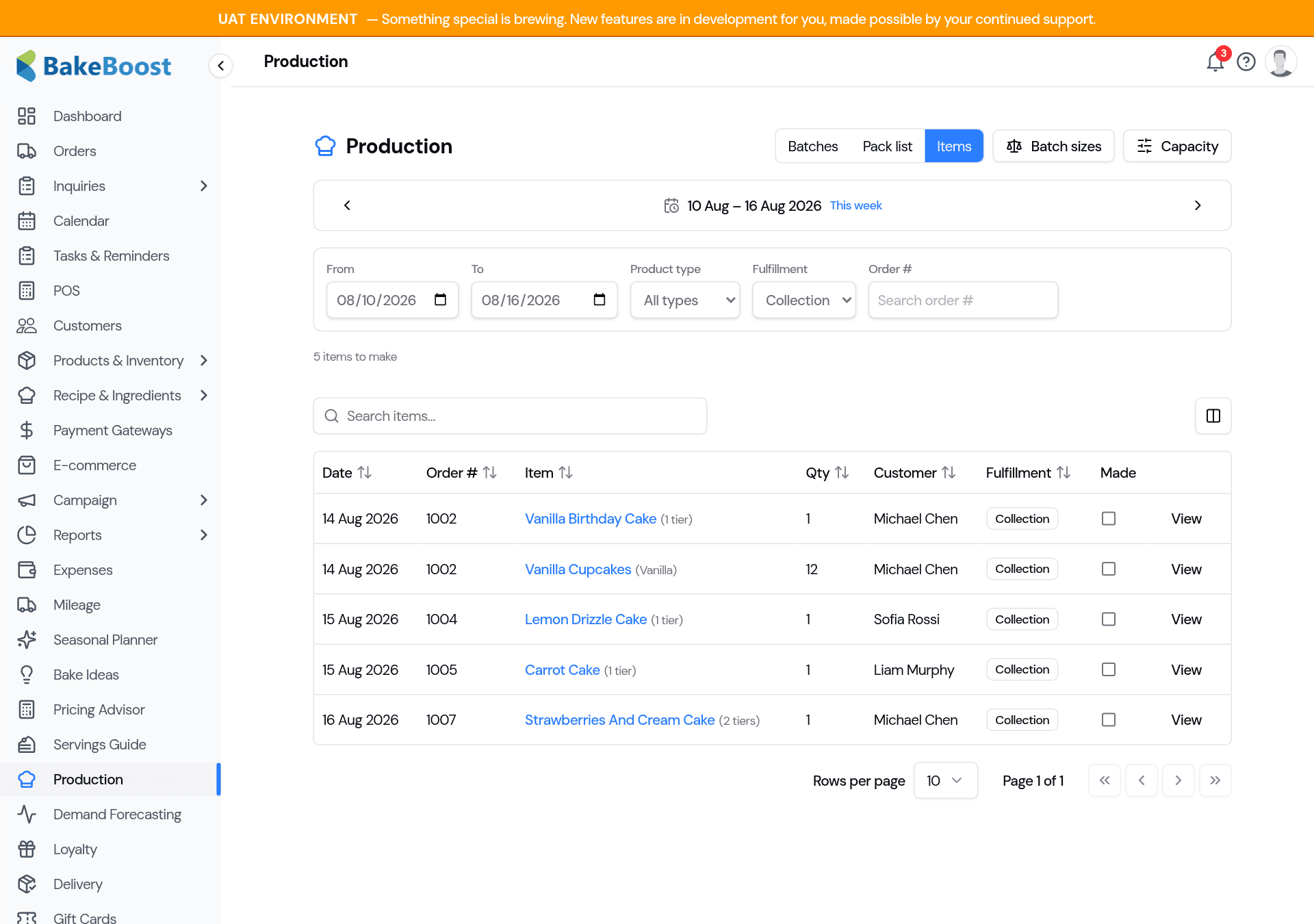
- Fulfillment — everything, or just Delivery or just Collection.
- Order # — type part of an order number to jump straight to it.
For example, pick Collection to see only the items customers are coming to collect:
3. Open an item for the full detail
Click an item's name (or View) to open its detail panel. Everything the kitchen needs sits in one place:
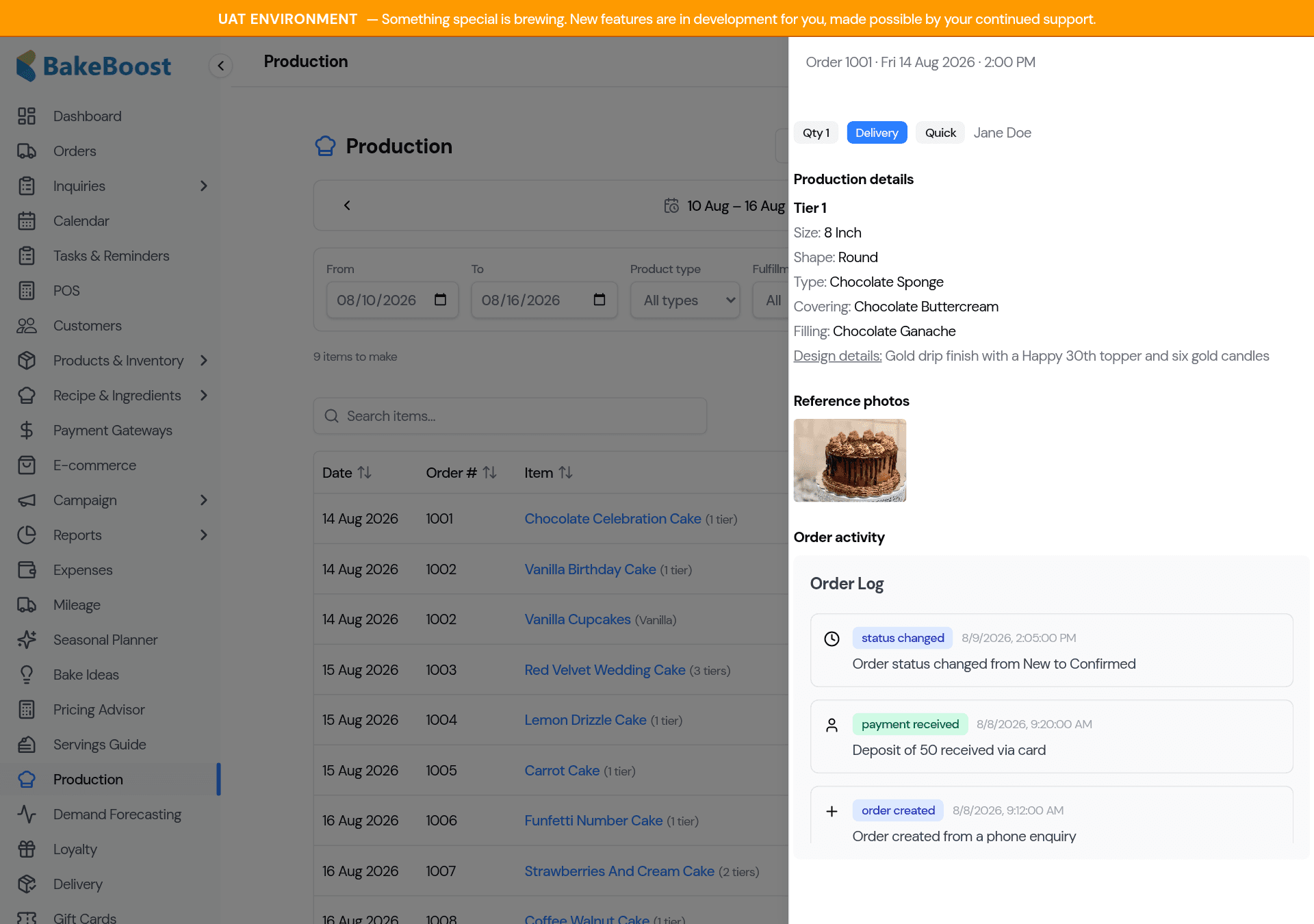
- Production details — the full cake spec, tier by tier: size, shape, sponge, filling, covering and your design notes.
- Reference photos — any photos attached to the order, so you're decorating to the right picture.
- Order activity — the order's history: when it was created, status changes and payments taken.
4. On your phone
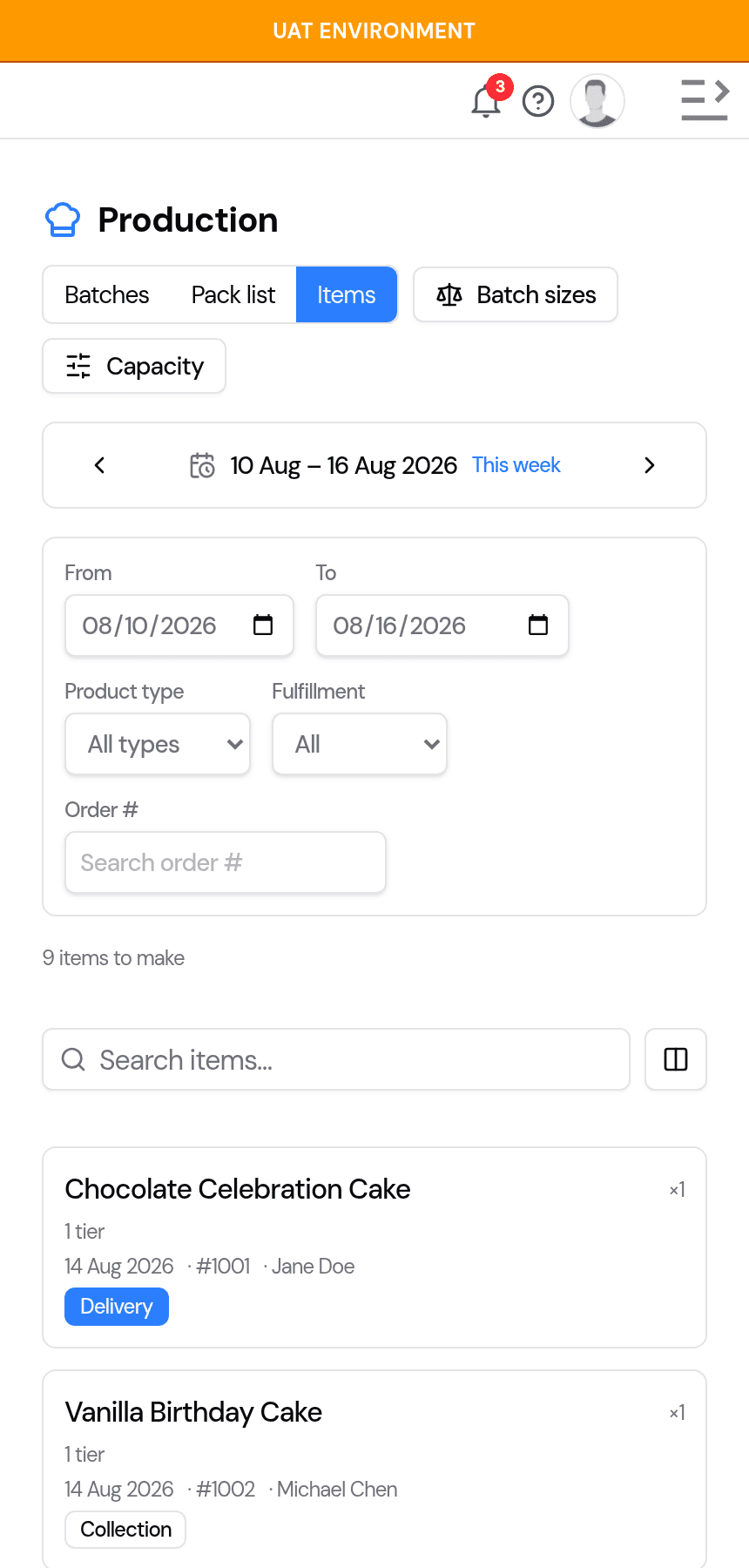
In the kitchen, the same view works on a phone or tablet. The list becomes easy-to-tap cards, and tapping a card opens the same detail panel.
Tips
- Use Batches to bake in bulk, and Items to find and finish one specific cake.
- Leave the date range on the current week to see everything due now; widen it when you're planning ahead.
- Filter to Collection near closing to check what's waiting to be picked up.
- Open a cake before you start it — the reference photo and design notes are right there.
- Type an order number to pull up a specific cake and its details in seconds.
Last updated August 14, 2026