
Reminders and task lists
These are your own to-dos, separate from the tasks on a job sheet that belong to a specific order.
1. Your lists and tasks
Open Tasks & Reminders in the sidebar. Tasks are grouped into lists — for example This Week, Prep & Admin and Ordering — so related jobs sit together.
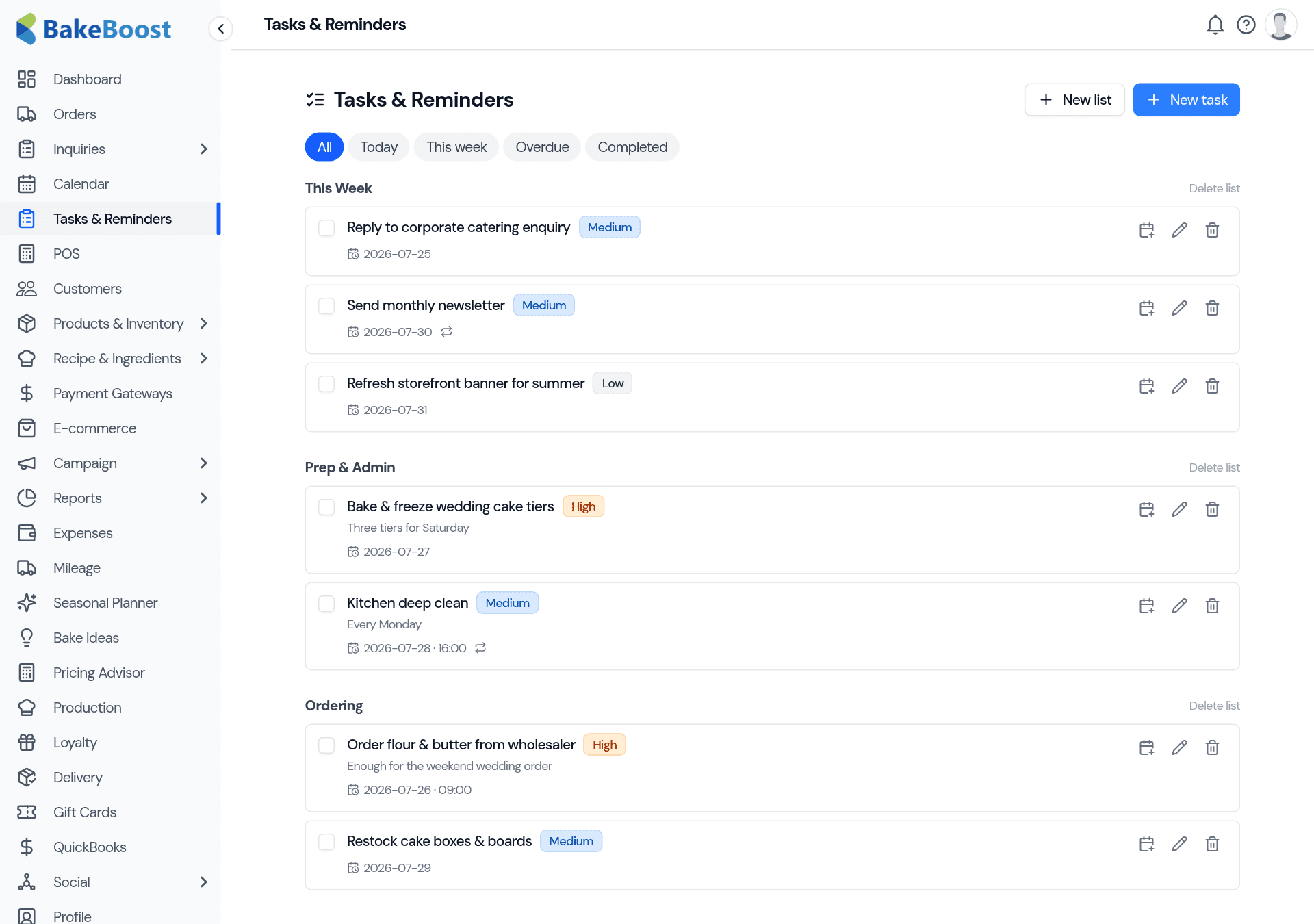
- New list creates a group — give it a name and a colour.
- New task adds a to-do to a list.
- The tabs along the top — Today, This week, Overdue, Completed — filter the view so you can focus on what's due now.
2. Add a task
Click New task and set:
- What it is — a short title, plus an optional description.
- Which list it belongs to.
- Priority — low, medium or high, shown as a coloured badge so the important jobs stand out.
- Due date and time — so it shows up under Today or Overdue at the right moment.
Tick a task off when it's done and it moves to Completed.
3. Recurring reminders
Some jobs come round again and again — the weekly deep clean, the monthly newsletter, ordering stock every Friday. Set a task to repeat — daily, weekly or monthly — and Bake Boost brings it back on schedule so you never have to remember to add it again.
Good to know
- Group with lists. Keep related jobs together and colour-code them.
- Prioritise and date. Priority badges and due dates surface what matters today.
- Set repeats once. Daily, weekly or monthly reminders come back on their own.
- Filter to focus. Today / This week / Overdue keeps the noise down.
- Separate from job-sheet tasks. These are your personal to-dos, not the steps on a specific order.
Last updated July 24, 2026