
Why didn't my customer get their email?
1. Check the email address on the order
By far the most common cause: the email is going to the wrong place, or nowhere at all.
- Open the order (or inquiry, quote or customer record) and check the customer's email
address is filled in and spelled correctly — a stray space, a missing letter, or
.coninstead of.comis enough. - If the address was blank when the order was created, no email could be sent. Add the correct address, then re-send (open the order and use Send invoice / Send receipt, or re-save to trigger the confirmation).
2. Ask them to check spam and promotions
Confirmation emails, invoices and receipts sometimes land in Spam, Junk or Gmail's Promotions tab — especially the first time you email a customer.
- Ask them to search their inbox for your business name.
- Ask them to mark it Not spam and add your address to their contacts, so future emails come straight through.
3. Check the email type is switched on
Some customer emails can be turned on or off. If the one they're missing has been switched off, it's never sent.
- Check under Settings → Email for the email in question.
- If the missing email is a deposit reminder, balance reminder, delivery confirmation or thank-you, those come from Automated Order Workflows (Settings → Orders). Check both the master switch and the individual step are turned on. See Automated order workflows.
4. Check your email sending setup
Bake Boost can send your customer emails one of two ways, and both work out of the box:
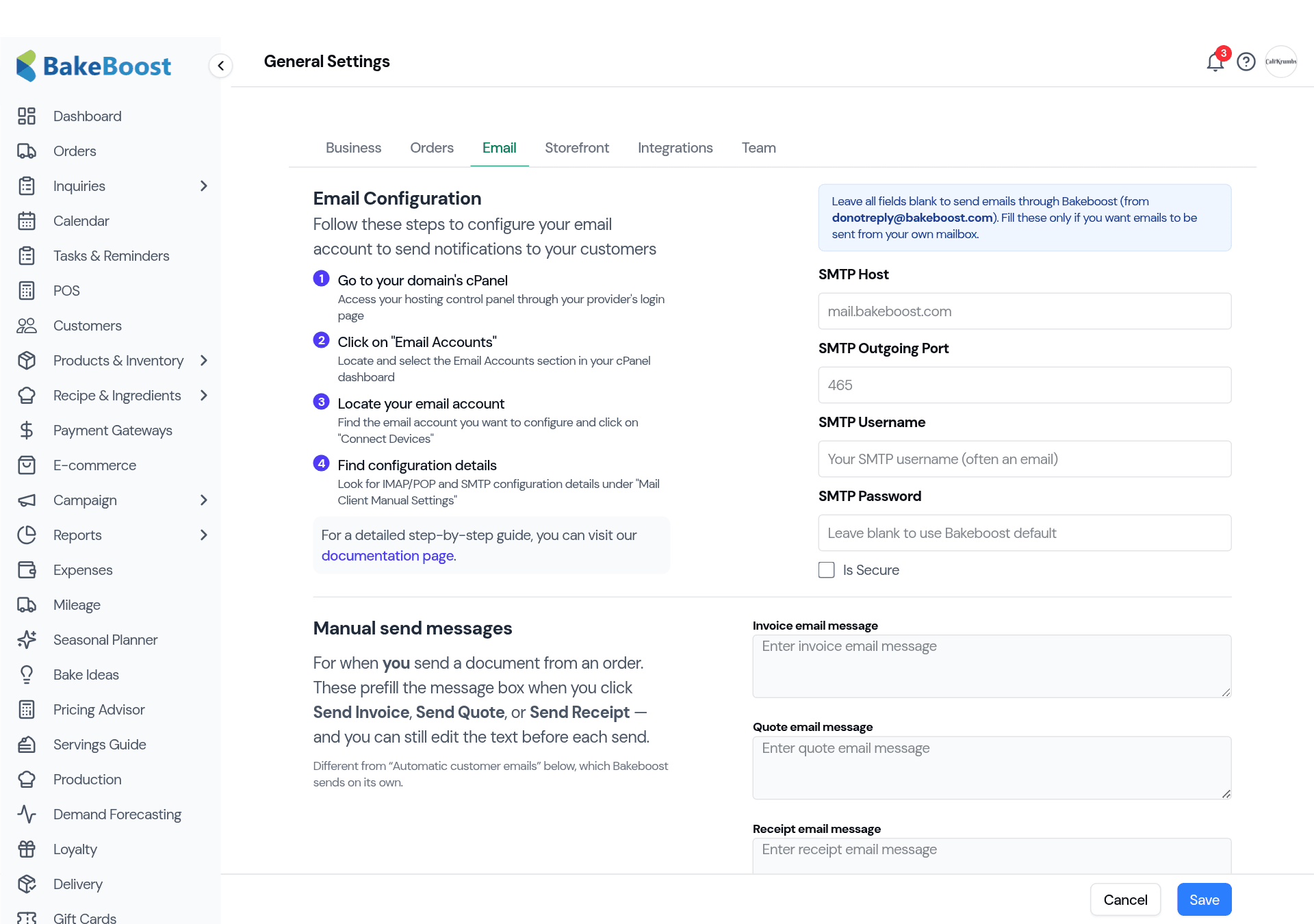
- Through Bake Boost (default). If you've left the SMTP fields blank under Settings → Email, your emails are sent through Bake Boost's own mail service, branded with your business name. Nothing to set up.
- Through your own mailbox. If you've entered your own SMTP details (or a Gmail address and app password) to send from your own email, then a wrong password, wrong port, or an expired app password will stop emails going out.
If you've set up your own sending and customers stopped receiving emails, the quickest test is to clear the SMTP fields and save — that falls back to sending through Bake Boost — then send yourself a test order. If it arrives, your own mail settings were the problem.
5. Send yourself a copy to confirm
The simplest way to prove an email is going out at all:
- Create a test order (or quote/invoice) with your own email address as the customer.
- When you send an invoice or receipt, tick Send me a copy — you'll be BCC'd so you get your own copy without your private address showing to customers.
If your test copy arrives but the customer's doesn't, the issue is on their side (address or spam). If your own test never arrives either, it's a sending-setup issue — go back to step 4, or contact support.
Good to know
- Most misses are a wrong or blank email address. Check that first, every time.
- First-time emails often hit spam. Ask the customer to mark you "Not spam" once and it won't happen again.
- Replies reach you. Customer emails carry your business email as Reply-To — set it in Settings → Business.
- A switched-off template sends nothing. Check Settings → Email (and Automated Workflows for reminders).
- Collection orders skip delivery emails by design.
- When in doubt, send yourself a copy to see whether the problem is sending or receiving.
Related questions
- Why didn't my customer receive their order confirmation?
- Most often the email address on the order is wrong or blank, or the message landed in spam. Check the address first, then ask the customer to check their spam/junk and promotions folders.
- Do Bakeboost emails go to spam?
- First-time emails sometimes land in spam or Gmail's Promotions tab. Ask the customer to mark the message “not spam” once and add you to their contacts — after that they come straight through.
- How do I make sure my emails reach customers?
- Leave the SMTP fields blank to send through Bakeboost, keep customer email addresses accurate, and send yourself a test order with “Send me a copy” ticked to confirm delivery.
Last updated August 4, 2026