
Setting up your online store
The online store is a Growth feature. This guide walks through setting it up; the E-commerce page gives you a checklist so you always know what's left to do.
1. The storefront setup checklist
Go to E-commerce in the sidebar. At the top, a Storefront setup checklist tracks the handful of steps that make your shop ready to share.
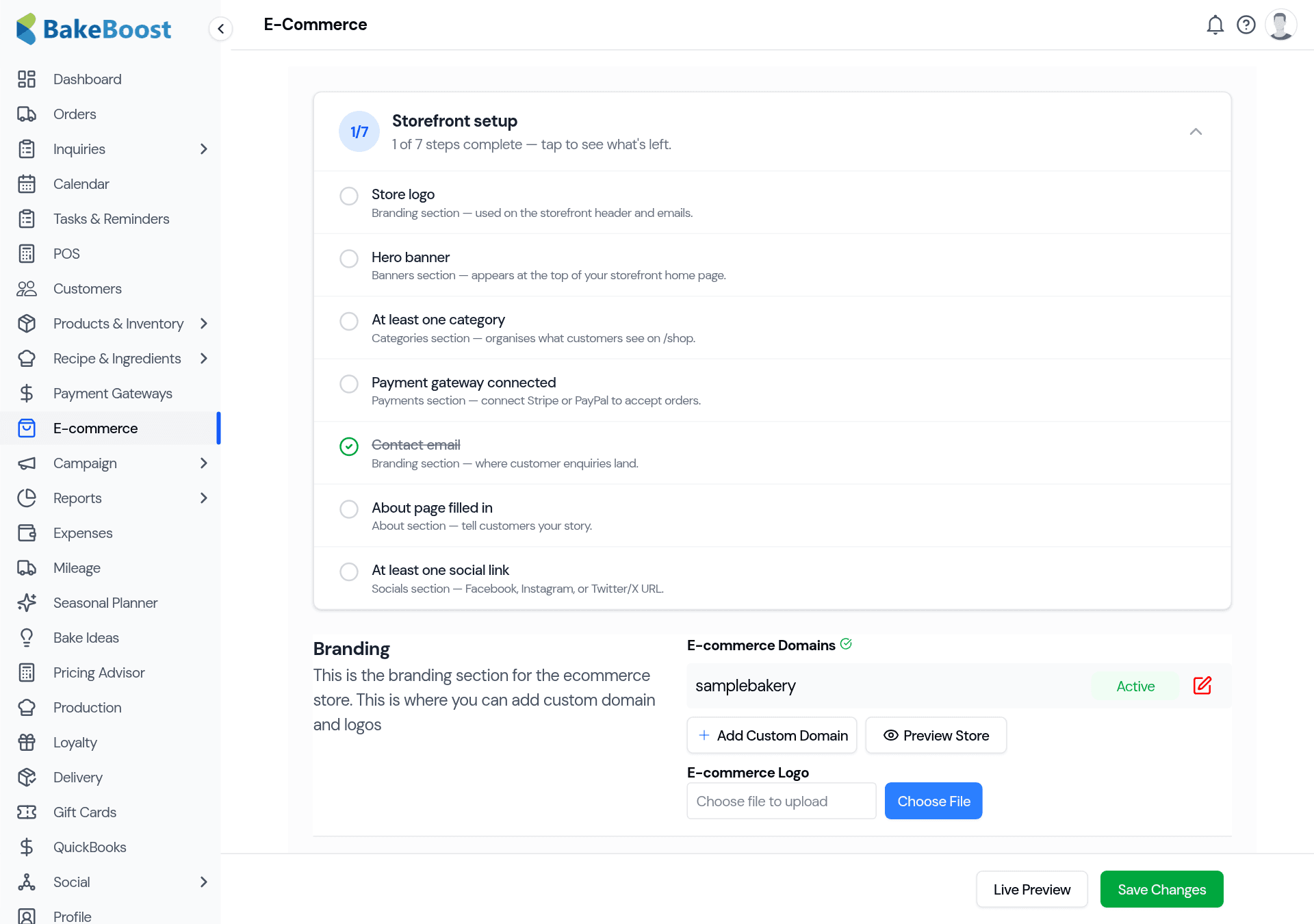
Work down the list — each item you complete ticks off:
- Store logo — used in your storefront header and emails.
- Hero banner — the headline and image at the top of your home page.
- At least one category — so customers can browse your products by type.
- Payment gateway connected — connect Stripe or Square so customers can pay (see Connecting a payment gateway).
- Contact email — where customer messages go.
- About page — a few lines telling customers your story.
- At least one social link — Facebook, Instagram or X.
2. Your web address
Your store gets its own address from your subdomain — for example
yourbakery.bakeboost.com. Set the subdomain in the Branding section, or add a
custom domain if you own one. Use Preview Store to see exactly what customers will
see before you share it.
3. Choose what to sell online
Each product has a Display or Sell on E-commerce switch — turn it on for everything you want to appear in your shop, and leave it off for made-to-order items you'd rather quote for. (See Products and your catalogue.) Group products into categories so the shop is easy to browse.
4. How customers order
Once you're live, customers browse your store, add items to a cart, and check out — paying with your connected gateway. Each order drops straight into your Orders list with the customer, products and payment already filled in, so you carry on exactly as you would with any other order.
Good to know
- It's your shop, your brand. Your logo, banner, colours and web address — customers never see "Bake Boost".
- Orders flow back in. A storefront sale becomes a normal Bake Boost order automatically.
- You choose what's online. Only products with Sell on E-commerce switched on appear.
- Preview before you share. Use Preview Store / Live Preview to check everything, then Save.
- Connect a gateway first. Customers can only pay online once Stripe or Square is connected.
Last updated July 24, 2026