
How do I add tax (VAT or GST) to my invoices?
1. Add your tax rate in Settings
Go to Settings → General and find the Tax Rates section. Click Add Tax, then enter the rate (for example 5%, 20%) and label it — VAT, GST, Sales Tax, whatever applies where you are. Save your settings and the rate is live.
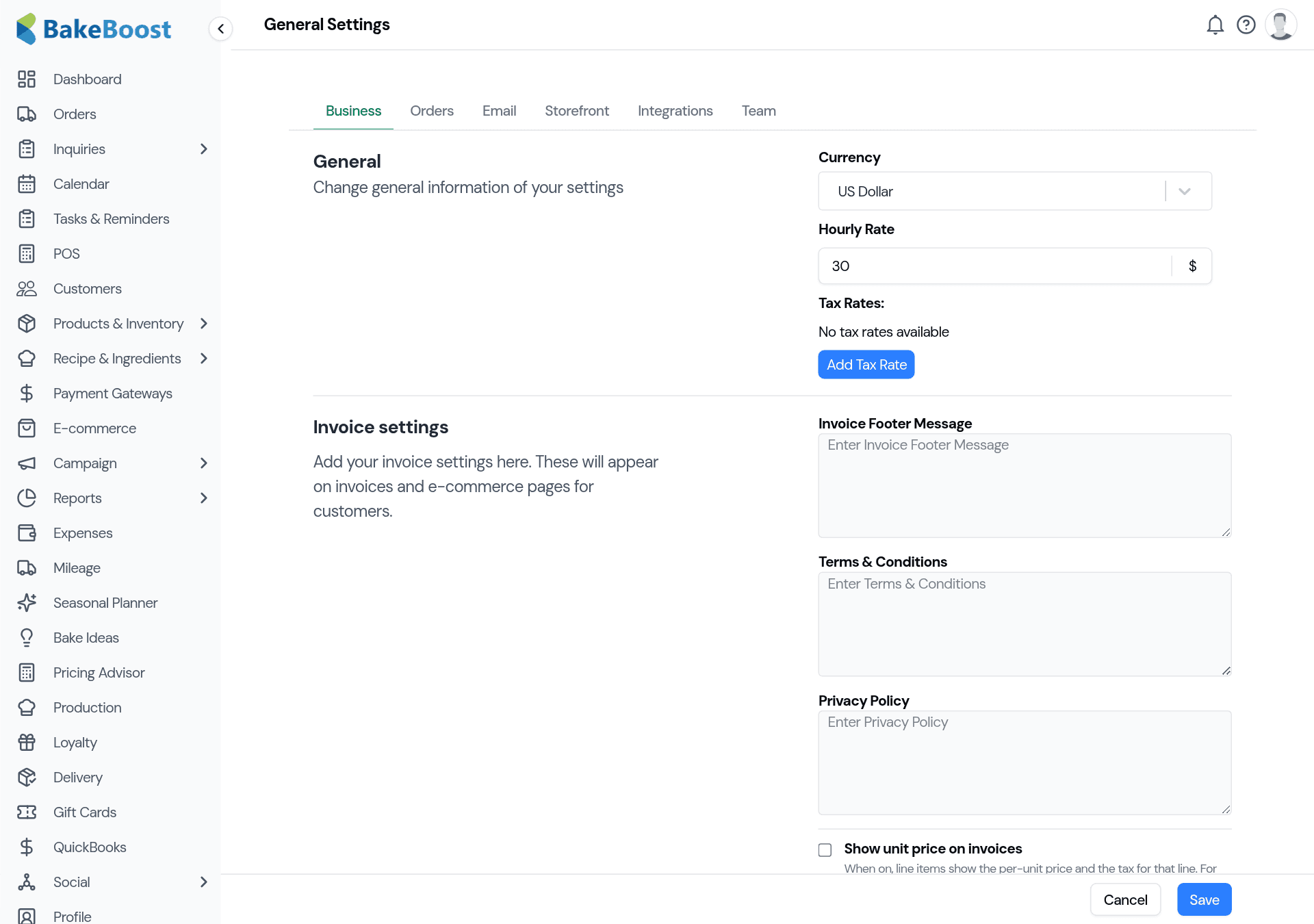
You can add more than one rate if you need to.
2. Tax shows on orders and invoices
With a rate set, the tax is calculated on your orders and appears on the invoice you send the customer, so the amount they owe is clear and itemised. See How do I send an invoice or receipt to a customer?.
3. See what you've collected — Tax Summary
The Tax Summary report (under Reports) totals your revenue, the tax collected on it, and your net revenue for any date range, with expenses broken down by category — ready for your bookkeeping or return.
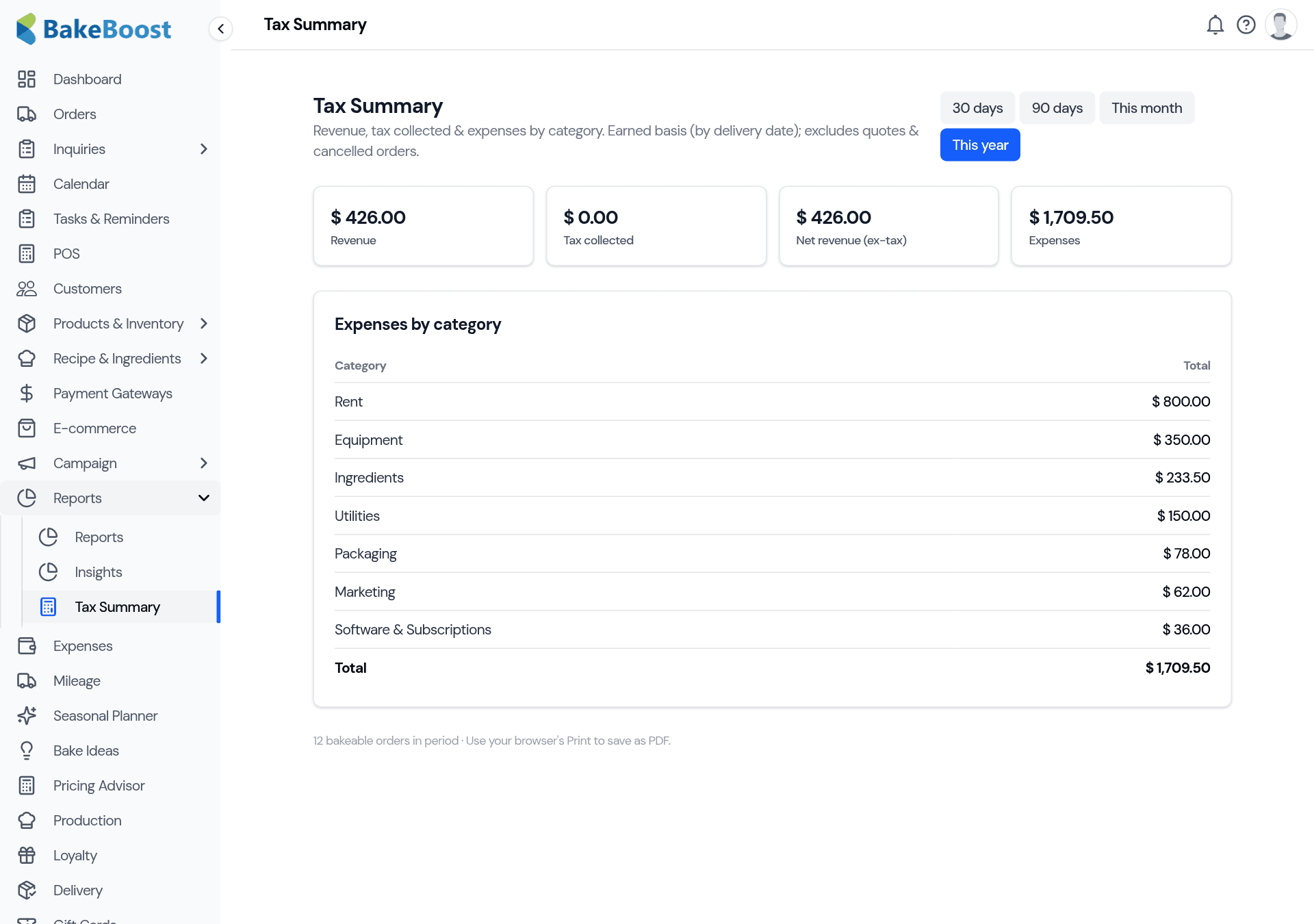
The Tax Summary counts confirmed orders only — quotes, cancelled and refunded orders are excluded, so the figure reflects tax on real sales. It's part of the Growth plan. More in Reports and Insights.
4. UAE Tax Invoice (if you're in the UAE)
If your business country is the UAE, you can switch on the Tax Invoice document. Your invoices then render as a compliant "TAX INVOICE" carrying your TRN (Tax Registration Number) and the customer's, with the invoice date set to the event/delivery date. Quotes are never issued as a tax invoice — only confirmed orders.
Good to know
- Set it once. Add the rate in Settings and it applies going forward — no need to add tax order by order.
- Quotes aren't taxed as sales. Tax and revenue totals count confirmed orders only; quotes, cancelled and refunded orders are left out.
- Tax Summary is a Growth feature. The report lives under Reports.
- UAE gets a compliant Tax Invoice. With a TRN, when your country is set to the UAE.
Related questions
- How do I add VAT or GST to my invoices?
- Go to Settings → General → Tax Rates, click Add Tax, enter your rate (for example 5% or 20%) and label it (VAT, GST, Sales Tax), then save. Bakeboost then applies the tax to orders and shows it on your invoices.
- Where do I see how much tax I've collected?
- The Tax Summary report (under Reports, on the Growth plan) totals your revenue, the tax collected on it and your net revenue for any date range, with expenses broken down by category.
- Are quotes and refunds counted in my tax total?
- No. The Tax Summary counts confirmed orders only — quotes, cancelled and refunded orders are excluded — so the figure reflects tax on real sales.
- Does Bakeboost produce a UAE tax invoice with a TRN?
- Yes. If your business country is set to the UAE, you can switch on the Tax Invoice document — invoices then render as a compliant “TAX INVOICE” carrying your TRN and the customer's. Quotes are never issued as a tax invoice.
Last updated August 5, 2026