
Tracking inventory and stock
Inventory is a Growth feature. You don't have to track everything — turn it on for the things worth counting (the boxed treats you sell, the ingredients you don't want to run out of) and leave the rest.
1. Mark what you want to stock
Anything you want counted needs to be stockable:
- Products — switch on Stockable on the product and set its opening quantity. (See Products and your catalogue.)
- Ingredients and supplies — set a stock quantity on them in your kitchen library.
2. The Inventory page
Go to Products & Inventory → Inventory. The tabs across the top let you switch between Products, Ingredients and Supplies, each showing what's on hand and its status.
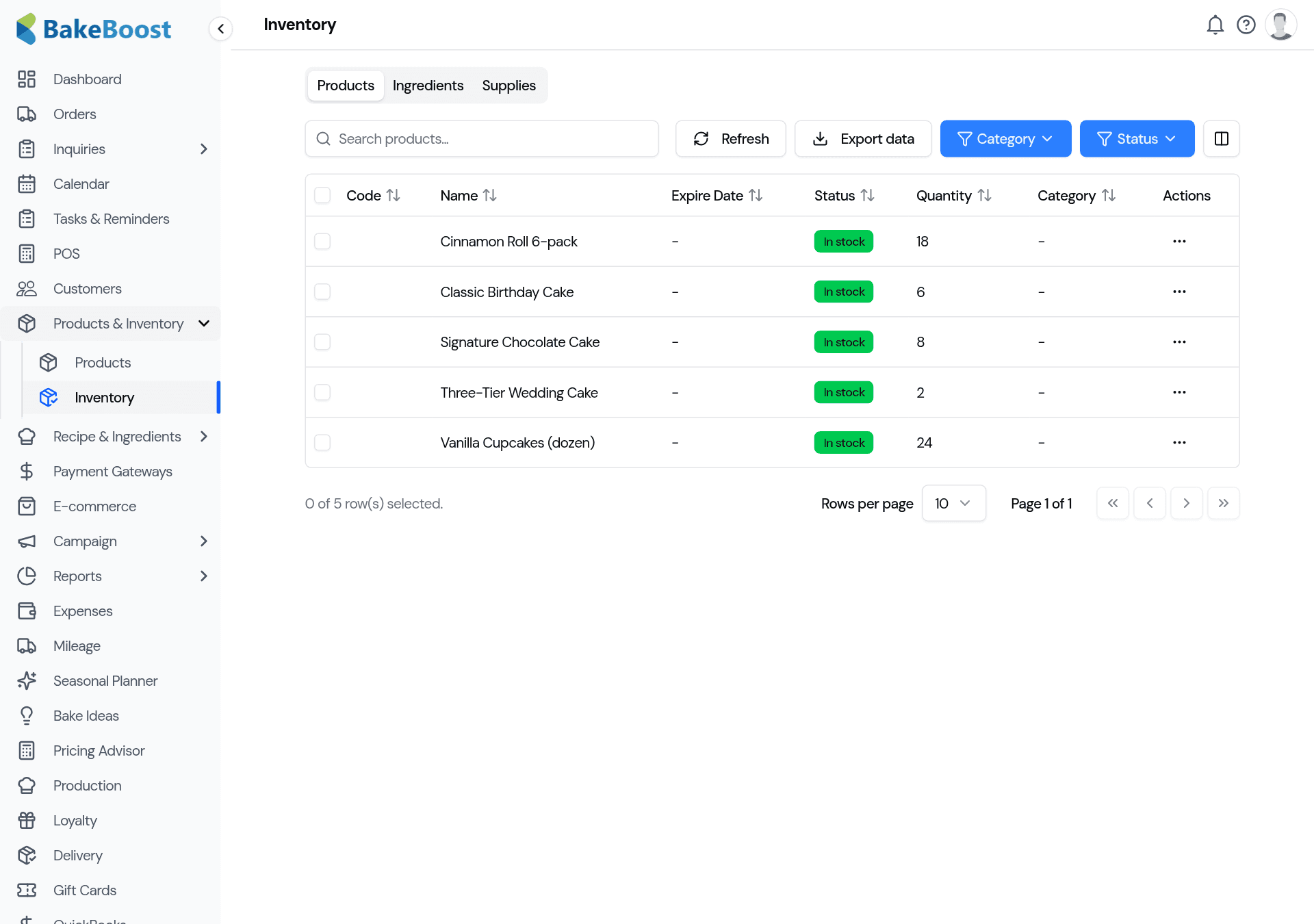
- The status badge shows in stock, low or out of stock at a glance.
- Filter by category or status to find what needs attention.
- Export the list for a stock-take or your records.
3. Stock goes down as you sell — automatically
You don't have to adjust counts by hand every time you sell. When a stockable product is sold — through an order, your storefront, or the POS — its quantity drops automatically. For products made from a recipe, selling can draw down the ingredients too, so your counts reflect what you've actually used.
4. Low-stock warnings
When an item falls to a low level, Bake Boost flags it so you can reorder in time — no more discovering you're out of boxes on a busy Saturday. Keep an eye on the low and out of stock statuses on the Inventory page, and top up before it bites.
Good to know
- Track what matters. You choose which products, ingredients and supplies are counted — you don't have to do everything.
- Selling updates stock for you. Orders, storefront and POS sales all draw stock down automatically.
- Recipes can deduct ingredients. Selling a recipe-made product can reduce the ingredients it used.
- Get warned early. Low and out-of-stock statuses flag what to reorder before you run out.
- Export for a stock-take. Pull the list out any time to count against it.
Last updated July 24, 2026