
Your order calendar
Open Calendar in the sidebar.
1. What's on it
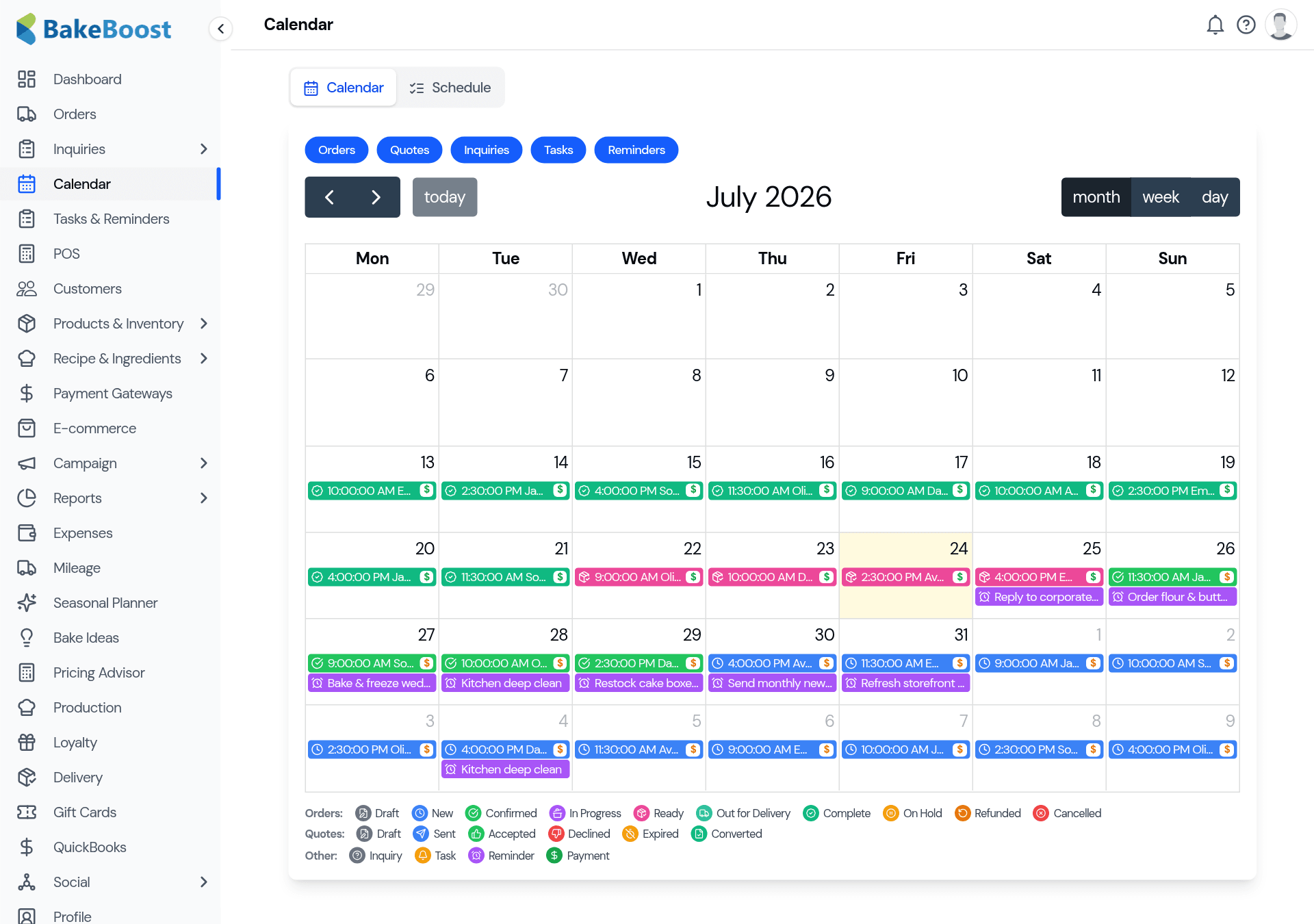
Everything time-based lives here together, each colour-coded by type and status:
- Orders — coloured by where they are (New, Confirmed, Ready, Out for Delivery, Complete, and so on).
- Quotes — proposals with an event date, kept visually distinct from confirmed orders.
- Inquiries — enquiries with a requested date.
- Tasks & Reminders — your own to-dos (see Reminders and task lists).
The legend at the bottom explains every colour, so a glance tells you not just what's on but what state it's in.
2. Filter and switch views
- Use the filter chips along the top — Orders, Quotes, Inquiries, Tasks, Reminders — to show only what you want. Hide reminders to focus on the bake, or show only orders for a clean production view.
- Switch between Month, Week and Day. Month is great for the big picture; Day is great for a busy Saturday's running order.
- Today jumps you back to the current day, and the arrows step through time.
3. Work from the calendar
Click any entry to open it — an order, a quote, a task — right from the calendar, so it's a launchpad, not just a picture. New orders land here automatically on their event date, so as long as you set that when you take the order, your calendar stays true with no extra work.
Good to know
- One view for everything dated. Orders, quotes, inquiries, tasks and reminders together.
- Colour = status. The legend tells you what state each item is in at a glance.
- Filter to focus. Show only what matters for the job in front of you.
- Month, week or day. Zoom out for the picture, in for the running order.
- It fills itself in. Set an order's event date and it appears automatically.
Last updated July 24, 2026