
Sell and redeem gift cards
Gift cards are a great way to bring in cash up front and reach new customers — a card bought for a friend is an introduction to your bakery. This guide covers turning the feature on, creating a gift-card product to sell, how a customer buys one, how it's redeemed, and how you manage cards from the admin.
1. Turn gift cards on
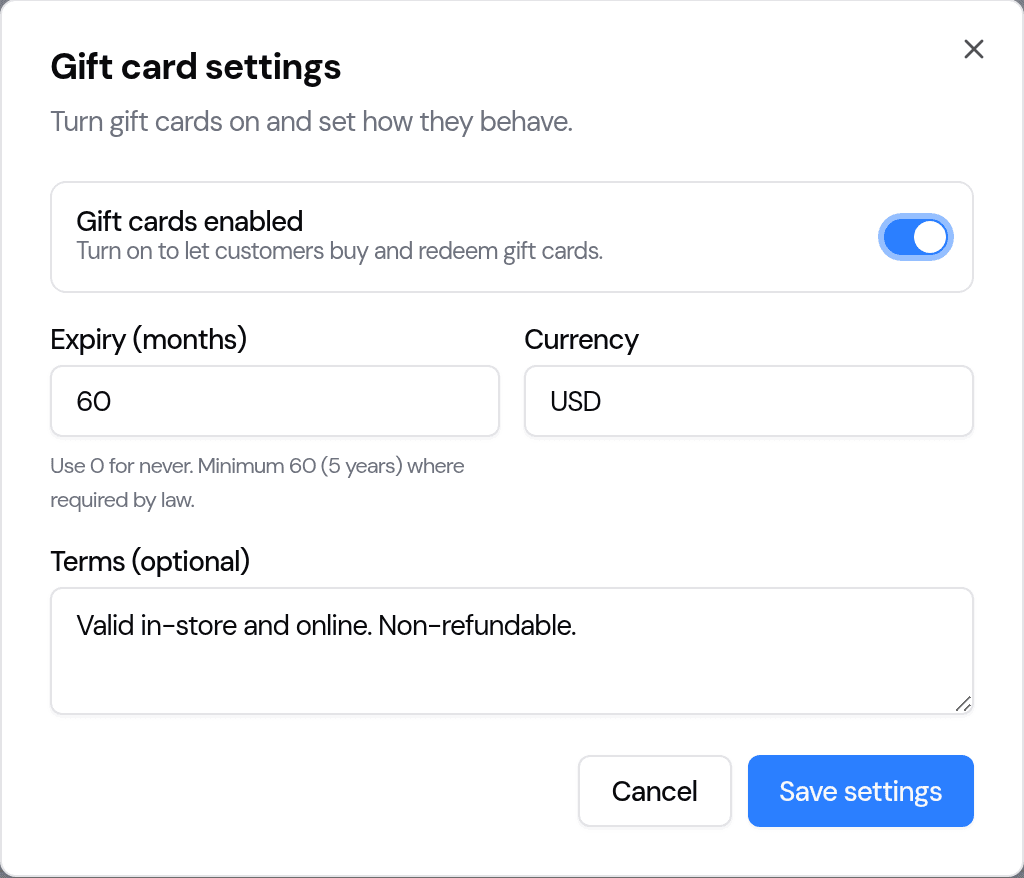
In the sidebar go to Gift Cards, then click Settings. Switch Gift cards enabled on and choose:
- Expiry (months) — how long a card stays valid. Use 0 for never. Where the law requires it, cards must last at least 60 months (5 years), so that's the default.
- Currency — the currency your cards are issued and redeemed in.
- Terms (optional) — a short note shown on the gift-card email (for example "Valid in-store and online. Non-refundable.").
Click Save settings.
2. Add a gift-card product
Customers buy a gift card the same way they buy anything else — it's just a product on your storefront. Create one for each amount you want to offer.
- Go to Products and add a new product (or edit an existing one).
- Give it a name and a price — the price is the gift card's value (for example a product called "$50 Gift Card" priced at 50).
- Switch on Gift Card in the product options.
- Make sure Display or Sell on E-commerce is on (turning on Gift Card does this for you) and save.
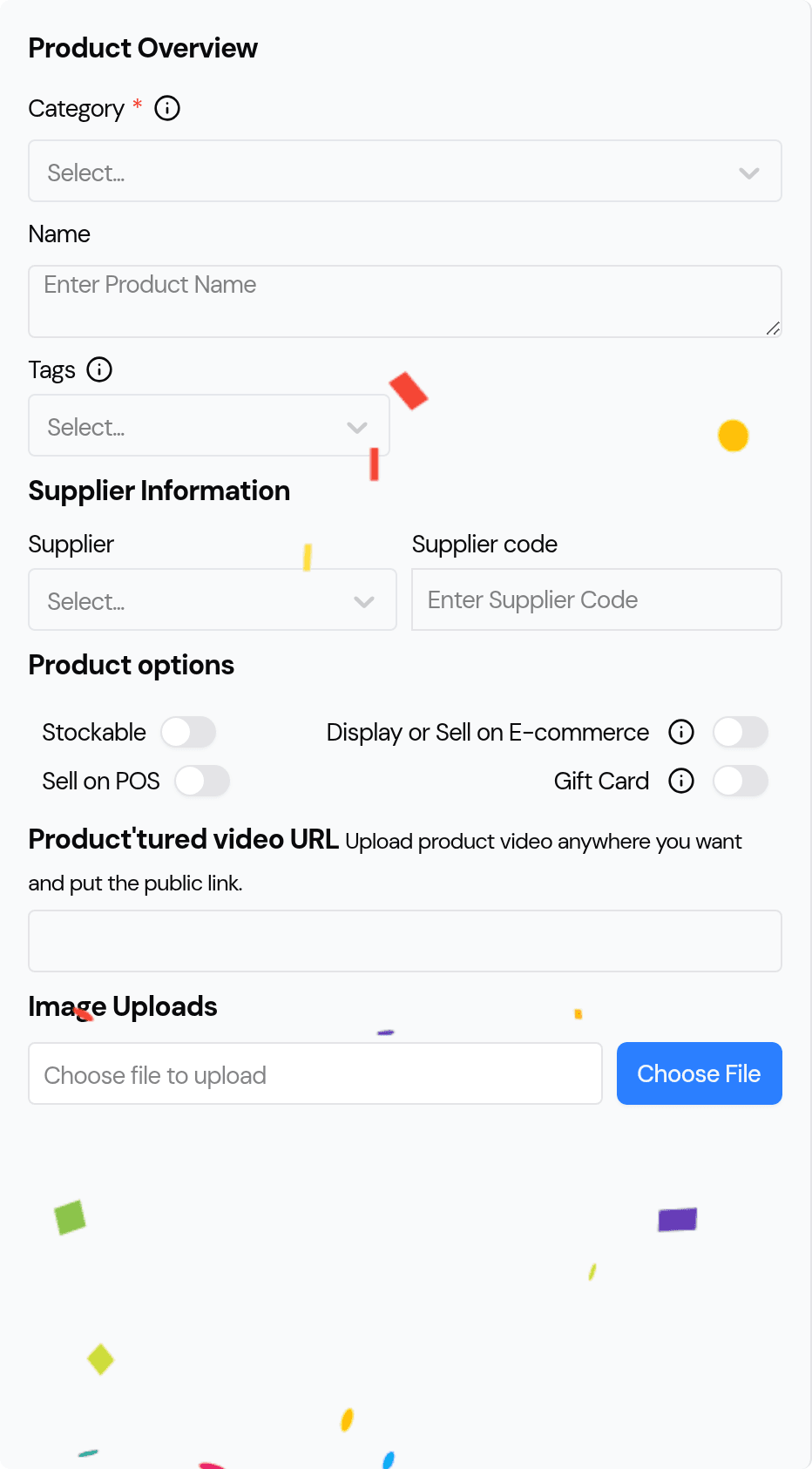
Repeat for each denomination — for example $25, $50 and $100 gift cards. Because a gift card isn't something you bake, the recipe, allergen and stock fields are hidden for these products, and gift-card sales are kept out of your baking lists and production plan automatically.
3. How a customer buys one
On your storefront the customer adds a gift-card product to their cart and checks out exactly like any other order — with whatever payment methods you already offer (card, PayPal, and so on). As part of checkout they can add the recipient's name, email and a short message.
When the order is paid, Bake Boost creates the card and emails the recipient a branded message with their code and the amount. The buyer gets their normal order confirmation too.
4. How the recipient redeems it
When the recipient shops with you, they enter their gift-card code in the Gift card box on the payment step and click Apply. The balance comes off what they owe:
- If the card covers the whole order, they can place the order straight away — paid by gift card, no other payment needed.
- If the order costs more than the card, the card is used first and they pay the rest with your normal checkout.
- If they don't spend the whole card, the remaining balance stays on it for next time.
A gift card is treated as a payment (like cash), applied after any tax — it's not a discount, so your prices and totals are unaffected.
5. Manage cards from the admin
Open Gift Cards to see every card you've issued. The cards along the top show your outstanding liability (the total value customers are still holding), how many cards are active, and how many are fully redeemed.
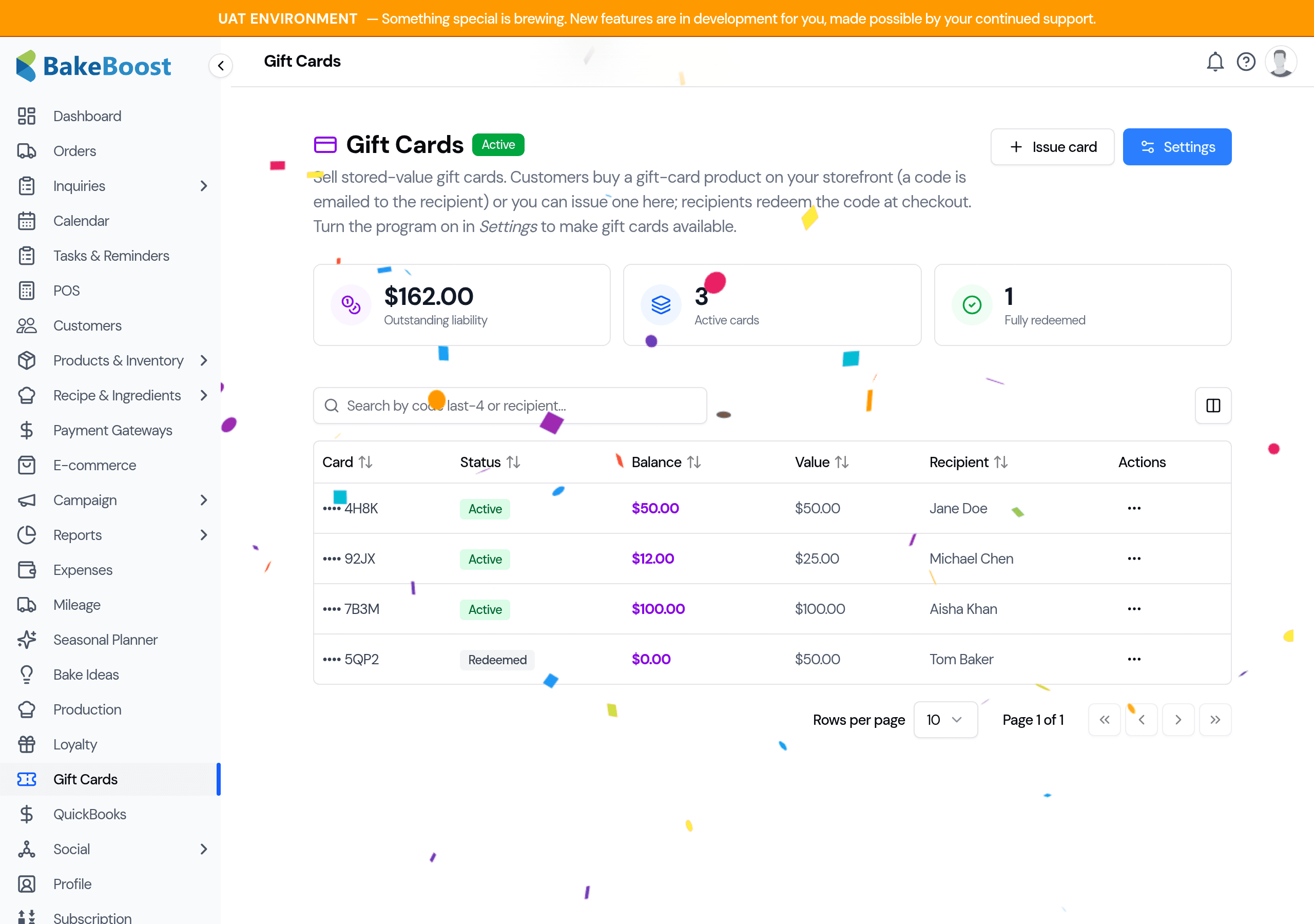
Use the search box to find a card by its last four characters or the recipient's email. Click Manage on a card to:
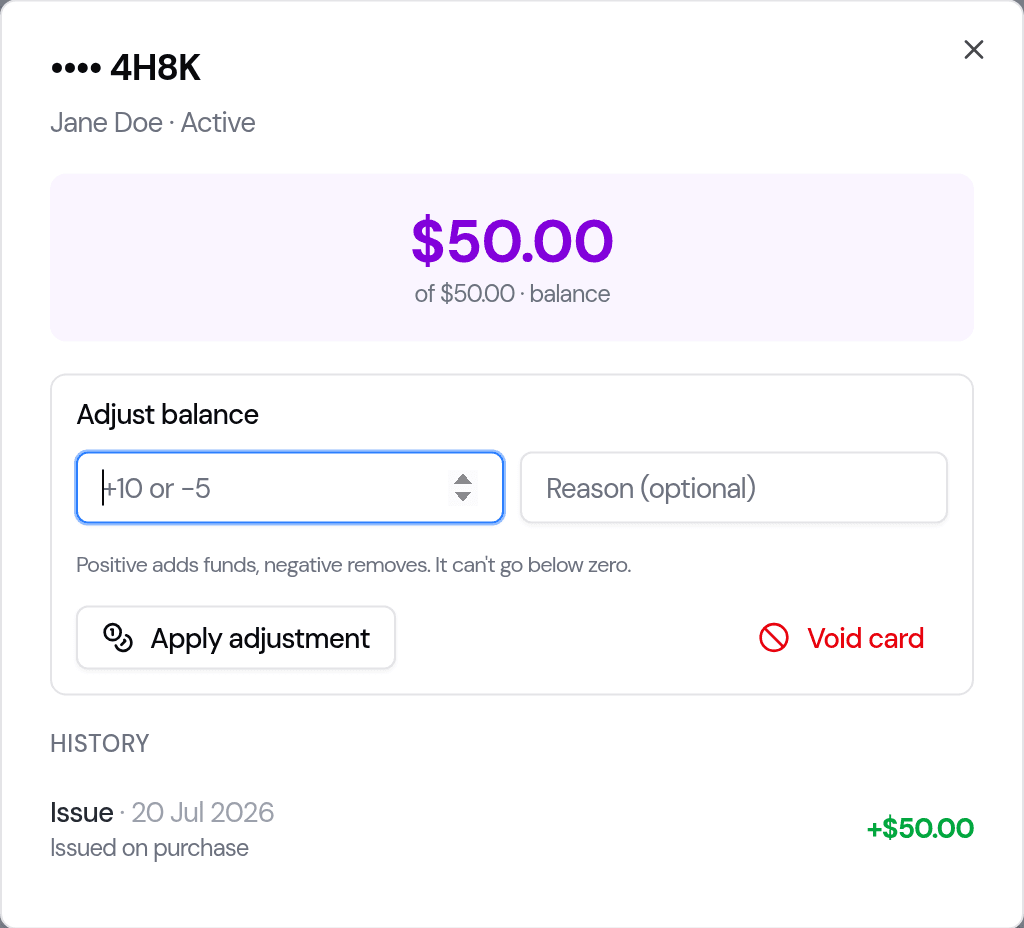
- See its current balance, original value, status and full history (issued, redeemed, adjusted, voided).
- Adjust the balance — add funds (for example to top a card up) or remove them. You can't take a card below zero.
- Void a card — this zeroes the balance and stops it being used.
Issue a card by hand
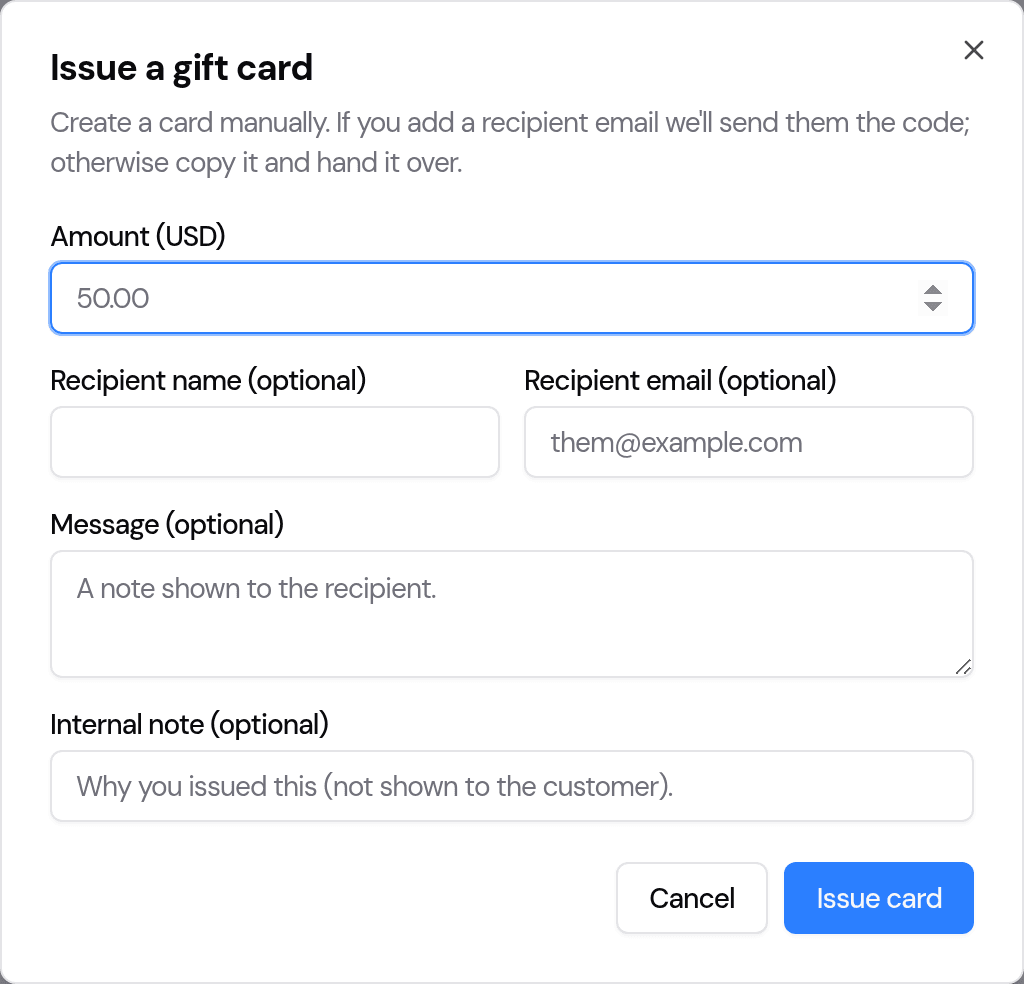
Need to give a card directly — a physical card, a phone order, or a goodwill gesture? Click Issue card, enter an amount and (optionally) the recipient's name, email and a message, then Issue card. The code is shown once so you can copy it and hand it over; if you added an email, we send it to the recipient too.
Good to know
- Gift cards are Pro, and off until you enable them. Turning them on only affects your own store.
- The price is the value. A product priced at 50 is a $50 card.
- Balances carry over. Part-spent cards keep their remaining balance until it's used or the card expires.
- Buying a gift card isn't taxed or counted as a sale — that happens when it's redeemed, so your books stay accurate.
- Sell gift cards on their own. For now a gift card is bought in its own order, not mixed in a cart with cakes.
- "Vouchers" are your existing Coupons. If you want to give a discount rather than sell stored value, use Coupons — gift cards are prepaid money, coupons are money off.
Last updated July 20, 2026