
How do I refund a customer?
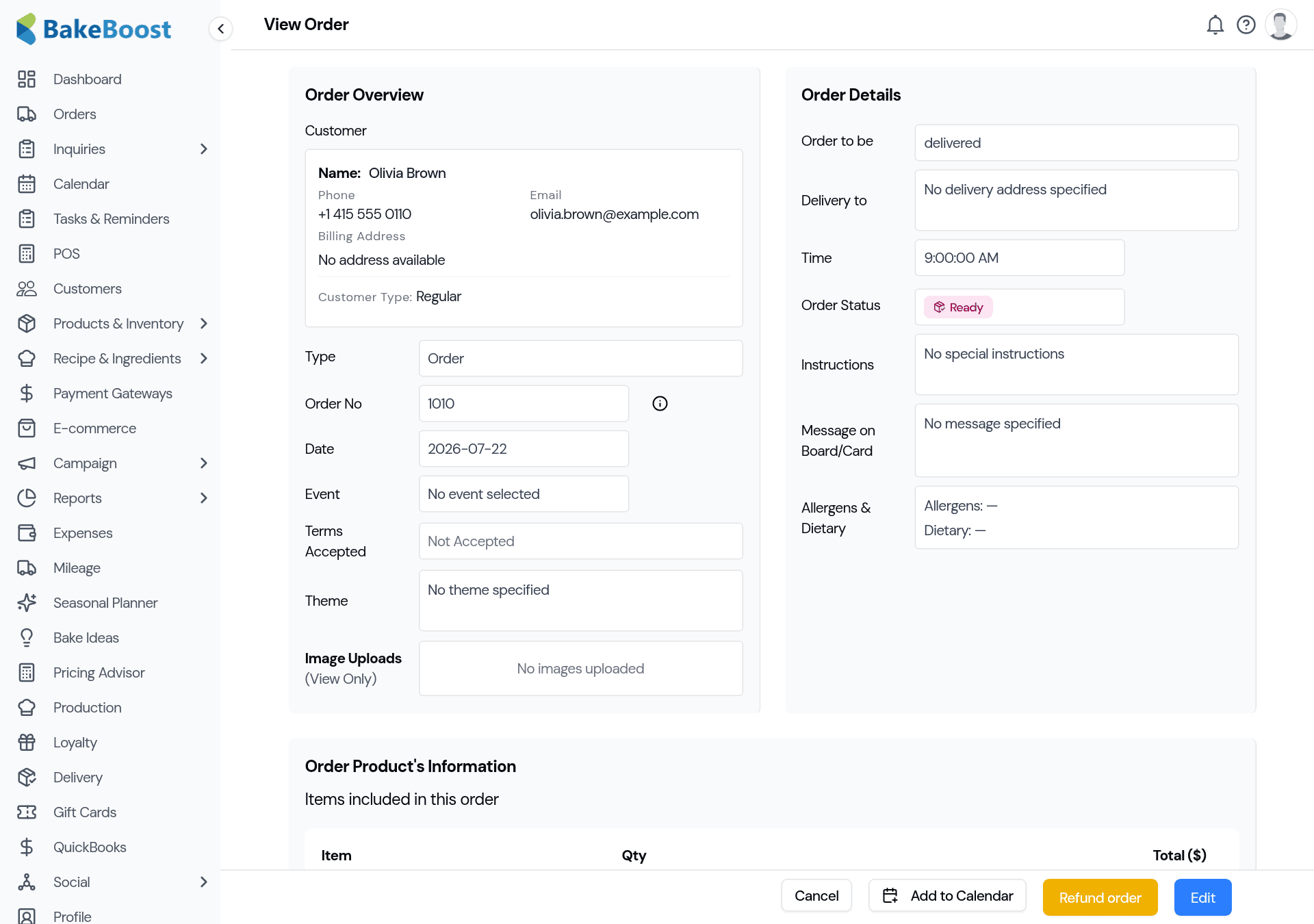
1. Open the order and choose Refund
Open the order you need to refund and use the Refund action. A refund window opens showing the order's products.
2. Pick what to refund
For a full refund, select everything. For a partial refund, tick only the items — and adjust the quantities — you're giving back. The refund total updates as you go, so you can see exactly what the customer will be owed.
3. Add a reason and a mode
Record why you're refunding (the customer's request and your own note), and choose the refund mode — cash, bank transfer or mobile wallet — so your records show how the money went back. Confirm to save.
4. Actually return the money
This is the step people miss. Bake Boost records the refund against the order; it does not reverse the original card payment. So:
- Paid by card (Stripe/Square/PayPal)? Issue the refund in that provider's dashboard for the same amount. That's what moves the money back to the customer.
- Paid by cash or transfer? Hand it back or send the transfer, then record it here.
Once done, the order shows as Refunded and is excluded from your sales, revenue and tax totals, so your reports stay accurate.
Good to know
- Bake Boost records; your gateway reverses. Always refund the card in Stripe or Square as well — recording it here alone does not return the customer's money.
- Partial refunds are supported. Refund individual items or quantities, not just the whole order.
- Refunded orders leave your revenue. They're kept out of sales and tax reporting once marked Refunded.
- The reason is saved. Keep a note of why — useful for your own records and any dispute.
Related questions
- How do I refund a customer in Bakeboost?
- Open the order, choose Refund, select which items and how much to refund, add a reason and a refund mode (cash, bank transfer or mobile wallet), then confirm. The order is marked Refunded.
- Does Bakeboost refund the card automatically?
- No. Bakeboost records the refund for your books but does not reverse the card charge. If the customer paid by card, also issue the refund in Stripe, Square or PayPal for the same amount — that's what returns their money.
- Can I give a partial refund?
- Yes. In the refund window you can select individual items and adjust quantities, and the refund total updates as you go — so you can refund part of an order rather than all of it.
- What happens to the order after a refund?
- It's marked Refunded and excluded from your sales, revenue and tax totals, so your reports stay accurate. The reason you entered is saved with the order.
Last updated August 5, 2026