
How do I take a deposit and get the balance paid?
1. Record a deposit on the order
Open the order and find the Scheduled Payments section. Use Add Payment to record what's been paid:
- Choose the type (Booking Fee, Partial Payment or Final Payment), enter the amount, the date, and how it was paid — cash, card, bank transfer or cheque.
- The payment is recorded straight away and the outstanding balance updates itself (order total minus everything paid).
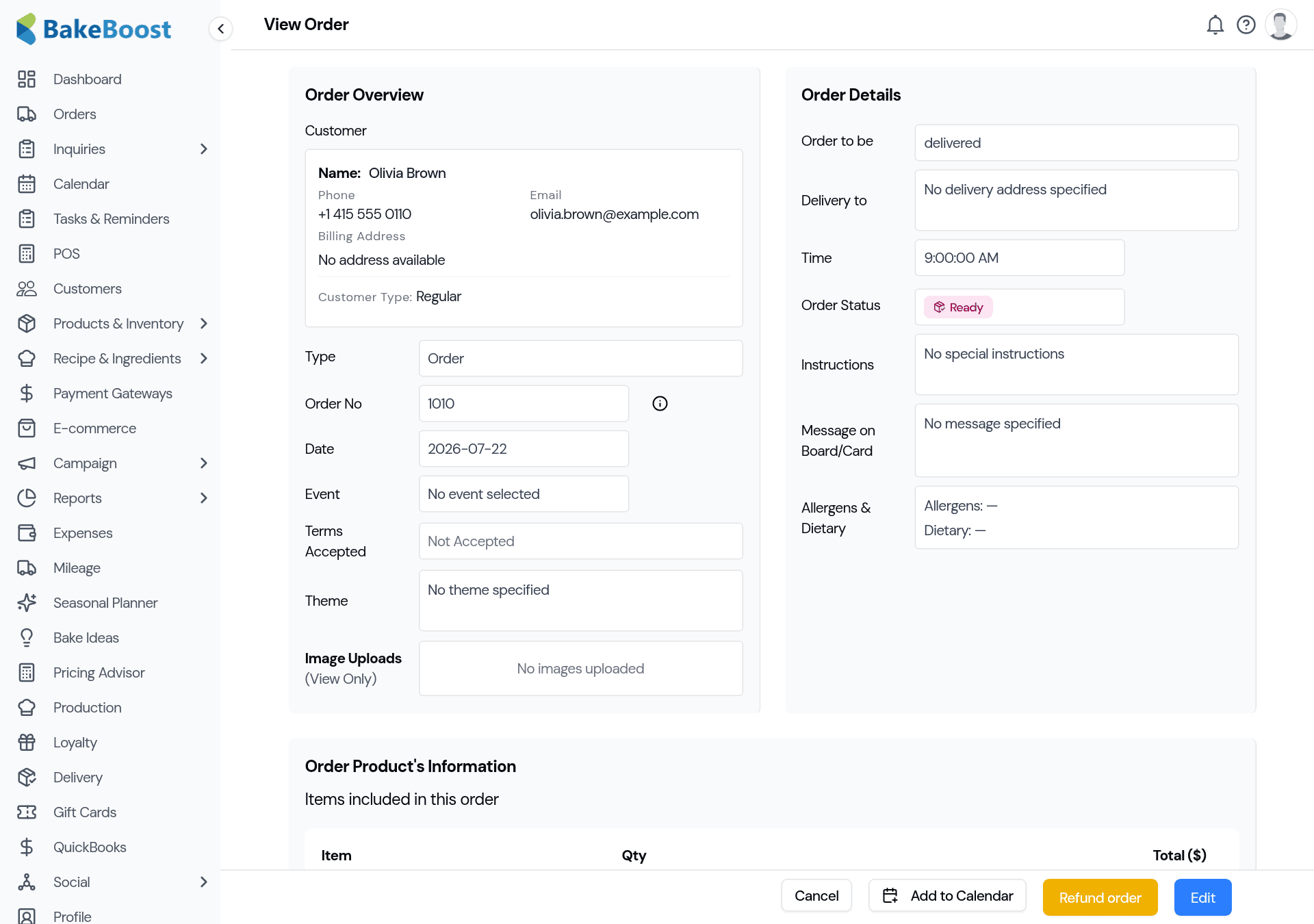
You don't need a payment gateway to record a cash or bank-transfer deposit — just log it here and the balance keeps itself right.
2. Let Bake Boost chase the balance for you
Instead of setting reminders yourself, turn on Automated Order Workflows (a Growth feature) under Settings → Orders. Set your terms once and every new order follows them:
- Choose your deposit (for example 25% or 50%) and when the balance is due (say 7 days before the event). Bake Boost creates the deposit and balance schedule automatically.
- It then sends timed emails on your behalf: a deposit request, an optional deposit reminder if it's still unpaid, a balance reminder before the event, a delivery/pickup confirmation, and a thank-you.
- Reminders are smart — the deposit and balance reminders skip automatically once that payment is in, so nobody gets chased for money they've already paid.
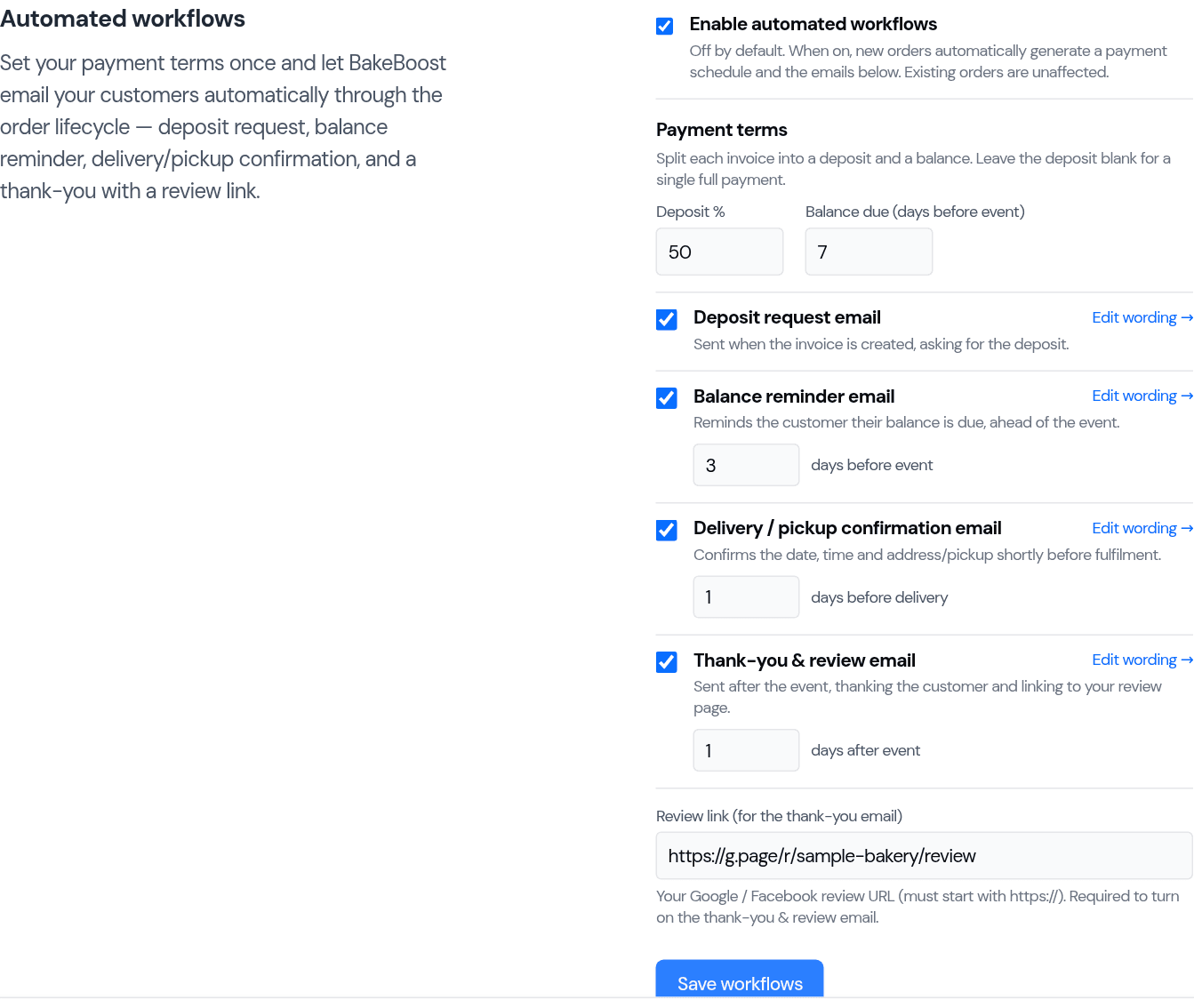
Full setup is in Automated order workflows.
3. Let customers pay online
Connect Stripe or Square and your customers can pay the deposit or balance by card:
- Send the invoice from the order (the Scheduled Payments section has an Email action). The email includes a secure link to a page where the customer pays online.
- The money goes straight to your own Stripe or Square account — Bake Boost never holds your takings.
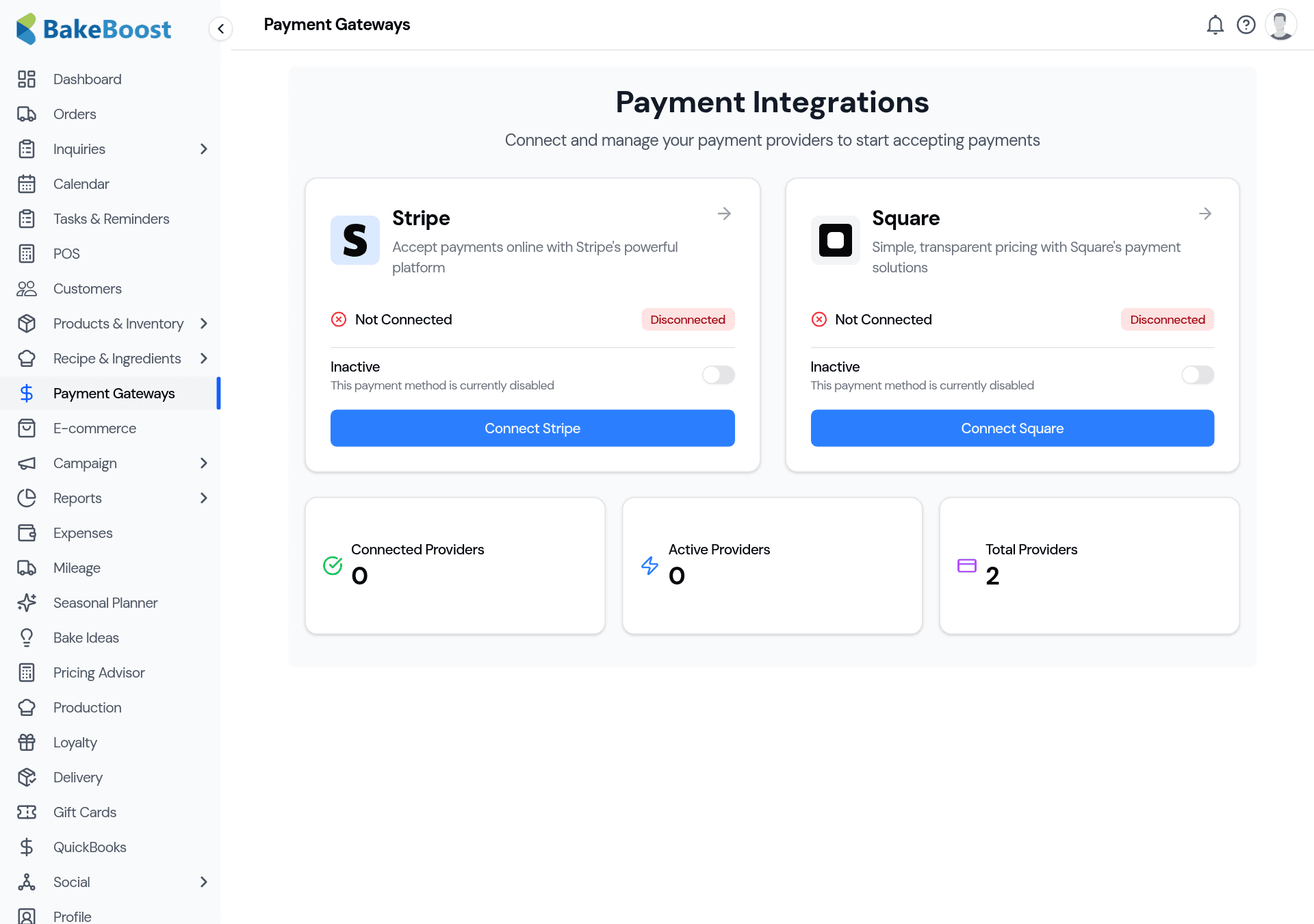
No gateway connected? You can still send the invoice and record the payment manually when it lands (step 1). See Connecting a payment gateway and Which payment gateway works in my country?.
4. Keep the balance up to date
- Every payment you record — deposit, part payment or final balance — reduces the outstanding amount on the order.
- Record payments as they come in (or confirm online ones) so the balance always reflects reality, and your reports and cash flow stay accurate.
Good to know
- A deposit locks in the booking. Record it against the order and the balance tracks itself.
- Set your terms once. Automated Workflows apply your deposit split and reminders to every new order.
- Reminders stop when paid. No customer is chased for money they've already sent.
- Online or manual, your choice. Take card payments through a connected gateway, or log cash and transfers by hand — no gateway required.
- The money is yours, directly. Card payments land in your own Stripe/Square account.
Related questions
- How much deposit should I take for a cake order?
- Many bakers take 25–50% up front to lock in the booking, with the balance due before the event. Set your standard split once in Automated Order Workflows and it applies to every new order.
- Can customers pay a deposit online?
- Yes. Connect Stripe or Square, then send the invoice — it includes a secure link where the customer pays the deposit or balance by card, straight into your own account.
- Does Bakeboost chase unpaid balances automatically?
- Yes, with Automated Order Workflows on. It sends a deposit request, an optional deposit reminder, and a balance reminder before the event — and each reminder stops automatically once that payment is in.
- Do I need a payment gateway to take a deposit?
- No. You can record a cash or bank-transfer deposit against the order by hand and the balance updates itself. A gateway is only needed if you want customers to pay online by card.
Last updated August 4, 2026