
Import customers from Bake Diary
1. Export your customers from Bake Diary
In Bake Diary:
- Go to Customers.
- Click Export → CSV.
- Save the file somewhere you'll find it again (Downloads, Desktop).
You should end up with a file named something like customers.csv whose first row looks roughly like:
First Name,Last Name,Email Address,Mobile,Category,Notes
You don't need to rename anything. Bake Boost knows about Bake Diary's column names.
2. Open the importer in Bake Boost
Sign in to Bake Boost, go to Customers in the sidebar, and click the Import customers button in the top-right toolbar.
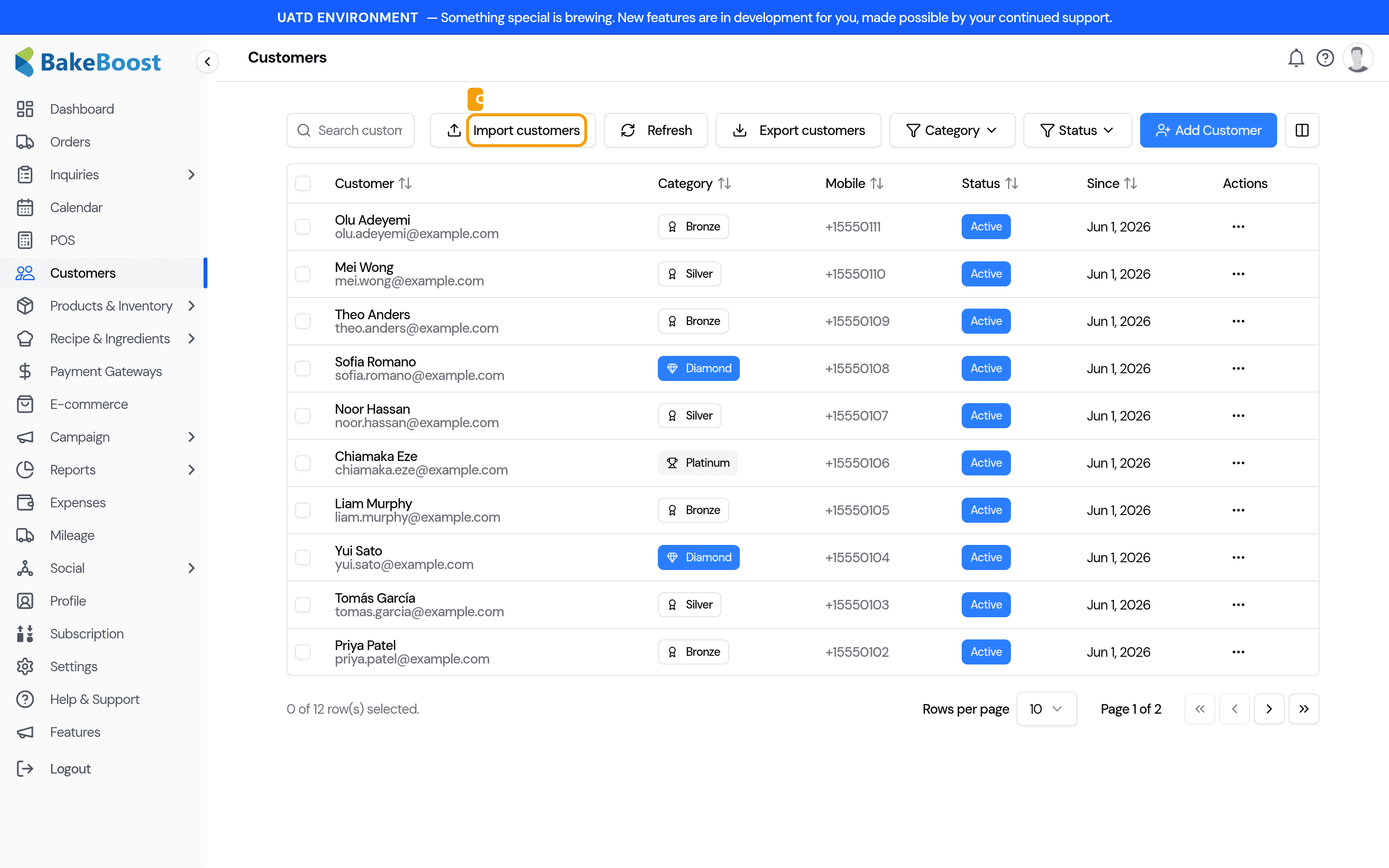
3. Pick the source format and drop your file in
The Import dialog walks you through four steps shown at the top: Choose file → Match columns → Review → Done.
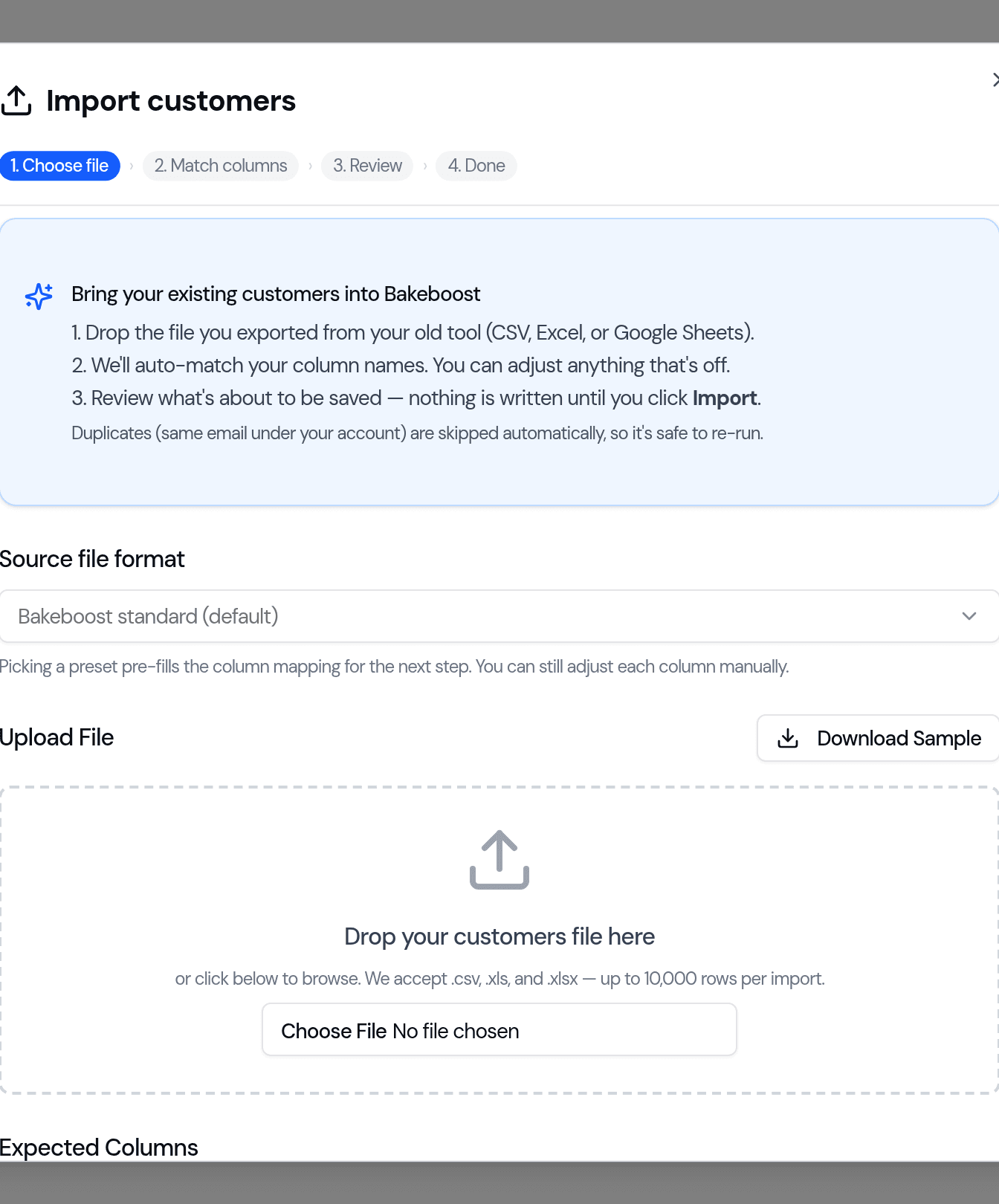
Under Source file format, pick Bake Diary export. This pre-fills the column mapping so Bake Boost knows which column in your file feeds each field.
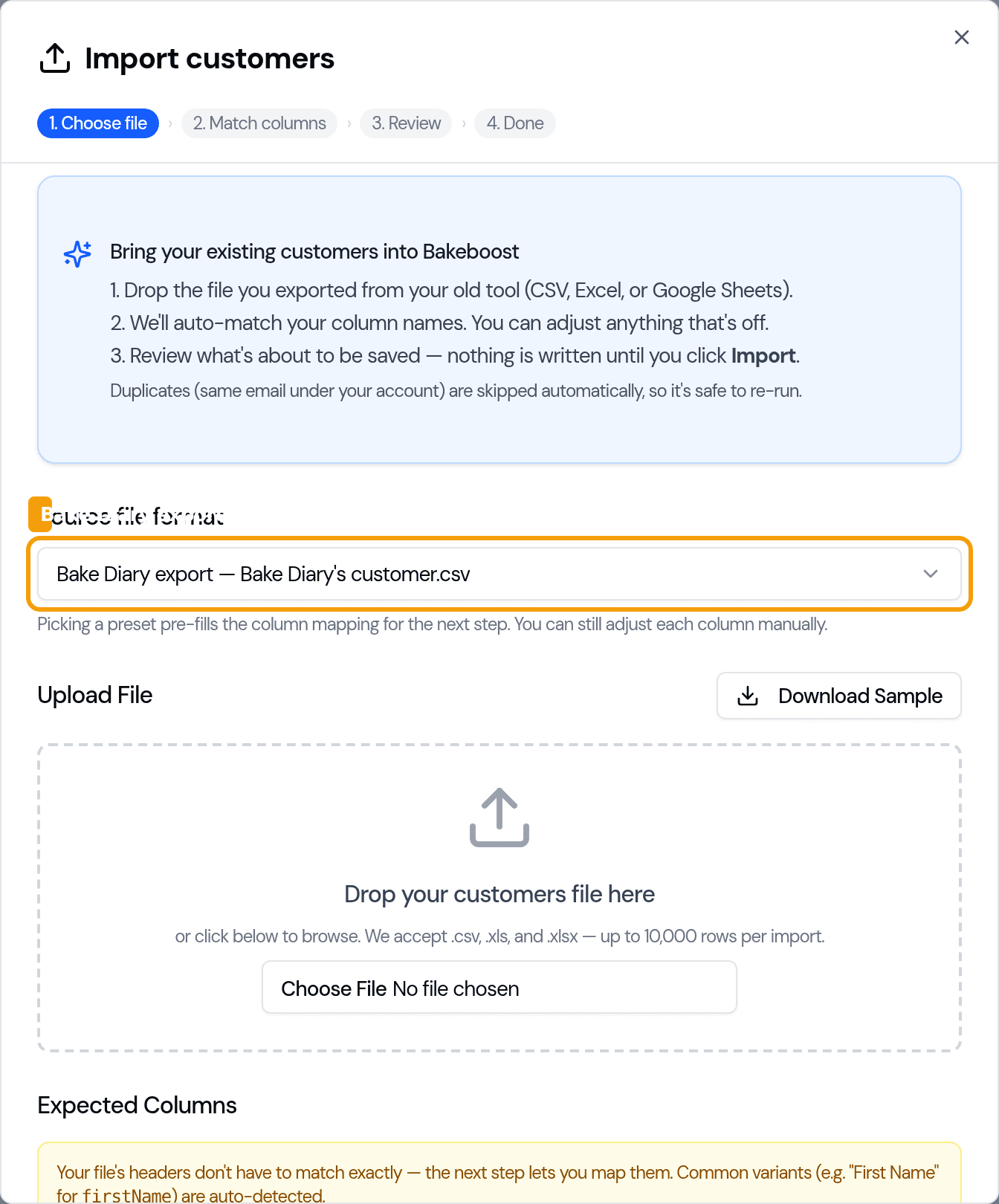
Then drop your CSV into the Upload File area, or click the file picker to browse. Bake Boost accepts .csv, .xls, and .xlsx files, up to 10,000 rows per import.
4. (Only if needed) Match your columns
If your file's headers match (or look close to) the standard Bake Diary export, Bake Boost auto-matches every column and jumps straight to the Review step. You won't see the Match columns step at all.
If a column wasn't auto-detected — for example, if your file uses unusual header names — Bake Boost shows the Match columns step. For each Bake Boost field on the left, pick the column from your file on the right. First Name is required; everything else is optional. Leave fields without a match on Don't import.
Click Continue to preview once required fields are mapped.
5. Review what's about to be saved
Bake Boost shows the first 10 rows it's about to import. Sanity-check that:
- Names look right.
- Email addresses are in the email column (not shifted).
- Phone numbers aren't in the wrong column (a common Excel paste bug).
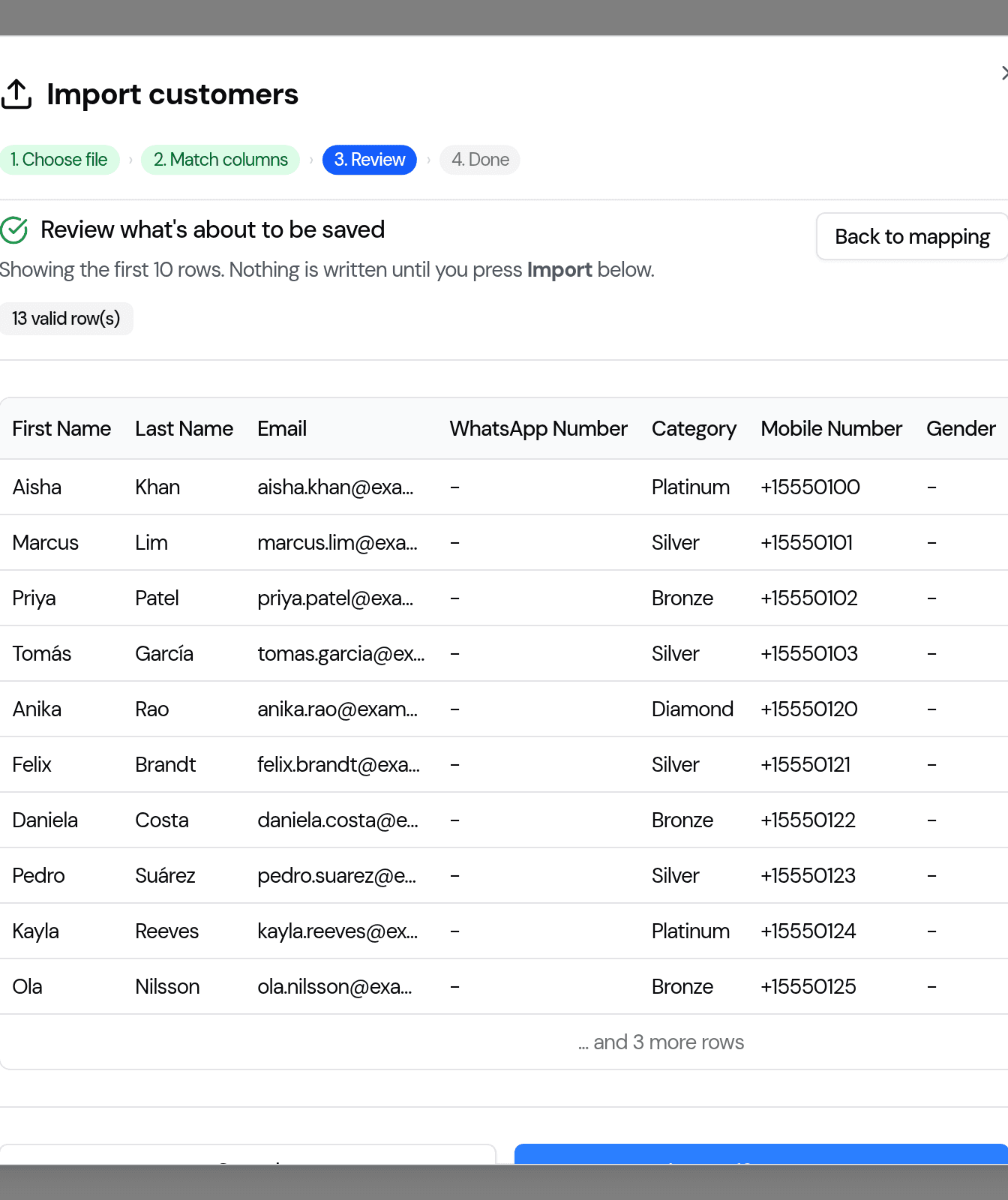
Nothing is written until you press Import. If something's off, click Back to mapping, adjust, and re-preview — the file in memory doesn't need to be re-uploaded.
6. Review the result
After the import runs you'll see a result panel with three counts:
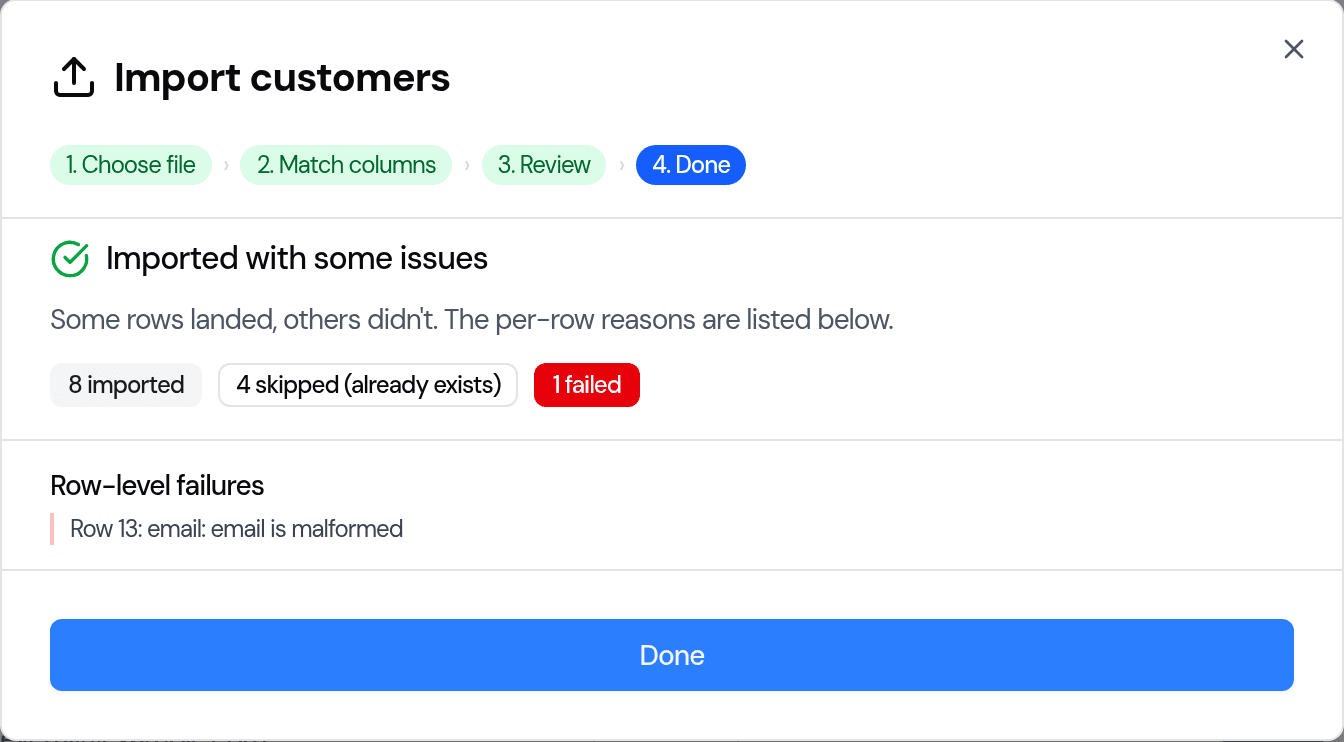
- Imported — new customers successfully created.
- Skipped (already exists) — a customer with that email is already in your account. Bake Boost left it alone.
- Failed — Bake Boost rejected the row. The exact reason is listed per row (most commonly an empty First Name or a malformed email).
If any rows failed, fix them in your CSV and re-run. The successful rows will be skipped as duplicates on the second pass, so you won't get double entries.
Click Done to close the dialog. The customer list refreshes automatically.
What gets created behind the scenes
For each imported customer, Bake Boost:
- Creates a customer record with the fields you mapped.
- Combines First Name + Last Name into the full name field so search and the list view work correctly.
- If the customer has an email, adds them to your default All Customers list — they'll appear in email campaign audiences immediately.
Imports are capped at 10,000 rows per run. Larger files should be split in two.
Troubleshooting
| Symptom | Likely cause | Fix |
|---|---|---|
| "firstName is required" on every row | The First Name column in your file is empty or wasn't mapped | In the Match columns step, confirm First Name points at the right column from your file |
| "email is malformed" on one row | A cell contains something that isn't an email (e.g. a phone number pasted into the email column) | Fix in the CSV and re-import. Already-good rows will be skipped as duplicates |
| "Skipped (already exists)" count is non-zero on a fresh account | You ran the import twice, or your file has the same email more than once | Expected. The skip prevents double entries |
| Imported customer doesn't appear in the customer list | Refresh the page. The list re-fetches on next navigation | If still missing, contact support and include the customer's email |
| "Import is capped at 10,000 rows" | Your file is bigger than the per-run cap | Split the CSV in two and import each half |
What's not (yet) supported
- Order import. Multiple bakers have asked. Tracked separately because orders carry products and payments that need their own handling.
- Recipe import.
- Ingredient import.
- Updating existing customers in bulk. Today the importer only creates; updating by email match is a future enhancement.
Last updated June 1, 2026