
Inquiries: from enquiry to order
The big picture
An inquiry is a customer's request for a custom cake. In Bake Boost it moves through a simple journey:
Customer enquires → you review & reply → (optional) back-and-forth → convert to an order or quote.
Every step keeps the customer in the loop by email, and nothing has to be re-typed when you convert — the event details, servings, budget, allergens, products and notes all carry across.
1. How inquiries arrive
Inquiries reach you two ways:
- From your storefront — a customer fills in your online enquiry form. They get an instant "we've received your inquiry" acknowledgement email, and you get a notification.
- You add one yourself — click Create Inquiry (top-right of the Inquiries list) when a request comes in by phone, WhatsApp, or in person.
Each new inquiry gets a friendly reference number — Inquiry #1001, #1002, and so on.
2. The Inquiries list
Go to Inquiries → All Inquiries in the sidebar. Every request is here, with its customer, event, date, and current status.
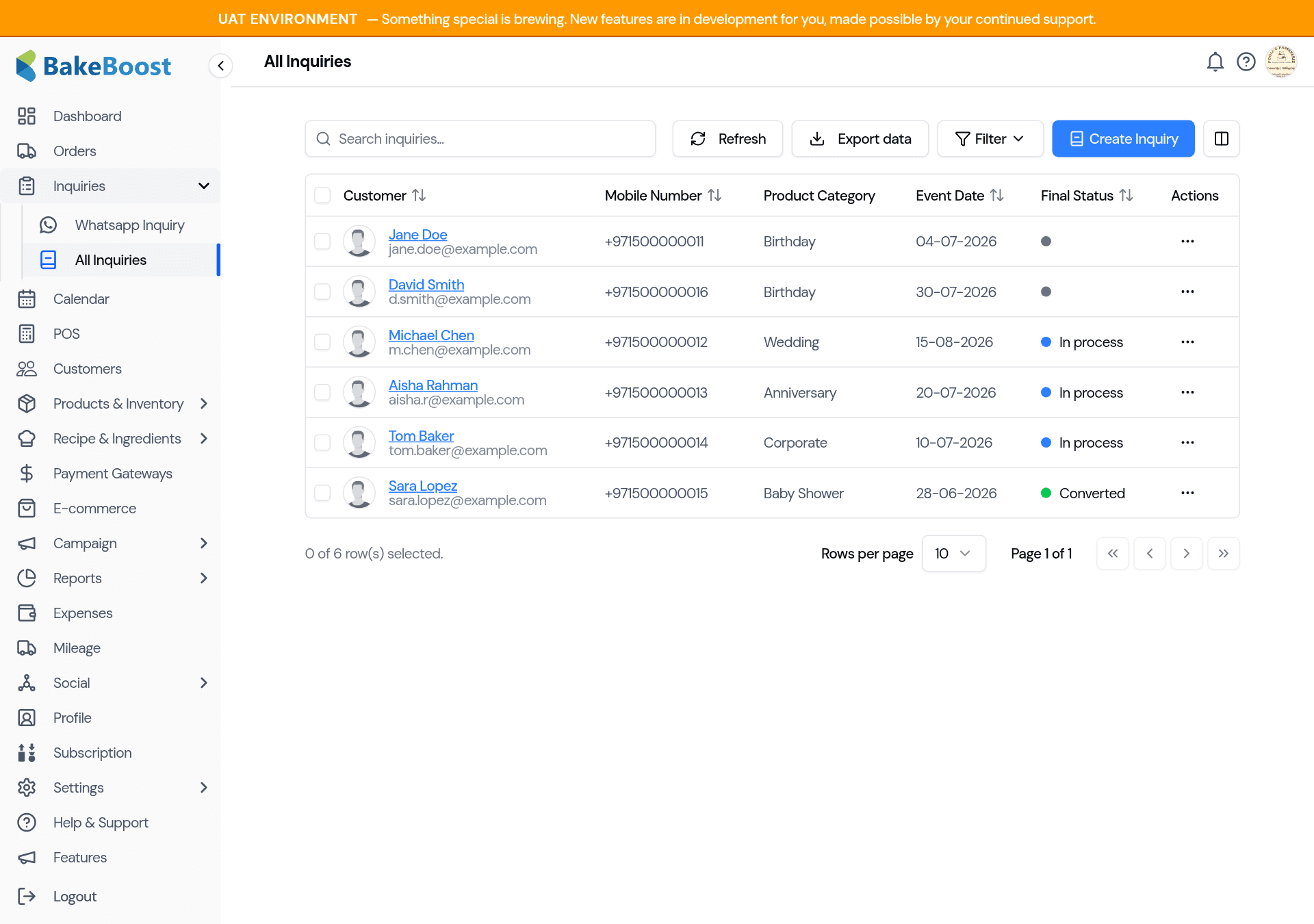
The Final Status dot tells you where each one stands at a glance:
| Status | Meaning |
|---|---|
| New (grey) | Just arrived, not yet reviewed |
| In process (blue) | You've accepted it or are waiting on the customer |
| Converted (green) | Turned into an order or quote |
| Lost (red) | Declined or didn't go ahead |
3. Reviewing an inquiry
Click a customer's name to open the inquiry. You'll see everything they sent — customer details, the event, servings, theme, budget, any products and dietary needs.
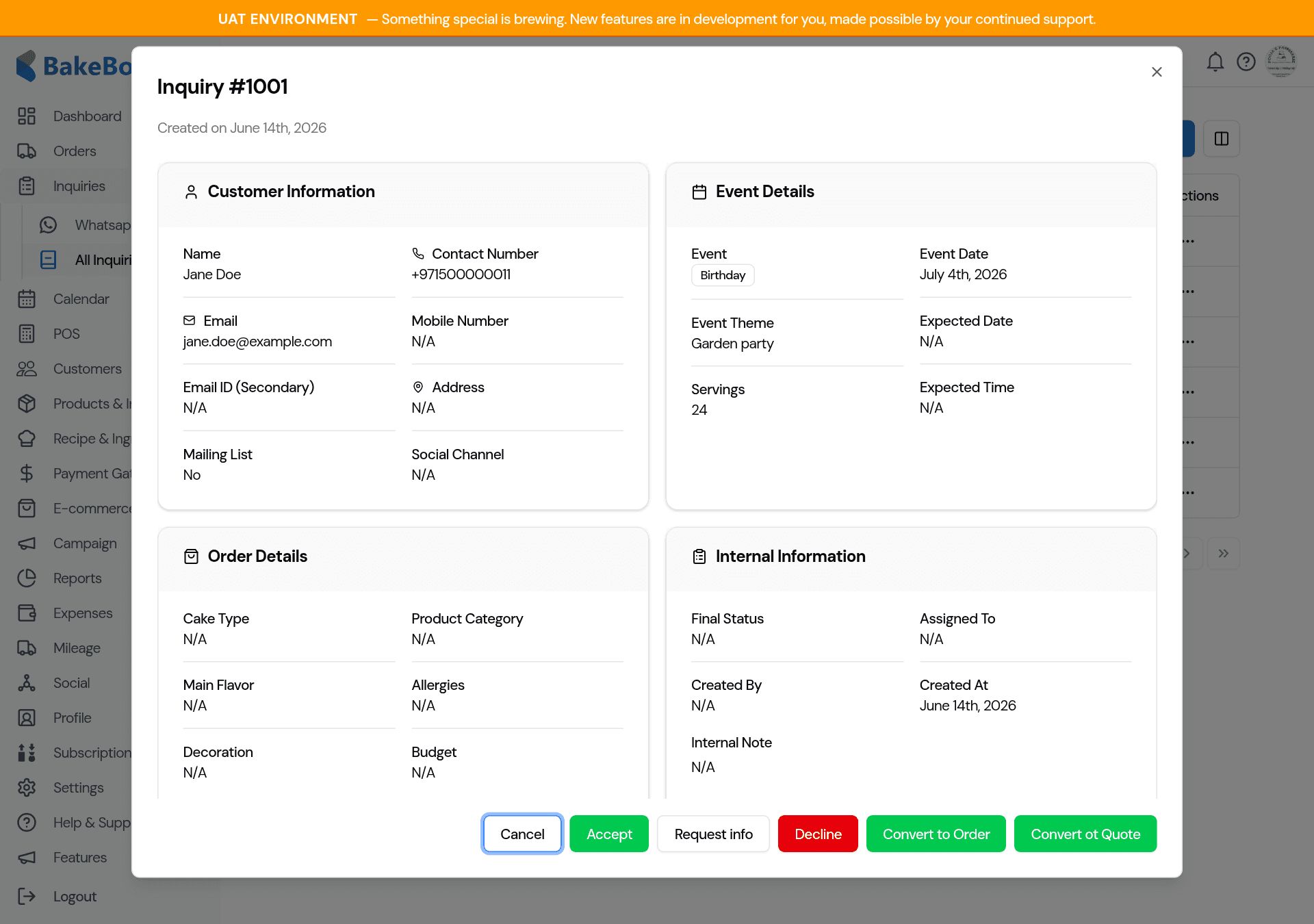
Along the bottom are your actions: Accept, Request info, Decline, Convert to Order, and Convert to Quote.
4. Accept, Decline, or ask a question
- Accept — lets the customer know you'd love to take it on. Status becomes In process.
- Decline — politely lets them know you can't this time. You can add a reason, which is included in the email.
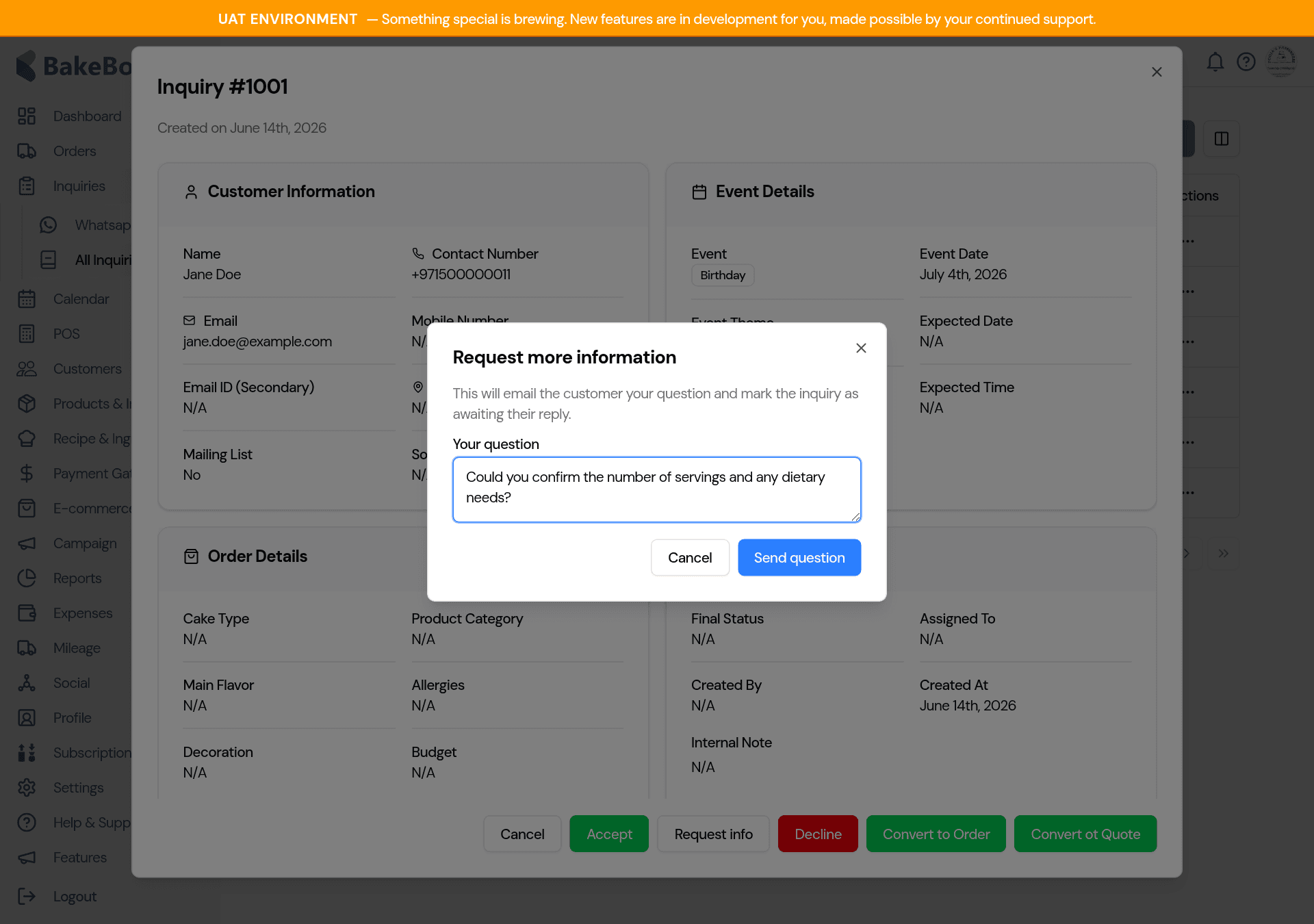
- Request info — ask the customer a question (e.g. servings, flavours, dietary needs). They get an email with your question and a link to reply.
Each action shows a quick confirmation so you never email a customer by accident:
5. Two-way replies from the customer
When you use Request info, the customer's email includes a Reply button. They click it and answer right on a simple page — no login, no account needed.
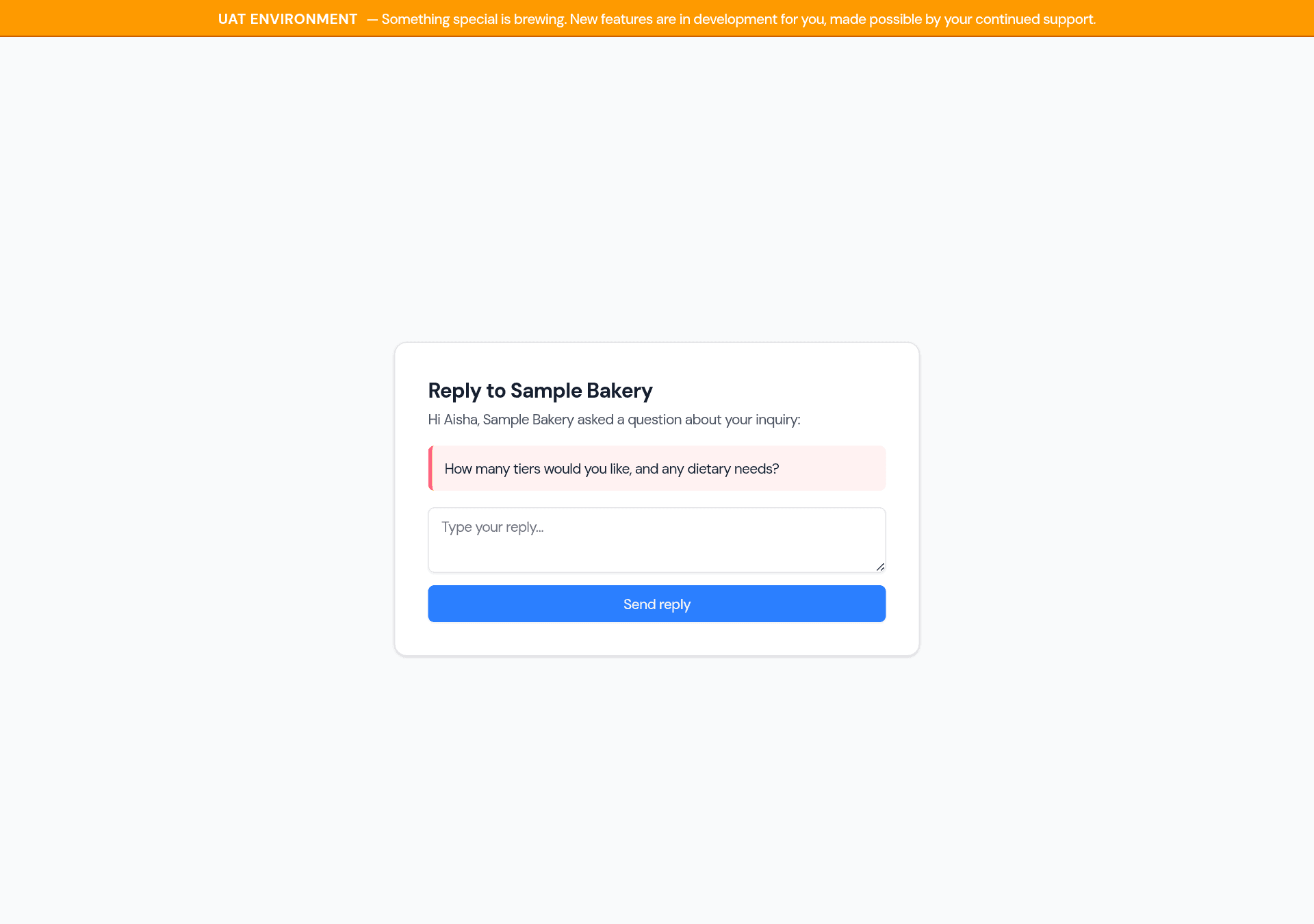
Their answer comes straight back onto the inquiry's activity log, and you get an email letting you know they replied. No more lost email threads.
6. Customising the emails customers receive
Every email above can be written in your own voice. Go to Settings → Email templates.
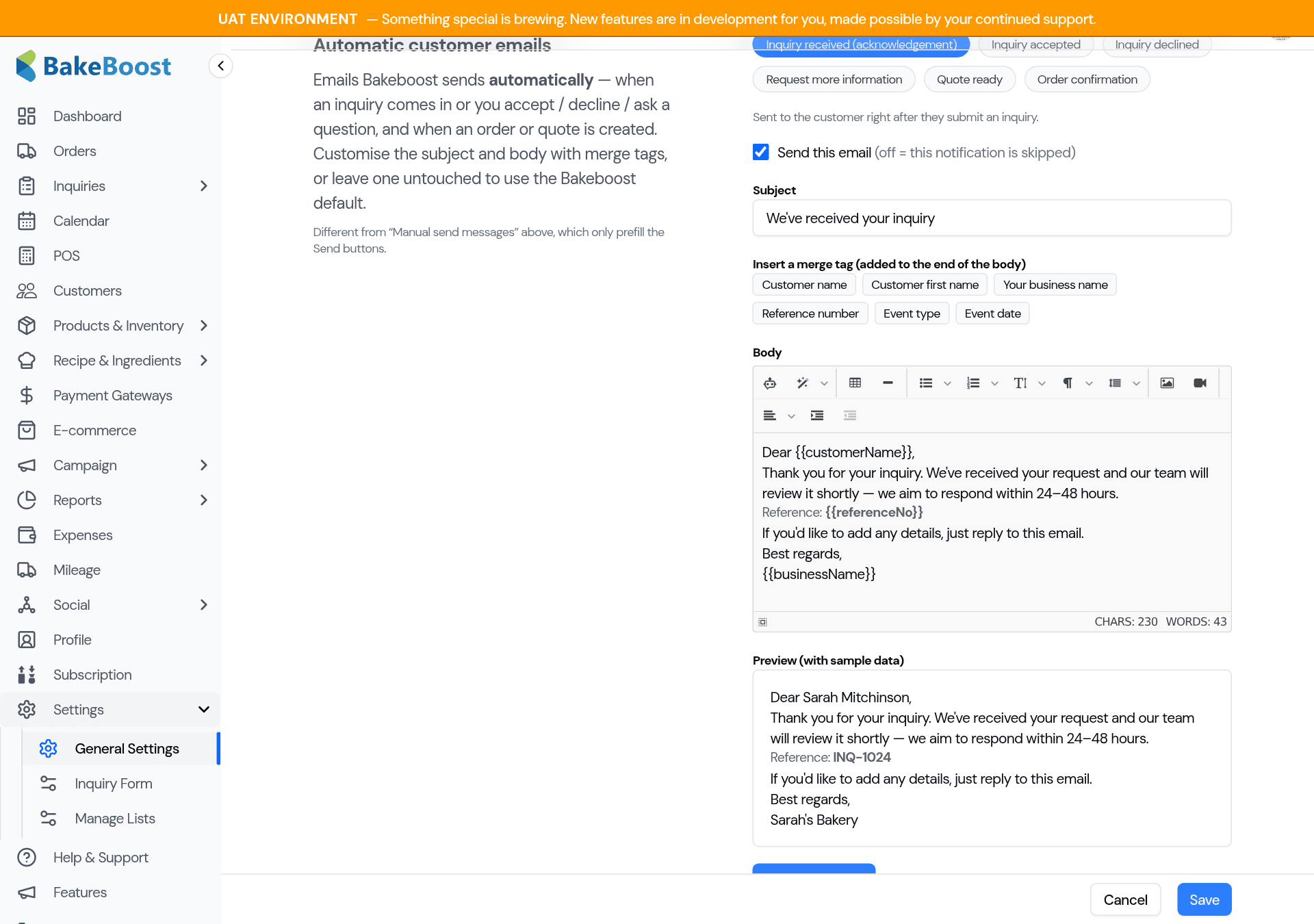
There are two sets of email settings, and they do different jobs:
- Automatic customer emails — the messages Bake Boost sends on its own (inquiry received, accepted, declined, your question, quote ready, order confirmation). Pick a template, edit the subject and body, drop in merge tags like
{{customerName}}or{{businessName}}, see a live preview, and Save. Leave one untouched to use the Bake Boost default. The on/off switch lets you skip an email entirely. - Manual send messages — the text that pre-fills when you click Send Invoice, Send Quote, or Send Receipt on an order.
7. Turning an inquiry into an order or quote
When you're ready, open the inquiry and click Convert to Order or Convert to Quote.
Bake Boost carries everything across so you don't re-type a thing:
- Customer and contact details
- Event type, date, theme, servings and budget
- Any requested products
- Allergens and dietary requirements
- The cake spec and notes
The delivery date is read from the event date, allergens appear on the kitchen job sheet, and the inquiry is marked Converted with a link to the new order. The customer gets an order-confirmation (or quote-ready) email — which you can customise just like the others above.
Status reference
| In the inquiry | What it means |
|---|---|
| New | Received, awaiting your review |
| Accepted | You accepted; customer notified |
| Awaiting customer | You asked a question; waiting on their reply |
| Replied | The customer answered your question |
| Converted | Now an order or quote |
| Declined | You let the customer know it's not possible this time |
Tips
- Use Request info instead of emailing separately — the reply lands back on the inquiry, so the whole conversation stays in one place.
- Set up your email templates once, in your own wording, and every customer gets a consistent, on-brand message.
- Convert from the inquiry (don't re-create the order manually) so nothing is lost in re-typing.
Last updated June 14, 2026