
Block out closed dates
1. Mark the days you're closed
Go to Settings → General Settings and find these two panels:
- Blocked Order Dates — pick specific one-off days you're closed (e.g. Dec 25, a vacation week). Add an optional reason for your own reference, then click Block Date. Listed dates can be removed with the ✕.
- Order Receiving Days — your normal weekly schedule. Turn off any weekday you never take orders (e.g. closed every Sunday).
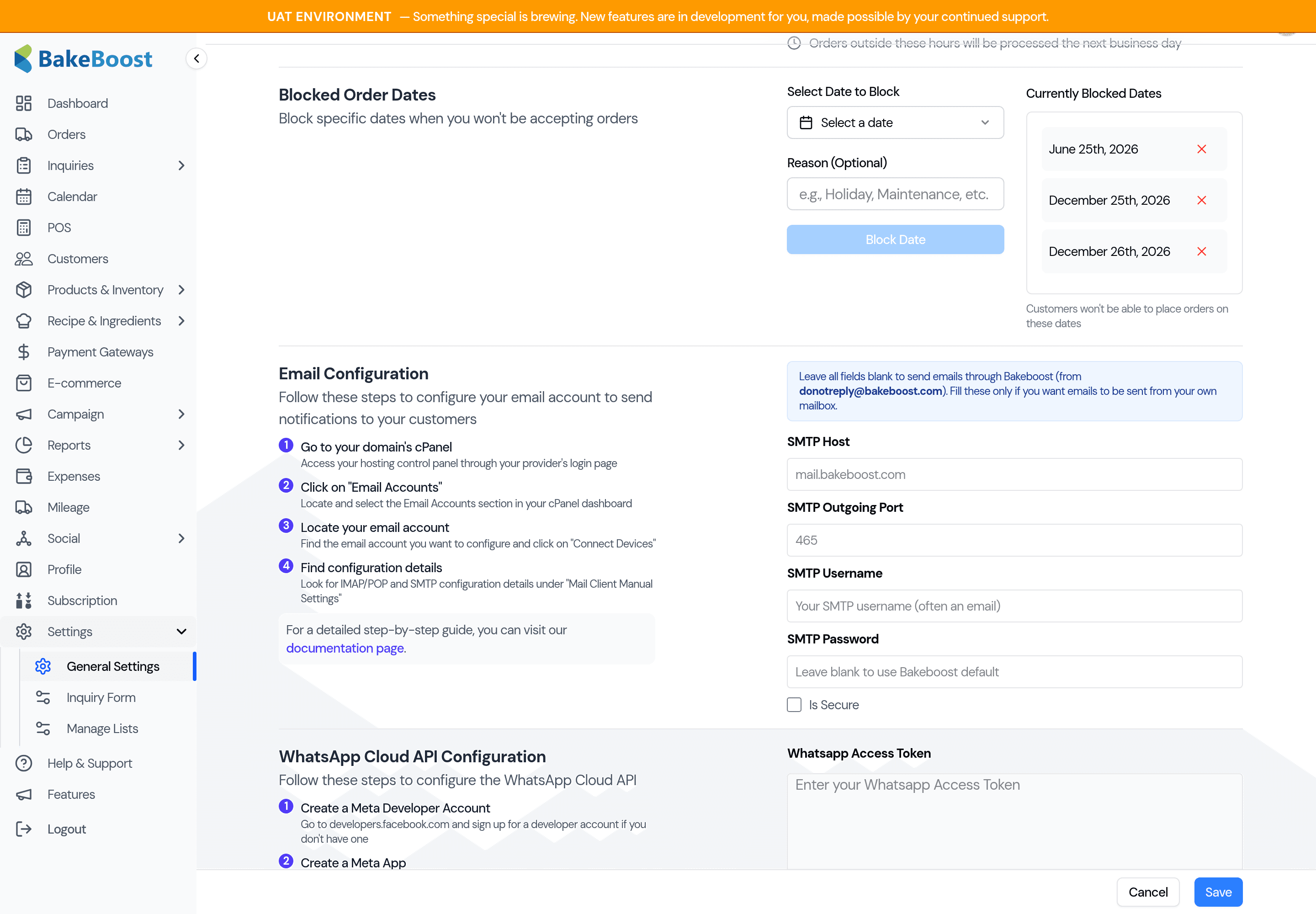
A day counts as closed if it's in your Blocked Order Dates or falls on a weekday you've switched off.
2. What your team sees when adding an order
When anyone picks a closed date as the delivery/collection date on an order, the date turns red with a warning, and Save is blocked:
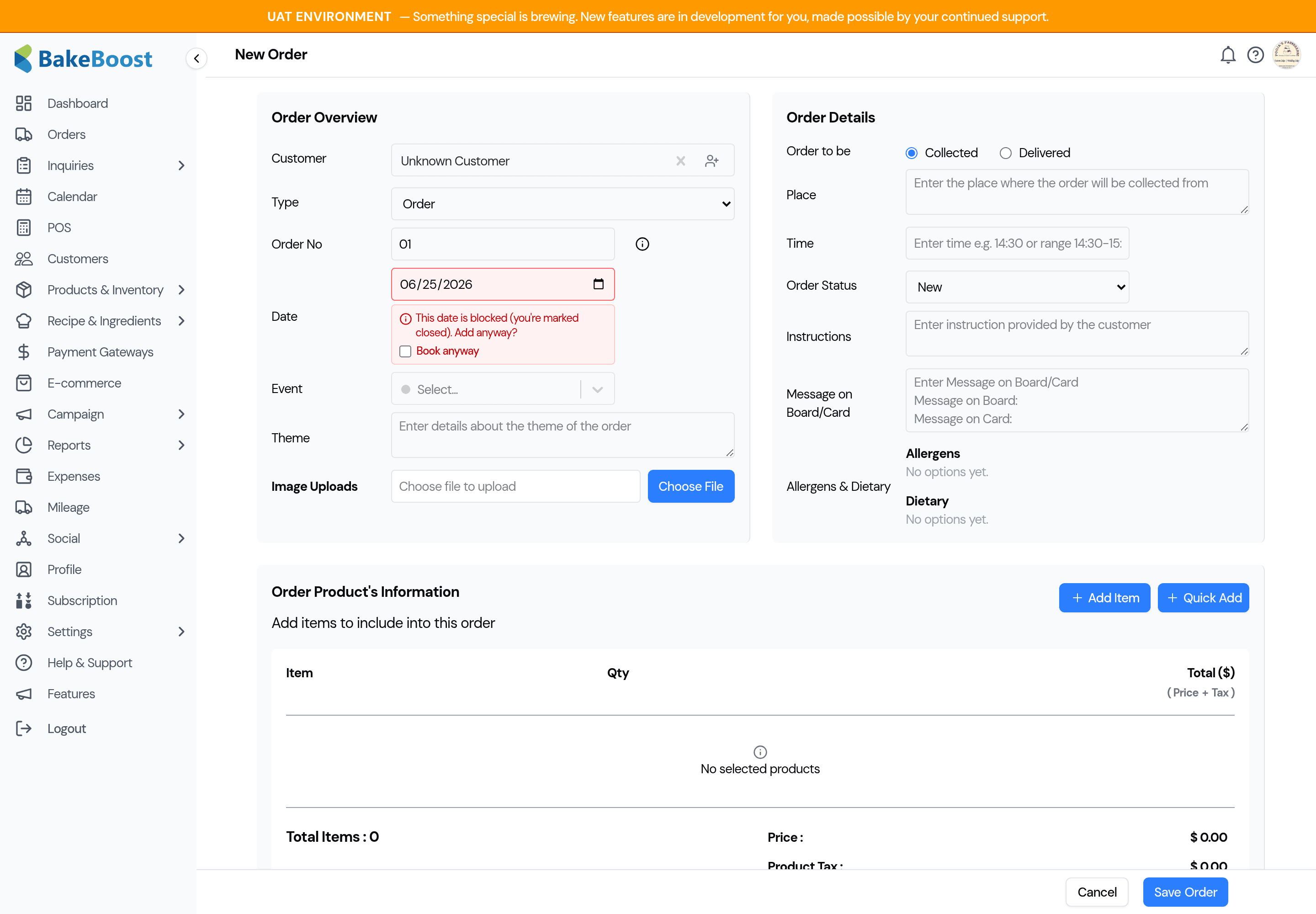
To proceed, either pick a different date, or tick Book anyway to take the order as a deliberate exception.
3. See closed days on the calendar
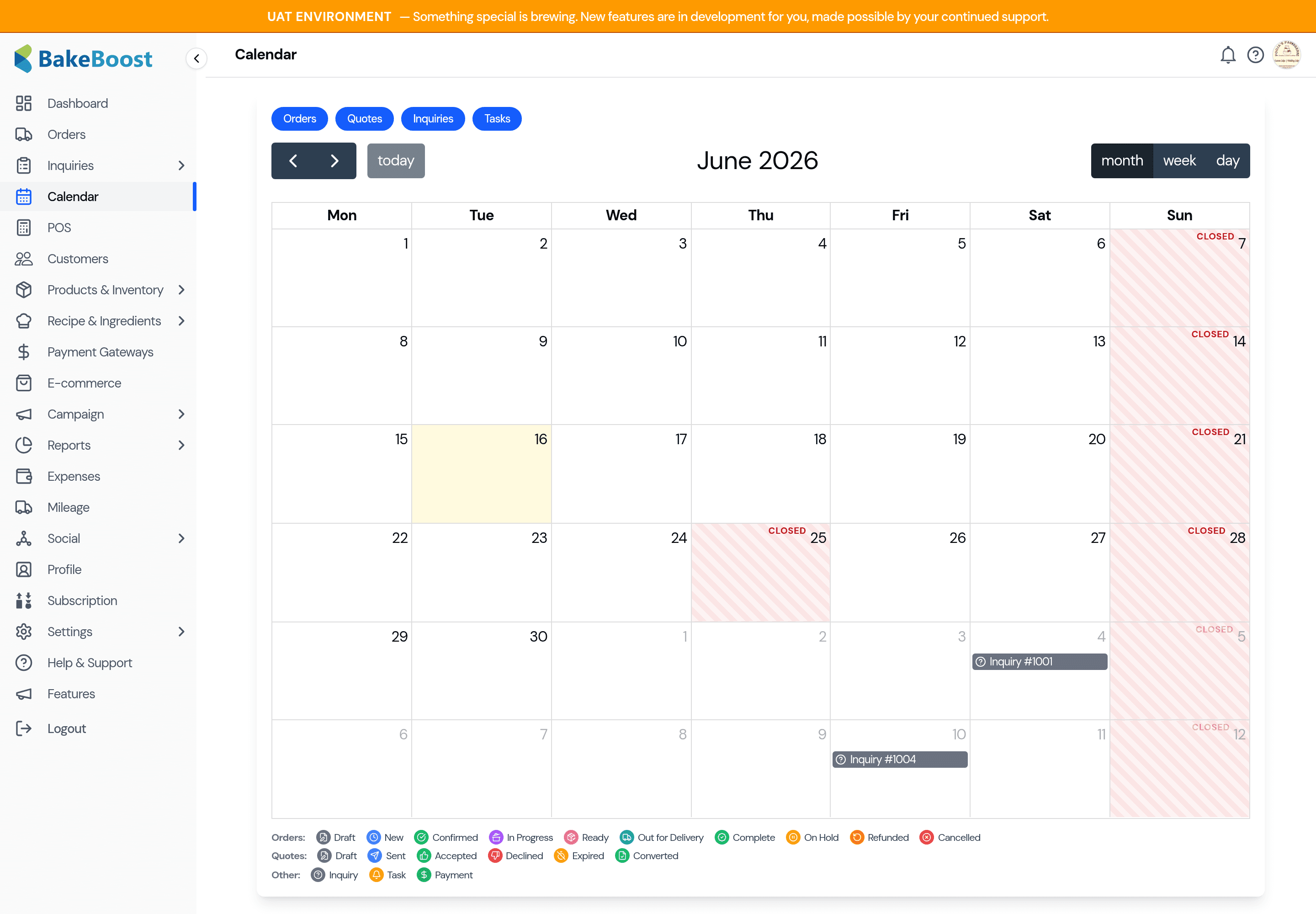
Open the Calendar. Closed days are shaded with a striped wash and a small Closed label, so the whole team can see at a glance which days are off before they start an order.
Good to know
- Where it applies: the warning and block are for your team's order entry (New Order / Edit Order). They prevent the accidental bookings this feature is for.
- What it doesn't change: POS (in-person counter sales) and online storefront orders are not blocked — being closed for bookings doesn't stop a walk-in or an existing online flow. Converting an inquiry or editing an existing order's other details (like payment) is never blocked either; you're only warned when you actually set the delivery date to a closed day.
- Always an escape hatch: Book anyway lets an owner take a genuine exception without un-blocking the date.
- No closed days set? Nothing changes anywhere until you add some — the feature stays out of the way.
- Time zones: closed days are matched to your bakery's calendar day, so they line up correctly regardless of where your staff are logging in from.
Last updated June 16, 2026