
Team and staff accounts
1. The three roles
Everyone on your team has a role that decides what they can do:
- Owner — you. Full access to everything, including billing and the team itself.
- Manager — runs day-to-day operations (orders, products, customers, and more) without access to owner-only areas.
- Staff — limited access for hands-on work, without the sensitive business settings.
This keeps your books and business settings private while letting the team get on with the work.
2. Invite a teammate
Go to Settings → Team. You'll see how many seats you're using and a list of your team.
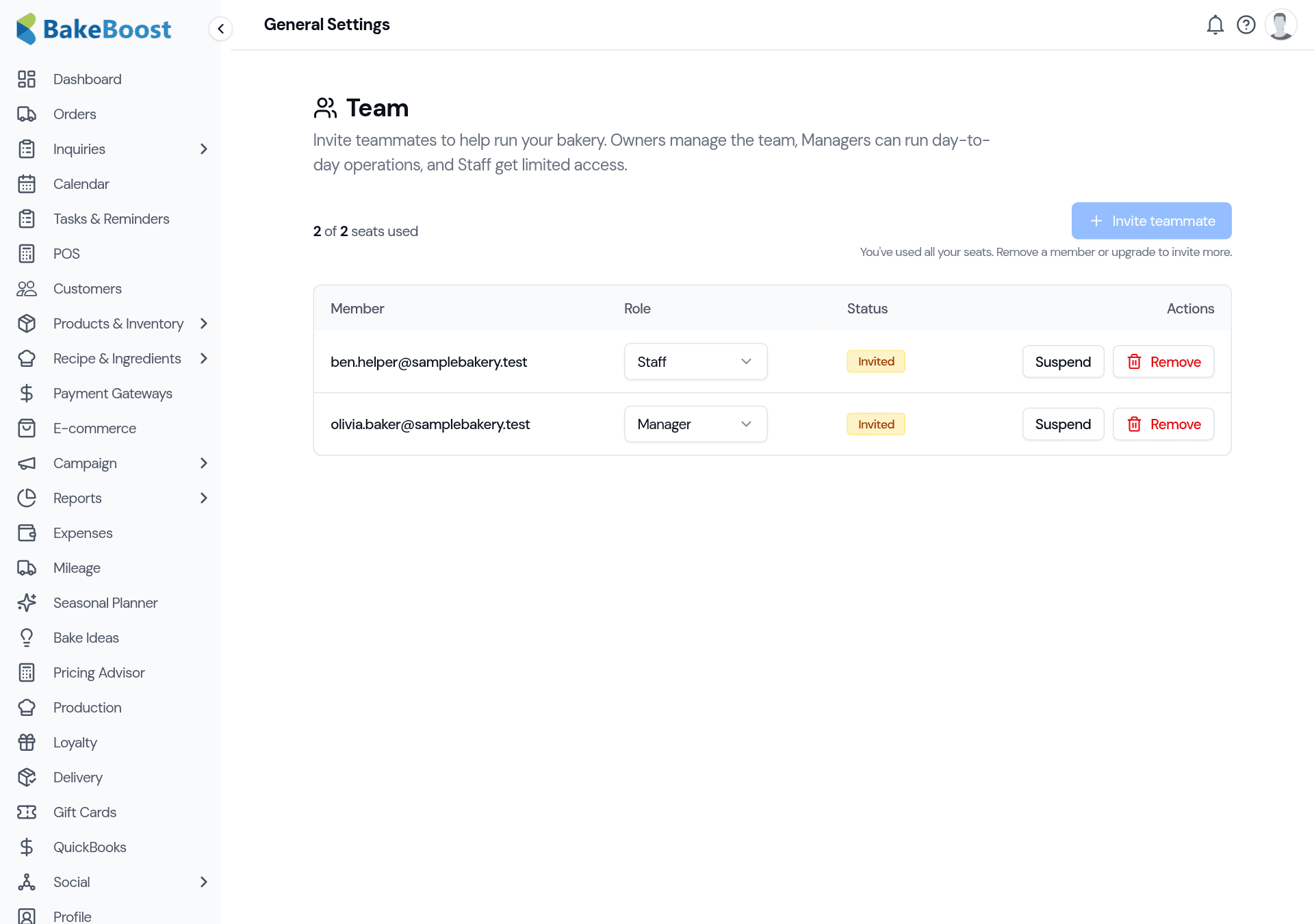
Click Invite teammate, enter their email and choose a role. They get an email invite; once they accept and set a password, their status turns from Invited to Active and they can log in with their own account.
3. Manage your team
From the team list you can:
- Change a role — promote a Staff member to Manager, or the other way round, from the role dropdown.
- Suspend someone — temporarily block their access without removing them (handy for a seasonal helper).
- Remove someone — revoke access for good and free up their seat.
Good to know
- Everyone gets their own login. No more sharing one account.
- Roles keep things private. Owners see everything; Managers run operations; Staff get limited access — your finances and settings stay owner-only.
- Invited vs Active. A teammate is Invited until they accept, then Active.
- Suspend or remove any time. Block access temporarily, or remove to free a seat.
- Seats are part of your Pro plan. Pending invites use a seat; upgrade for more.
Last updated July 24, 2026