
Sync your orders to Google Calendar
Sync all your orders automatically
This is the fastest way — set it up once and forget it.
1. Get your calendar link
Go to Settings and find the Sync all orders to your calendar panel. Click Generate calendar link, then Copy.
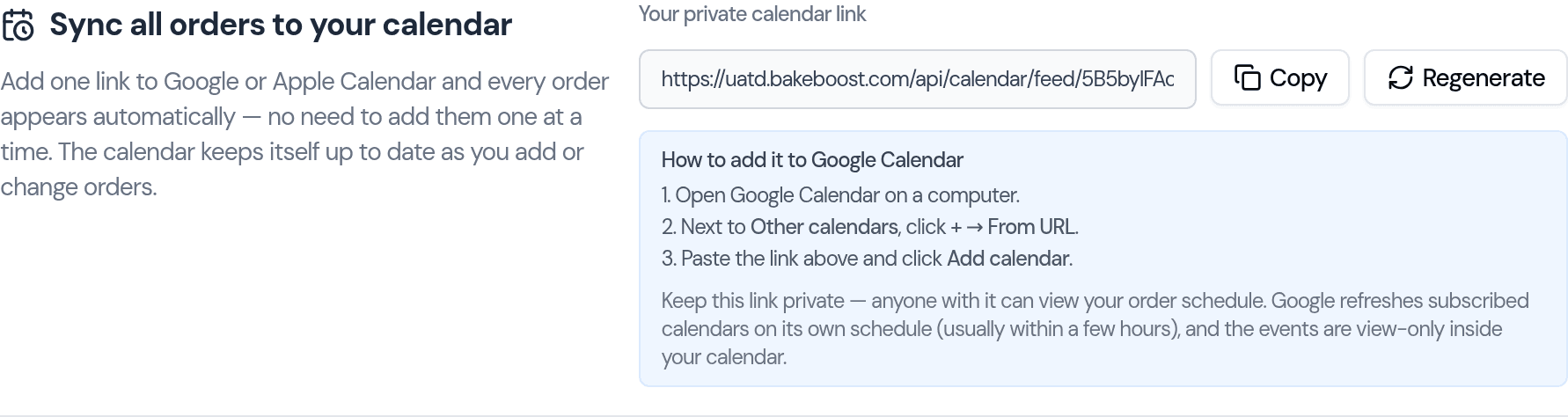
2. Add it to Google Calendar
On a computer, open Google Calendar, then:
- Next to Other calendars (left sidebar), click + → From URL.
- Paste your link and click Add calendar.
That's it — your orders appear as calendar events, each with reminders the day before and on the morning of. New and changed orders flow in on their own from then on.
Using Apple Calendar? Choose File → New Calendar Subscription, paste the link, and click Subscribe.
Add a single order
Want just one order on your calendar instead? Open the order (from the Orders list or the Calendar), then click Add to Calendar at the bottom and choose:
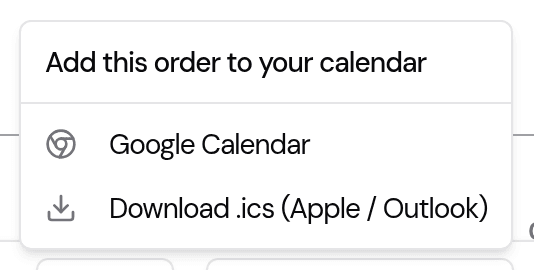
- Google Calendar — opens a pre-filled event you just save.
- Download .ics — a file you can open in Apple Calendar, Outlook, or import into Google.
A single order added this way is a copy taken at that moment. If you later change the order's date or time in Bake Boost, add it again to refresh the entry — or use the all-orders link above, which keeps itself up to date on its own.
Good to know
- What's included: upcoming orders (and recent ones from the last couple of months). Quotes and cancelled orders are left out — only real, active orders show up.
- How fresh it is: the all-orders link is a subscription. Google decides when to read it — usually a few hours, and sometimes as long as a day. There is no way to make it read the link sooner: the refresh button in Google only redraws the page, it does not go and fetch the link again. This applies to a new order and to a change you make to an existing one. Need it on the calendar right now? Use Add to Calendar on that single order, and see the note above about keeping that copy current.
- When you change an order: move a delivery date or time in Bake Boost and the calendar entry moves too — it does not turn into a second, duplicate entry. It moves at Google's next read, not at the moment you save.
- One-way and view-only: events flow from Bake Boost into your calendar. Editing or deleting an event inside Google won't change the order in Bake Boost, and it will reappear on the next refresh.
- Reminders: every order event carries two reminders — one the day before and one on the morning of — so nothing sneaks up on you.
- Nothing to install: it's built in. No Google sign-in or permissions to grant.
Last updated September 4, 2026