
Creating and sending quotes
This guide covers making and converting a quote. To let customers accept or decline online, see Let customers accept or decline quotes.
1. Create a quote
Start a new order as usual (Create order), and set the type to Quote. Fill it in just like an order — customer, products, event date, and any notes. Because it's a quote, it's understood to be a proposed price, not a confirmed booking, so it won't clutter your baking lists until it's accepted.
Your quotes get their own reference numbers and appear in your Orders list marked as Quote, so you can tell proposals apart from confirmed work at a glance.
2. Review and send
Open a quote to see it in full — the customer, the items, the total, and the event details.
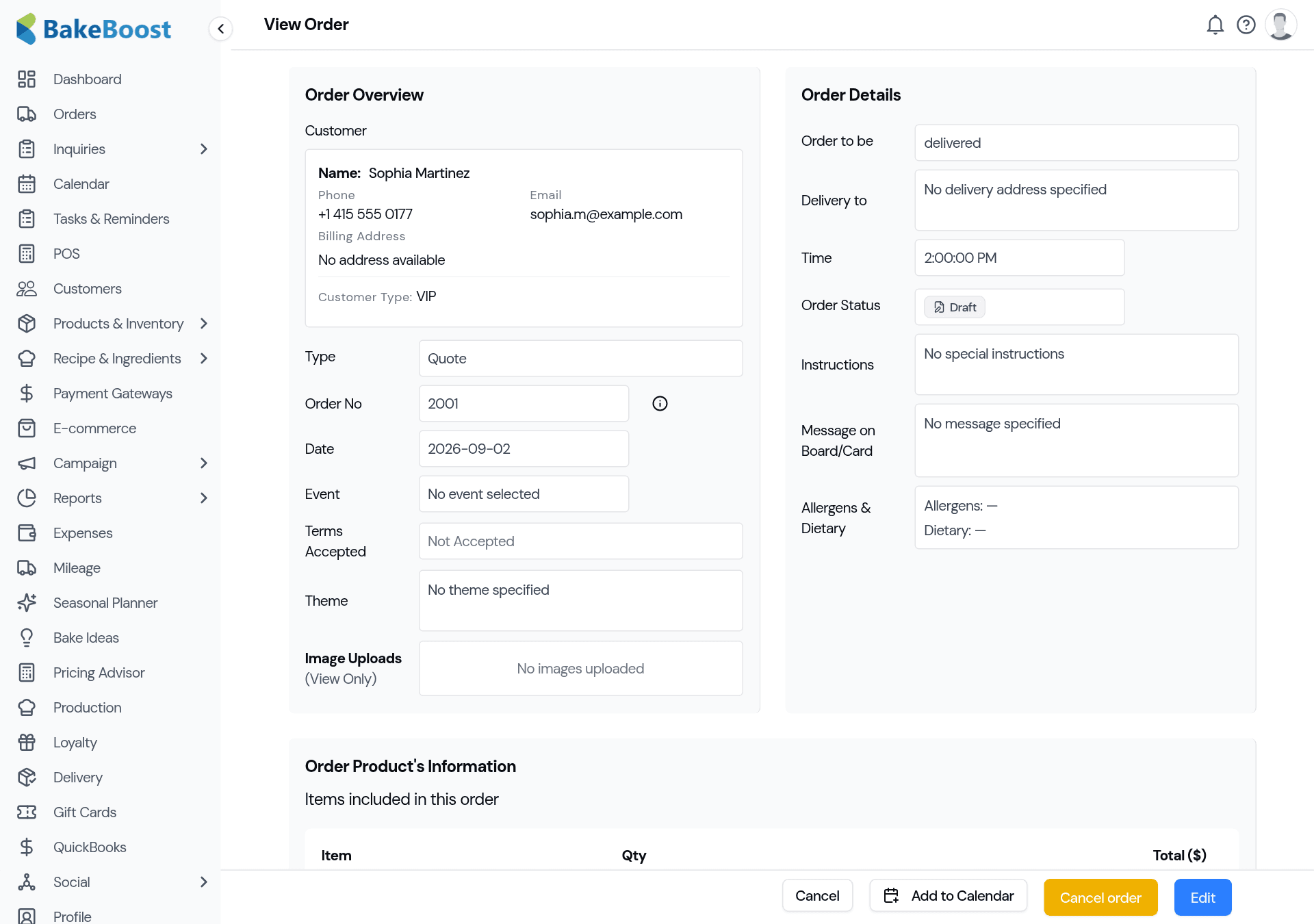
Send the quote to your customer as a branded PDF or by email, the same way you'd send an invoice. If you've turned on online responses, they can accept or decline straight from the link.
3. Convert to an order
When the customer says yes, convert the quote to an order — everything carries over (customer, products, dates, notes), and it steps into your normal order flow: baking lists, job sheet, deposit and balance, the lot. No re-entering anything.
Good to know
- A quote is a price, not a promise. It won't hit your baking lists or reports until it's accepted.
- Built like an order. Same form, same details — so converting is instant.
- Marked clearly. Quotes show as Quote in your Orders list, apart from confirmed orders.
- One-click convert. Everything carries across when the customer says yes.
- Let them respond online. Turn on online quote responses so customers can accept or decline from the link.
Last updated July 24, 2026