
Let customers accept or decline quotes online
The big picture
You already share a quote with your customer as a link (the same page they use to view and download the quote PDF). With this turned on, that page also shows Accept and Decline buttons.
- The customer clicks one — no login or account needed.
- The quote's status changes to Accepted or Declined, and it's logged on the quote's timeline.
- You get an email letting you know.
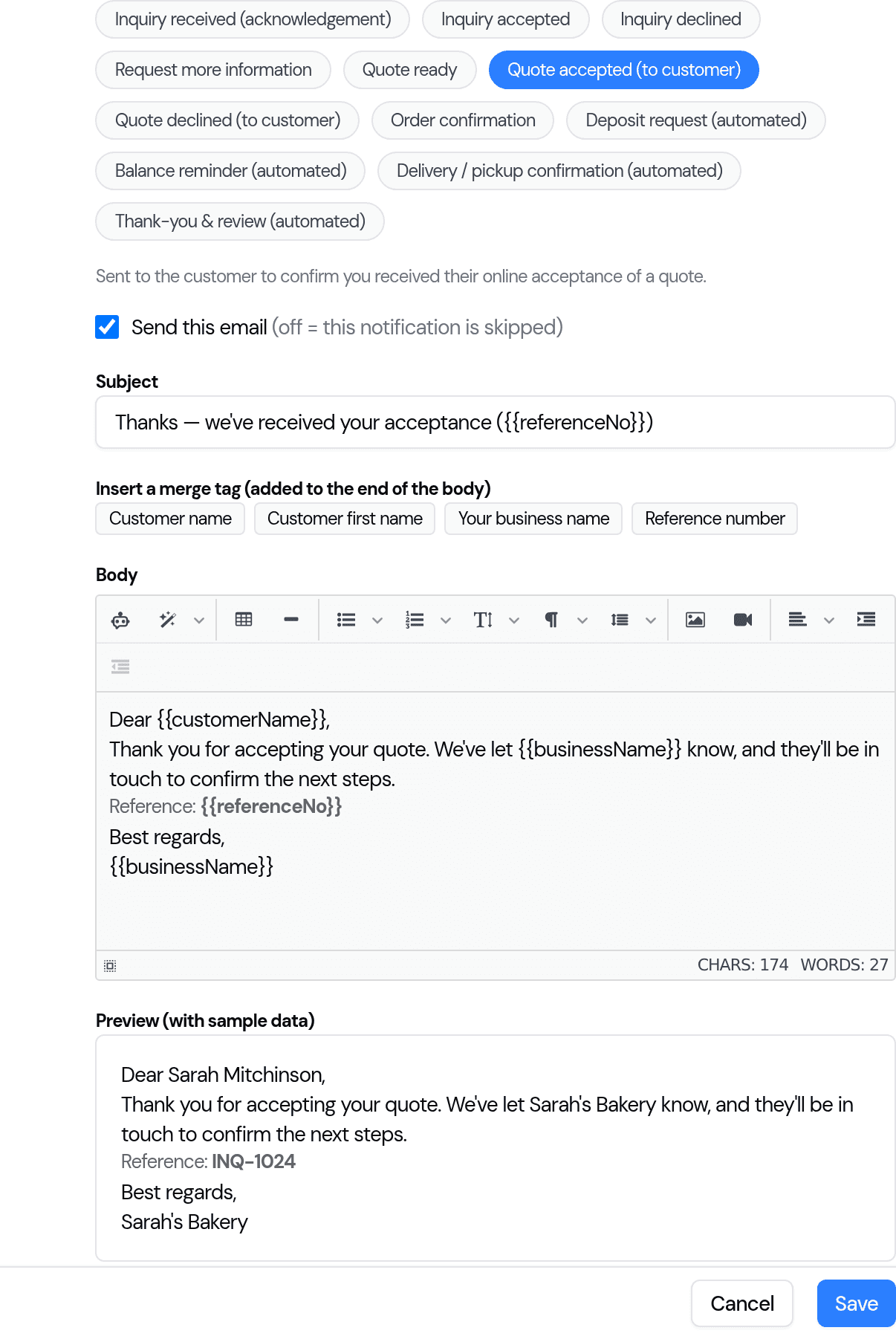
- The customer gets a confirmation email (which you can edit or switch off).
It's off by default — some bakers prefer to close a quote in a personal conversation. Turn it on only if you want customers to respond online.
1. Turn it on
Go to Settings → Orders and switch on "Let customers accept or decline quotes online", then Save.

2. What your customer sees
On the quote page, below the quote details, the customer now sees a "Ready to go ahead?" panel with Accept quote and Decline buttons.

3. When a customer responds
The customer sees an instant confirmation on the page…

…and you get an email — "[Customer] accepted your quote #Q-1" — with a prompt to open Bake Boost and turn the accepted quote into an order. The quote's status updates to Accepted (or Declined) so you can see it at a glance in your quote list.
4. Customise the confirmation emails
The email your customer receives is fully editable. Go to Settings → Email and pick "Quote accepted (to customer)" or "Quote declined (to customer)". Edit the subject and wording, drop in merge tags like the customer's name or your business name, preview it with sample data — or untick Send this email to turn that confirmation off entirely.
Good to know
- Works for every baker — you don't need an online storefront; it's on your normal quote link.
- No account needed — the customer just uses the quote link you send them.
- Safe to click twice — if a customer taps a button more than once, or the quote has already been dealt with, nothing is re-sent or changed.
Last updated July 21, 2026