
Automated order workflows
1. Turn on automated workflows
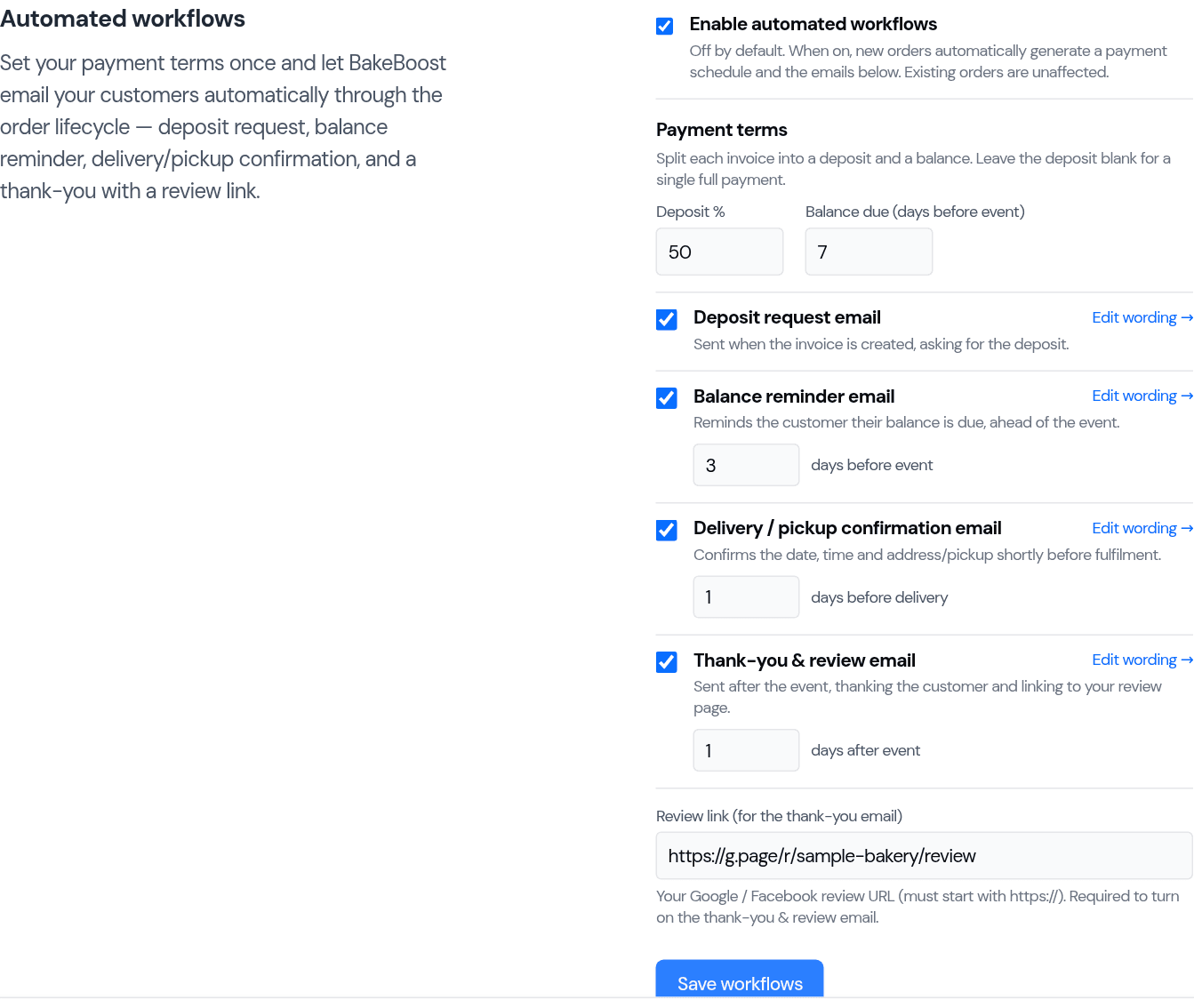
Go to Settings → Orders and find Automated workflows. Switch Enable automated workflows on.
2. Set your payment terms
Decide how orders are split:
- Deposit % — how much you take up front to confirm an order (for example 50%). Leave it blank if you take payment in full.
- Balance due (days before event) — when the rest should be paid (for example 7 days before the event).
From these, Bake Boost builds each order's payment schedule automatically — a deposit now and a balance due before the event — so you and the customer both know what's owed and when.
3. Choose the lifecycle emails
Turn on the messages you want sent automatically. Each one you can time, and reword to sound like you:
- Deposit request — sent when the order is created, asking for the deposit to confirm.
- Deposit reminder — an optional follow-up that chases the deposit a set number of days after the request if it still hasn't been paid. It skips itself automatically once the deposit is settled, so a customer who's already paid never gets nagged.
- Balance reminder — sent a set number of days before the event, nudging the remaining balance.
- Delivery / pickup confirmation — sent shortly before, confirming the date, time and address or pickup.
- Thank-you & review — sent after the event, thanking the customer and linking to your review page to build up your reputation.
Use Edit wording on any email to make it your own. Add your review link (your Google or Facebook review URL) so the thank-you email can point happy customers straight to it, then Save workflows.
Good to know
- Set terms once, apply to every order. Deposit split and reminders run themselves.
- Only affects new orders. Turning it on never disturbs orders already in flight.
- Every email is optional and editable. Send only the ones you want, worded your way.
- Timings are yours. Choose how many days before/after each message goes.
- Turn reviews into a habit. The thank-you email funnels happy customers to your review page automatically.
- Just want to take a deposit? See How do I take a deposit and get the balance paid? for the short version.
- A customer didn't get an email? See Why didn't my customer get their email?
Last updated August 3, 2026