
Connecting a payment gateway
Taking online payments is a Growth feature. This guide covers connecting a gateway; once one is connected it powers storefront checkout, tips, gift cards and deposit payment links.
1. Open Payment Gateways
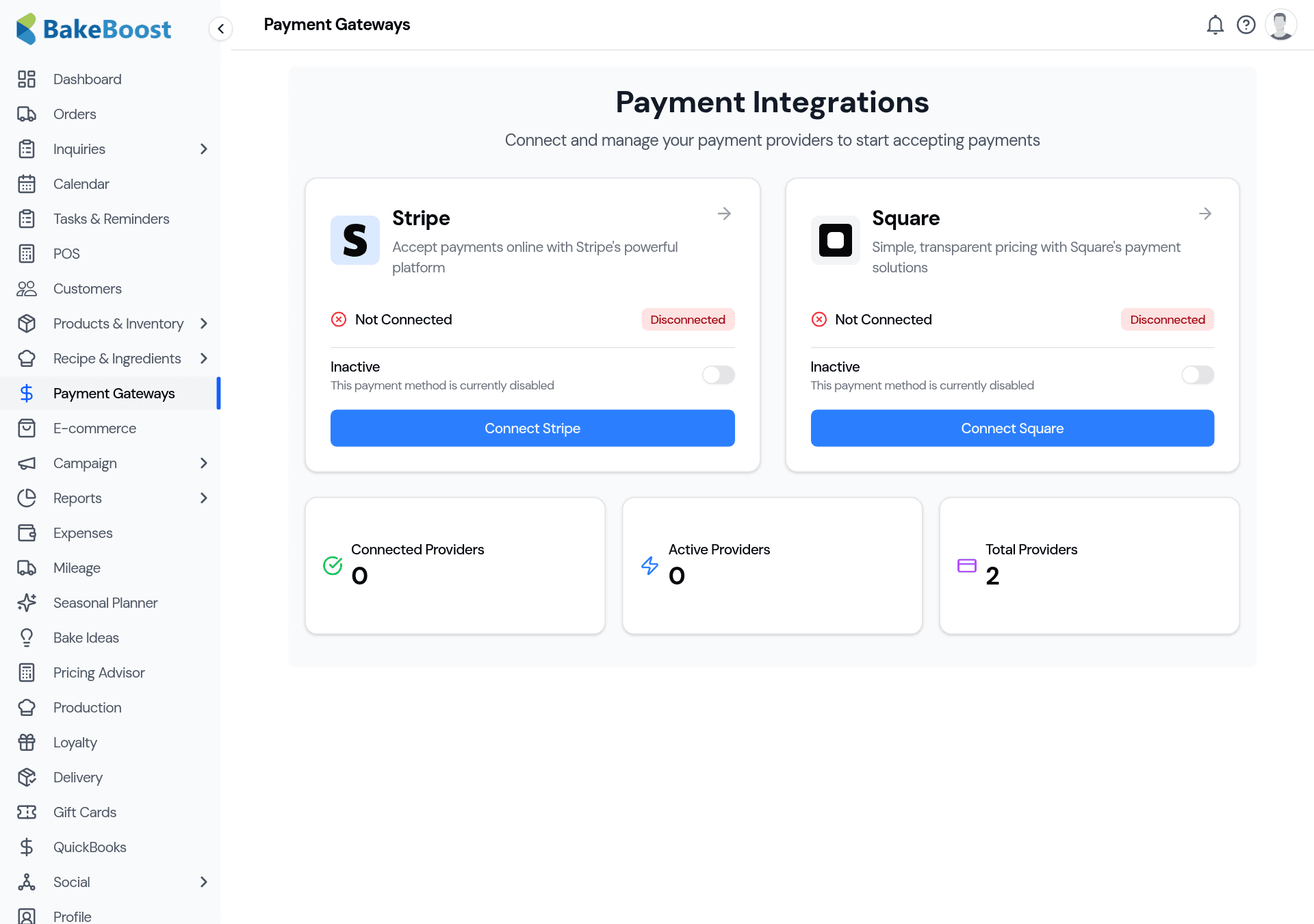
Go to Payment Gateways in the sidebar. You'll see a card for each provider you can connect, and a summary of how many are active.
2. Connect Stripe or Square
Pick the provider you already use (or want to use) and click Connect:
- Stripe — click Connect Stripe and you'll be taken to Stripe to sign in or create an account and authorise Bake Boost. When you come back, Stripe shows as Connected.
- Square — click Connect Square and do the same with your Square account.
You can connect both if you like. Each stays inactive until you switch it on, so nothing goes live by accident.
3. Turn it on
Once connected, switch the provider to active to start accepting payments with it. The counters at the bottom — Connected, Active, Total — confirm what's live.
From here, card payments become available wherever Bake Boost takes money:
- Storefront checkout — customers pay when they order online.
- Payment links — send a link to collect a deposit or balance.
- Tips and gift cards — both ride on top of your connected gateway.
Good to know
- The money is yours, directly. Payouts go to your own Stripe/Square account — Bake Boost doesn't sit in the middle of your funds.
- Connect the one you already use. If you have Stripe or Square already, connect that same account.
- Connected ≠ live. A provider stays inactive until you switch it on.
- One gateway unlocks the rest. Storefront checkout, payment links, tips and gift cards all use it — including taking a deposit and the balance online.
- Availability can vary by country. Some providers aren't offered everywhere — if a connect flow won't complete, check the provider supports your region. See Which payment gateway works in my country?
Last updated July 24, 2026