
Task templates for job sheets
1. Open Task Templates
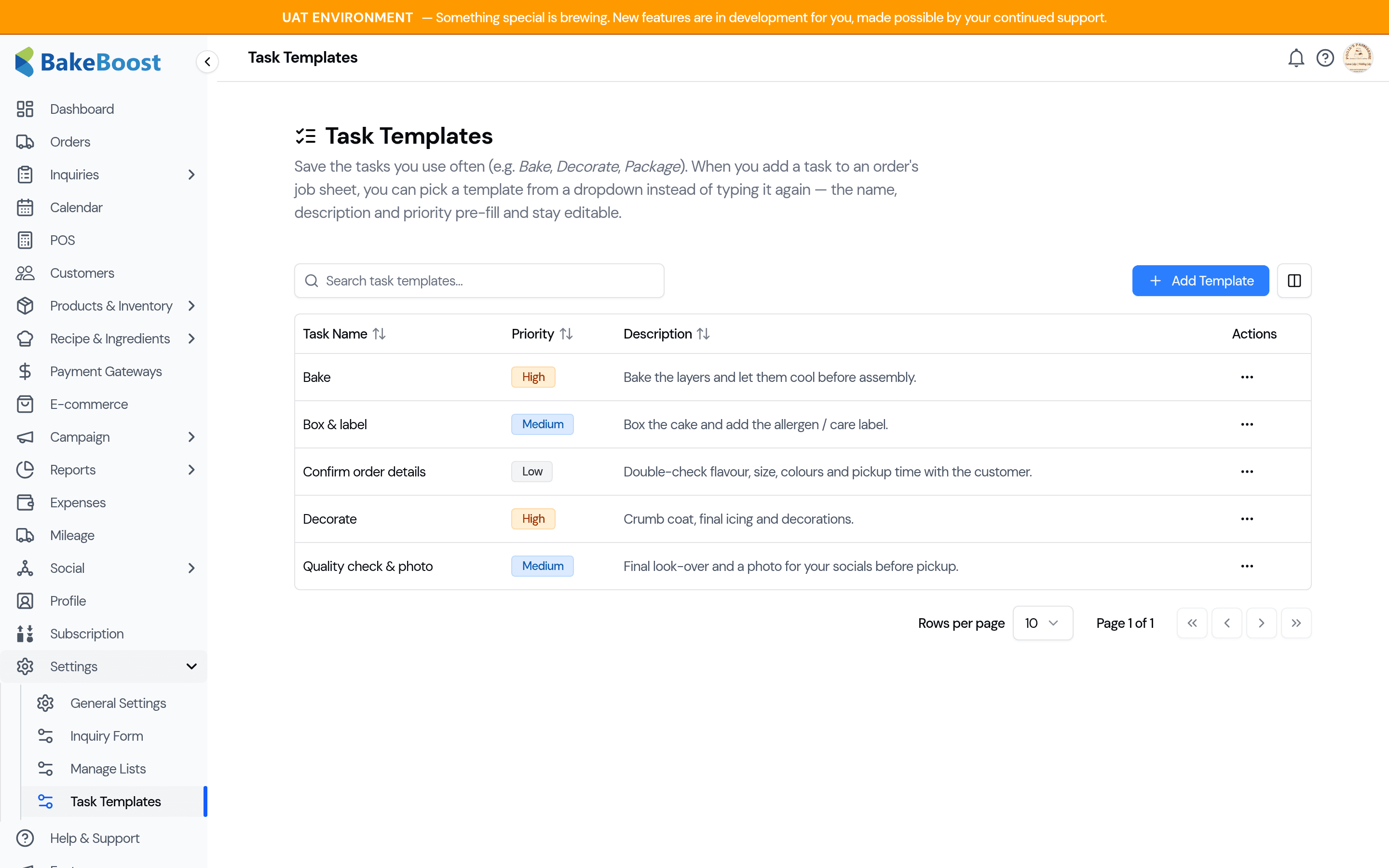
In the sidebar go to Settings → Task Templates. This is where you build and manage your reusable list. Each template has a name, an optional description, and a priority.
2. Add a template
Click Add Template in the top-right. Fill in:
- Task Name (required) — what you'll see in the dropdown, e.g. Bake or Quality check & photo.
- Description (optional) — details that pre-fill on the order task, e.g. Crumb coat, final icing and decorations.
- Priority — Low, Medium, High or Urgent. This sets the colour the task shows in on the job sheet.
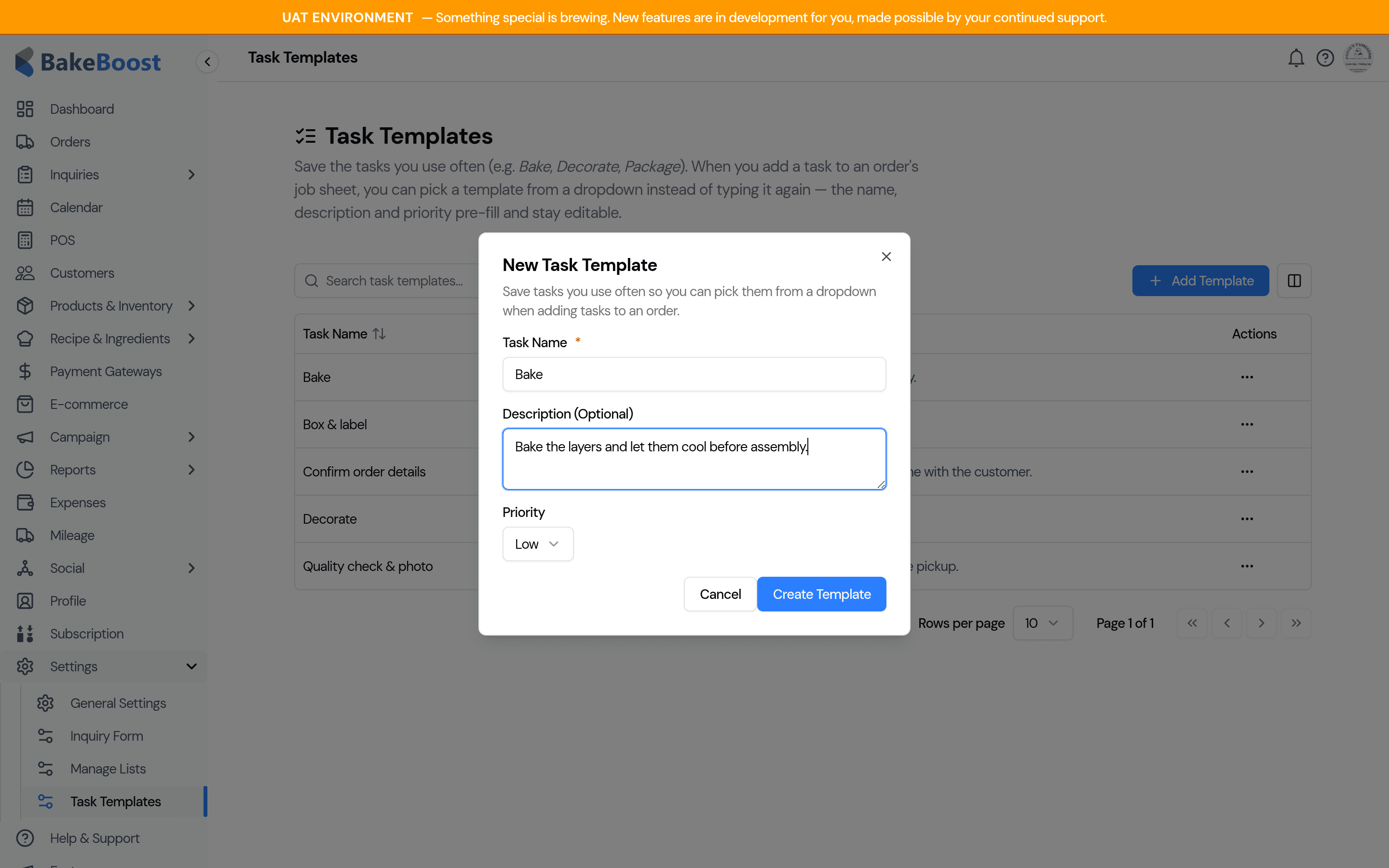
Click Create Template. Template names must be unique — if you already have one with that name, Bake Boost will tell you.
To change or remove a template later, use the Edit and Delete actions on its row. Deleting asks for confirmation and only removes the template — any tasks already on your orders are untouched.
3. Use a template on an order
Open an order, find the Order Tasks panel, and click Add. At the top of the Add New Task dialog you'll see Start from a template — pick one and the title, description and priority fill in automatically.
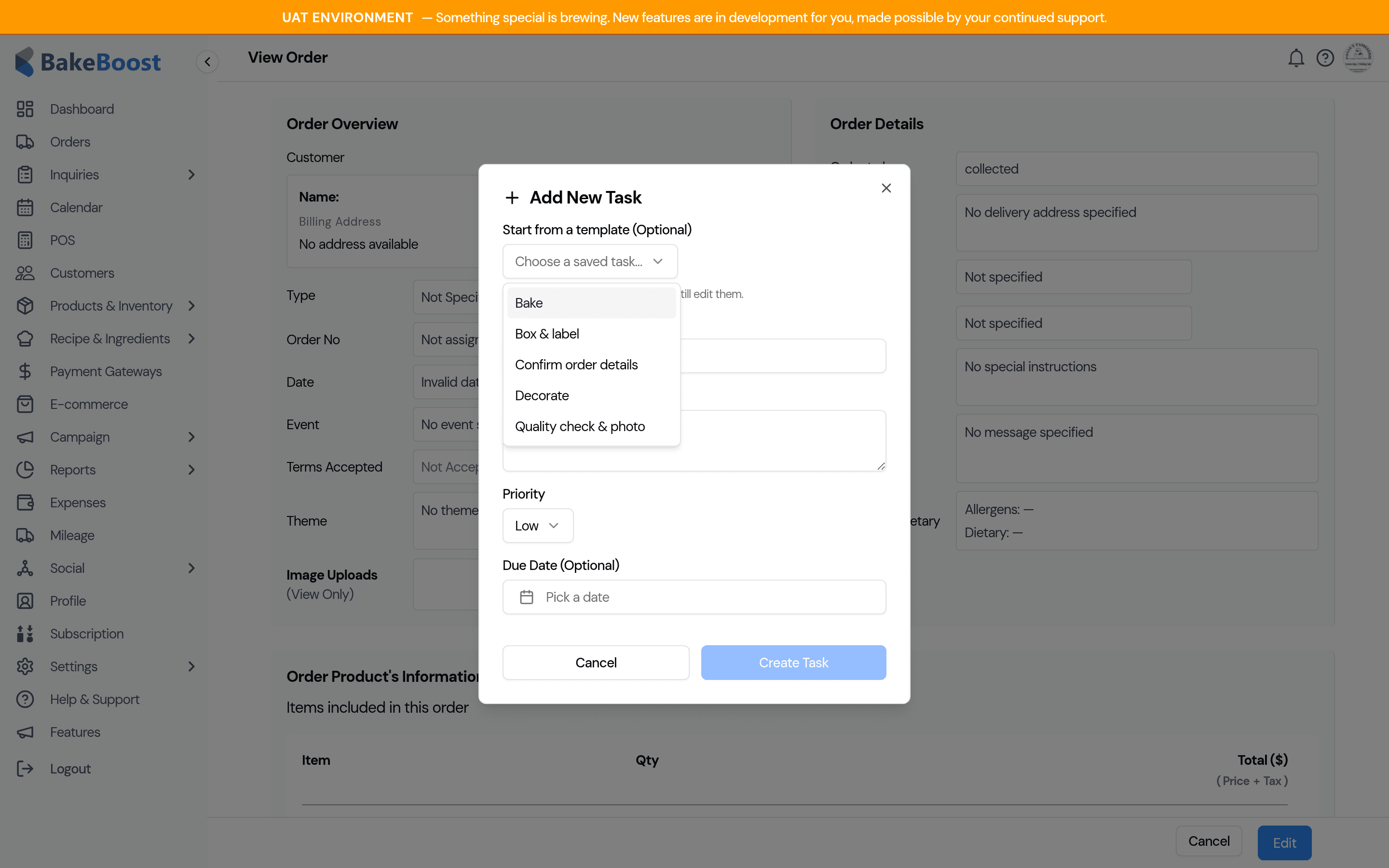
Everything stays editable, so you can adjust the wording or due date for this specific order before saving. Prefer to type it from scratch? Just ignore the dropdown and fill the fields in as usual — the picker is optional and only appears once you've saved at least one template.
Good to know
- Your templates are private to your bakery. Other Bake Boost businesses can't see them.
- Templates don't change existing tasks. They only pre-fill the form when you add a new task.
- No templates yet? The "Start from a template" dropdown stays hidden until you create your first one, so nothing changes about how you add tasks today.
Last updated June 16, 2026