
How do I send an invoice or receipt to a customer?
1. Open the order and choose Email
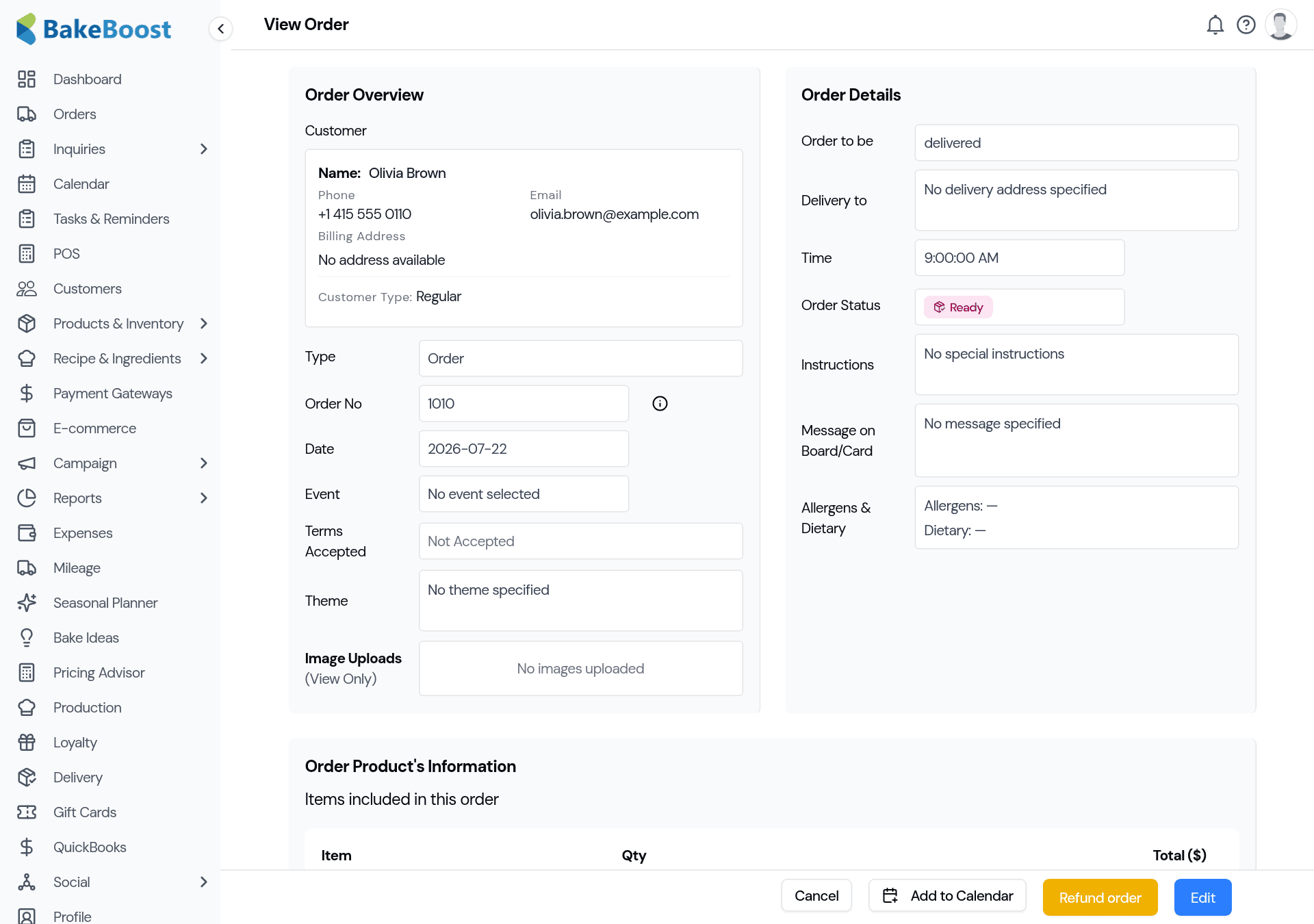
Open the order and find the Scheduled Payments section. Use its Email action, pick Invoice, and a send window opens with the customer already filled in as the recipient.
You can add a short personal message and, if you like, a CC address. A PDF copy of the invoice is attached to every email, so the customer always has a formal document to keep.
2. Send yourself a copy
Tick Send me a copy and you'll receive a silent BCC of exactly what the customer got. Your own address never appears in the To line, so the customer only ever sees themselves — your copy stays private.
3. Replies come back to you
Every invoice and receipt is sent with your business email as the Reply-To, so when a customer hits reply their message lands in your inbox — not in a no-reply void. There's nothing to configure; Bake Boost uses your business email, falling back to your login email if you haven't set one.
4. Let the customer pay from the email
If you've connected Stripe or Square, the invoice includes a secure payment link. The customer pays the deposit or balance by card and the money goes straight into your own account — Bake Boost never holds your takings. See Connecting a payment gateway and How do I take a deposit and get the balance paid?.
No gateway connected? You can still send the invoice for the customer's records and record the payment by hand when it arrives.
5. Send a receipt after payment
Once a payment is recorded, use the same Email action and choose Receipt to send proof of payment — again with a PDF attached. Selling at the counter? The POS till can email a receipt at checkout too, so walk-in customers leave with one in their inbox.
Good to know
- A PDF is always attached — to both invoices and receipts — so the customer has a formal document, not just an email body.
- Your copy is a BCC. "Send me a copy" never exposes your address to the customer.
- Replies reach you. Invoices go out with your business email as Reply-To.
- Online payment is optional. With a gateway connected the invoice can be paid from its link; without one, send it for the record and log the payment manually.
Related questions
- How do I email an invoice to a customer?
- Open the order, and in the Scheduled Payments section use the Email action and choose Invoice. The customer is filled in as the recipient; add a message if you like and send. A PDF of the invoice is attached automatically.
- Does the invoice include a PDF?
- Yes. Every invoice and receipt email has a PDF attached, so the customer always has a formal document to keep — not just the text of the email.
- Can the customer pay from the invoice?
- If you've connected Stripe or Square, the invoice email includes a secure payment link so the customer can pay the deposit or balance by card, straight into your own account. Without a gateway, send the invoice for the record and log the payment by hand.
- Do I get a copy of what I send?
- Tick “Send me a copy” and you receive a private BCC of exactly what the customer got. Your address never appears in the To line, so the customer only ever sees themselves.
- How do I send a receipt after payment?
- Once a payment is recorded, use the same Email action on the order and choose Receipt. The POS till can also email a receipt at checkout for walk-in sales.
Last updated August 5, 2026