
Print allergen labels for an order
Where the allergen info comes from
A label's Contains line is built from the allergens already saved on:
- the product itself (Products → your product → Allergens), and
- any recipes linked to that product (Recipes → your recipe → Allergens).
Bake Boost combines both and removes duplicates, so if a product and its sponge recipe both list Eggs, the label shows Eggs once. The Suitable for line comes from the product/recipe Dietary settings (e.g. Vegan, Halal), and the Storage line from a recipe's Storage information.
1. Open the order
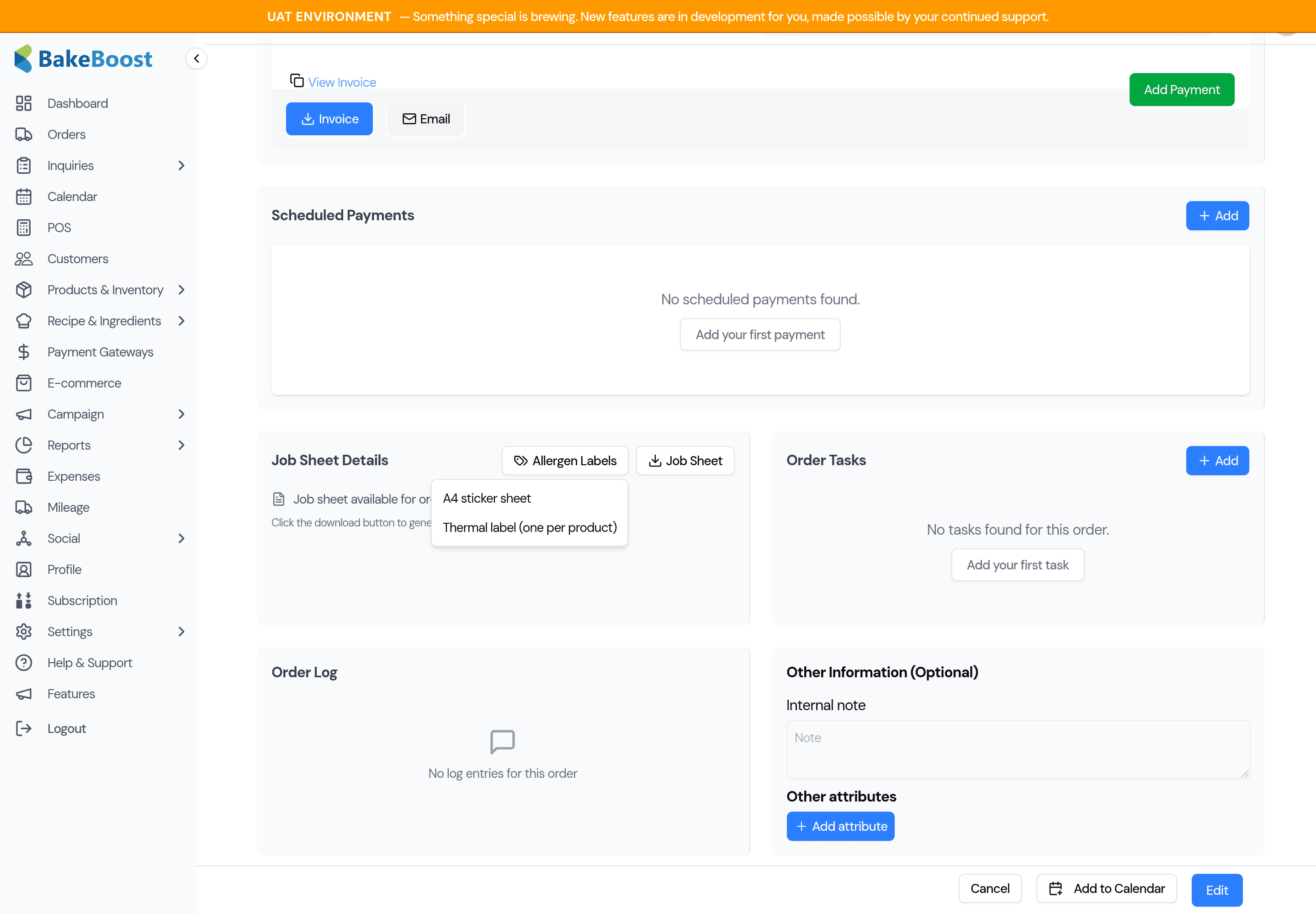
Go to Orders in the sidebar and open the order you want labels for. On the order page, find the Documents panel — next to the Job Sheet button you'll see an Allergen Labels button.
2. Choose a format
Click Allergen Labels and pick how you want to print:
- A4 sticker sheet — lays the labels out as a grid on an A4 page. Print on label paper (Avery-style) or plain paper and cut. Best if you don't have a label printer.
- Thermal label — one small label per page, sized for a thermal label printer.
Either way, Bake Boost generates a PDF and downloads it to your computer. Open it and print as usual.
3. What's on each label
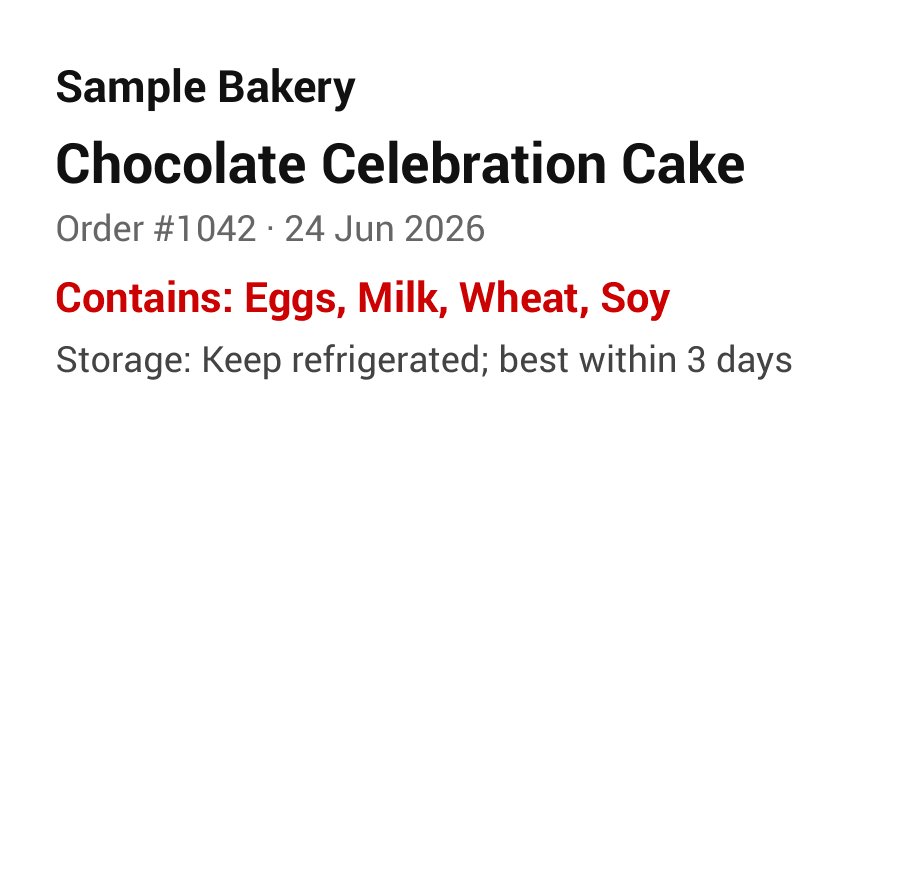
Each product's label includes:
- Your business name (and logo, if you've added one in Settings).
- The product name and the order number + date, so a label is easy to match back to its order.
- Contains: the product's allergens, in red. Or "No declared allergens" if none are set.
- Suitable for: dietary flags (e.g. Vegan), when set.
- Storage: the storage note from the recipe, when set.
Good to know
- One label per product line. An order with three different products gives you three labels. The quantity on a line doesn't multiply the labels — one label per product.
- It uses your own allergen names. The labels show the allergen and dietary names exactly as you've set them up under Settings → Manage Lists, so they read the way your bakery describes them.
- Cancelled or unsaved orders can't print labels — save the order (and keep it active) first.
- Match your label stock. The A4 sheet uses a common sticker layout; if your label paper is a different size you may need to adjust your printer's scaling, or use the thermal option.
Last updated June 20, 2026