
Send one monthly invoice for a customer's orders
1. Turn on monthly invoices
Go to Settings → Business and find Customer statements & monthly invoices. Tick Turn on customer statements & monthly invoices.
Then set two defaults:
- Default payment terms — when the invoice is due: on receipt, or 7, 14 or 30 days after the issue date. You can still pick any due date on each invoice.
- How to pay — your bank details or other payment instructions. They are printed on every monthly invoice. Click Save payment instructions.
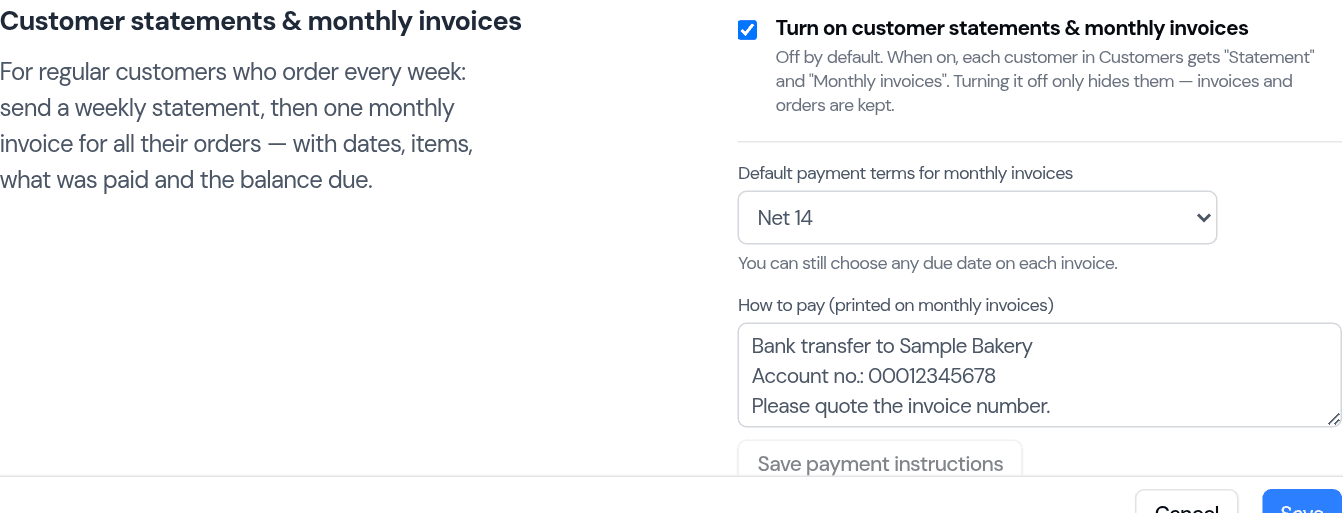
The feature is off by default. Turning it off later only hides it: your invoices and orders are kept.
2. Open a customer's monthly invoices
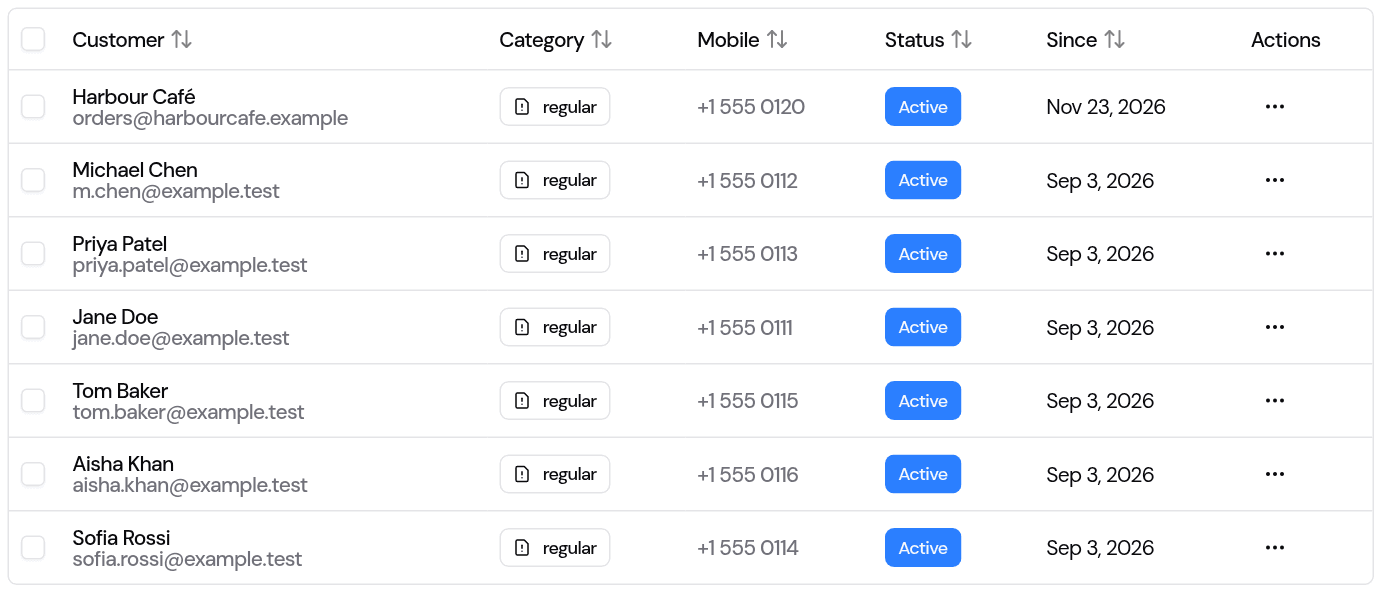
Go to Customers, click the ⋯ menu next to the customer, and choose Monthly invoices.
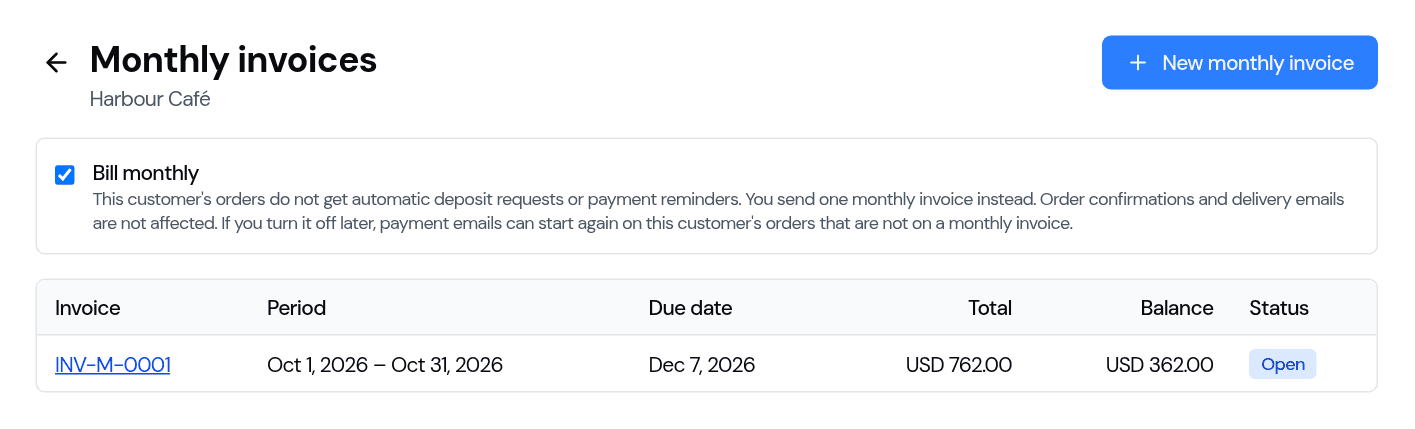
3. Tick "Bill monthly" (optional)
At the top of the page, tick Bill monthly for customers you only invoice once a month. Their orders then do not get the automatic deposit requests and payment reminders — the customer gets one monthly invoice instead. Order confirmations and delivery emails still go out as normal.
4. Create the invoice
Click New monthly invoice.
- Orders in the period — choose Last month, This month, or your own From/To dates. The customer's orders in that period are listed and ticked. Untick any order you don't want on this invoice. Orders that are not delivered yet are shown but not ticked.
- Dates and terms — check the Issue date, pick the Payment terms, or choose any Due date you like. Add an optional note.
- Check the total and the balance due at the bottom, then click Create invoice.
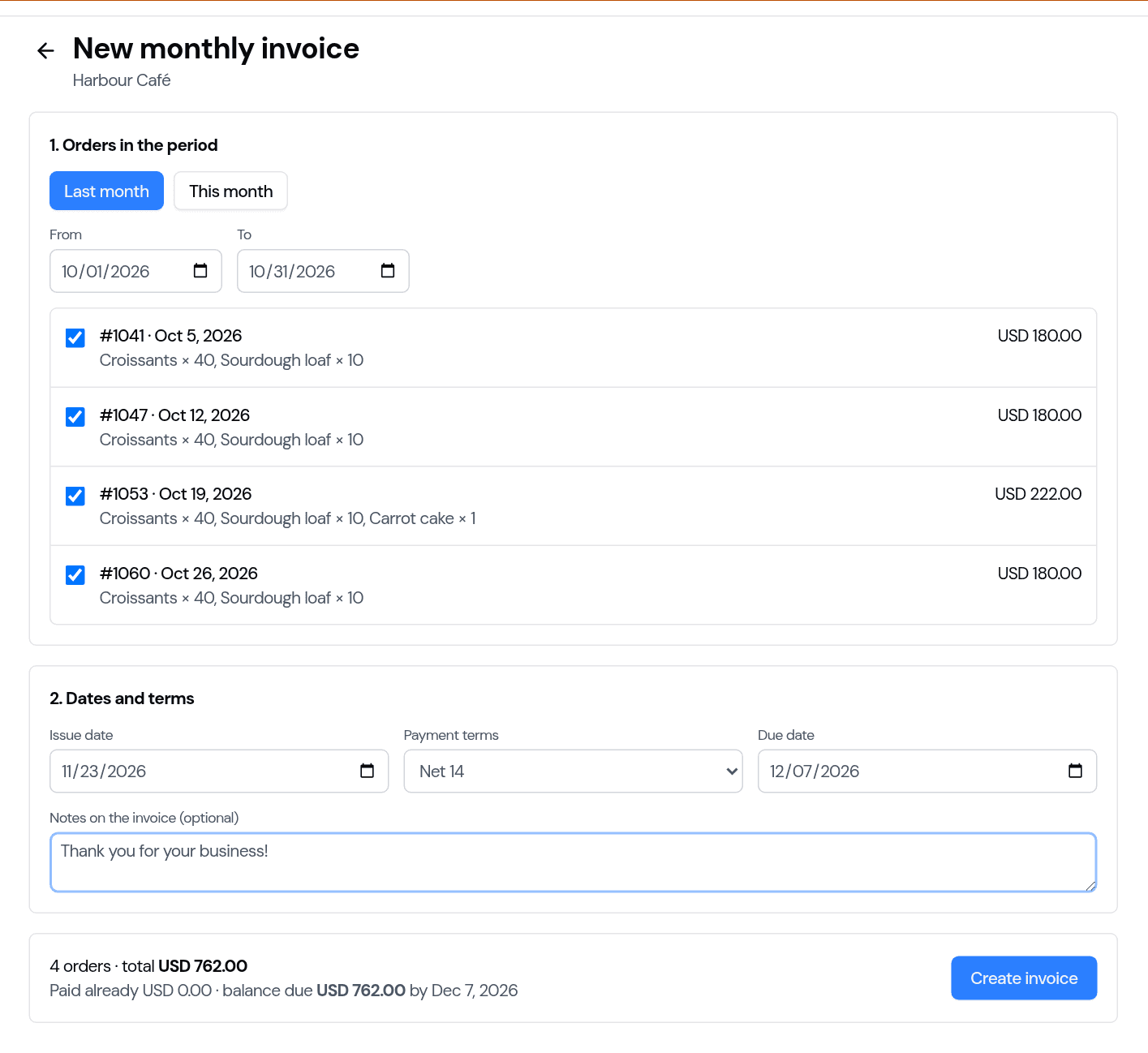
Each invoice gets its own number (INV-M-0001, INV-M-0002, …). Its contents are fixed when you create it, so the invoice your customer receives never changes behind their back.
5. Download or email the PDF
On the invoice page, click PDF to download it, or Email to send it to the customer with the PDF attached. The PDF lists each order with its items, then the total, what was paid, the balance due, your payment instructions and your note.
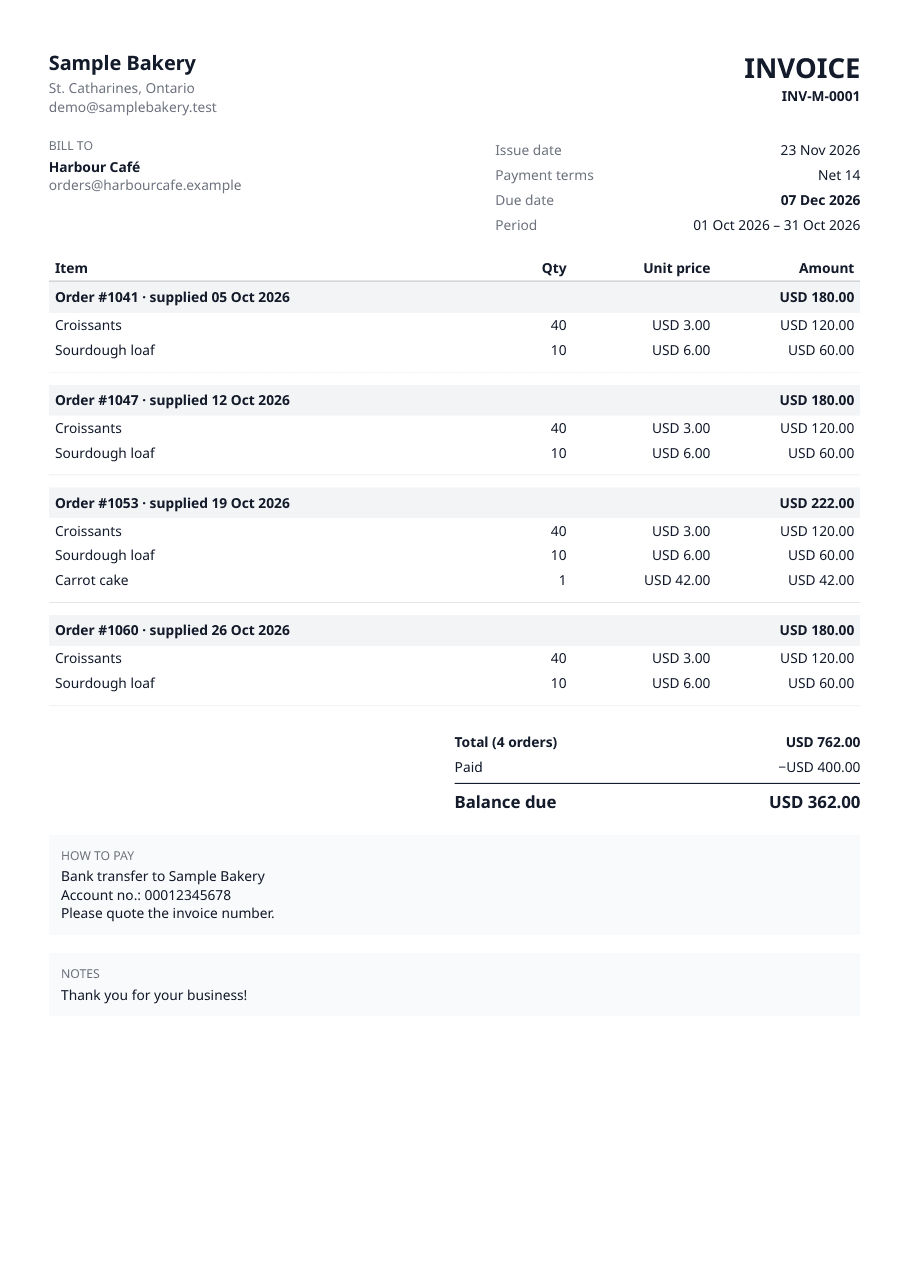
If you charge tax (VAT, GST or sales tax), the monthly invoice is your tax invoice for these orders, with a tax summary at the bottom.
Need a later due date? Click Change due date — the PDF and the email use the new date.
6. Record a payment
When the customer pays, click Record payment. Enter the amount, the method, the date and an optional reference (such as the bank transfer reference), then click Record.
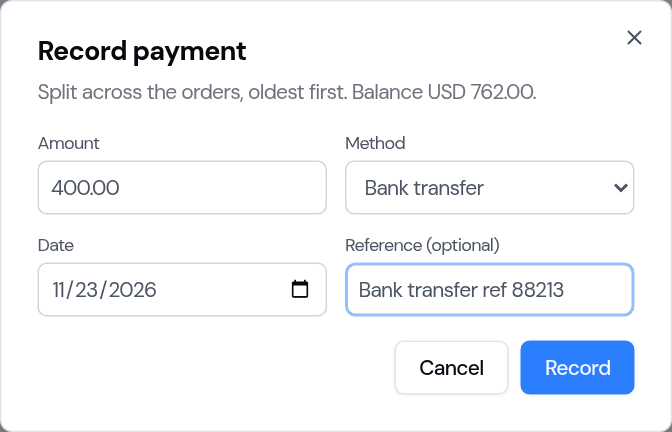
The payment is split across the orders, oldest order first, and shows on each order's payment list and timeline. The invoice shows the total, what is paid, the balance due and every payment. When the balance reaches zero, the invoice is marked Paid.
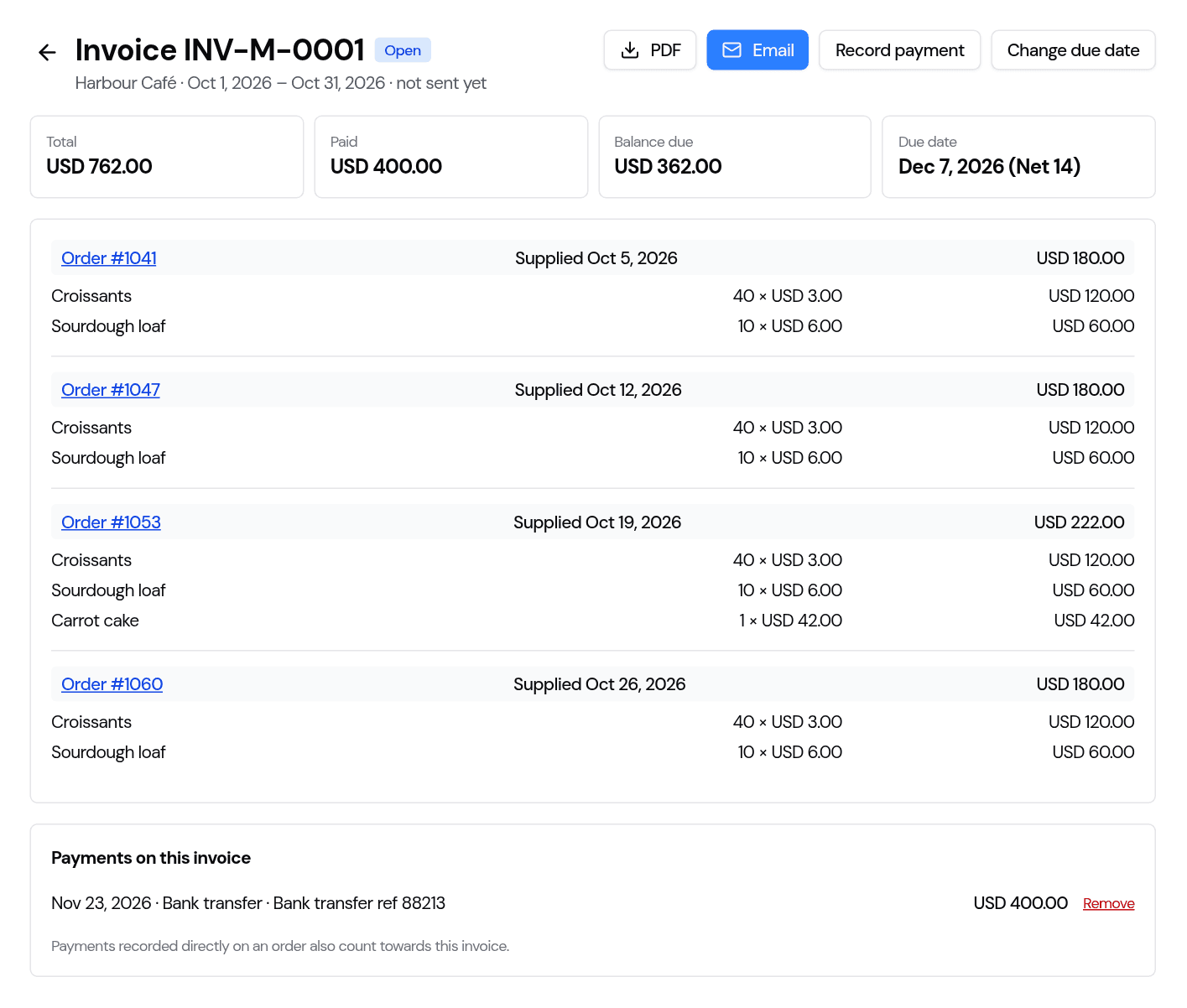
- Paid too much? If you use customer credit, the extra is kept as credit for the customer. If not, record the balance or less.
- Made a mistake? Click Remove next to the latest payment. The orders go back exactly as they were before.
- Payments taken on an order (for example a card payment) also count towards the invoice.
7. What happens to the orders on an invoice
An order on a monthly invoice shows a blue note at the top. While it is on the invoice, its items, price and customer cannot change, and it cannot be cancelled or refunded — so the order always matches the invoice you sent. You can still change its production status (for example Ready or Complete).

Need to change an order? Open the invoice and click Void (remove any payments first), give a reason, fix the order, then create a new invoice. A voided invoice keeps its number, and that number is never used again.
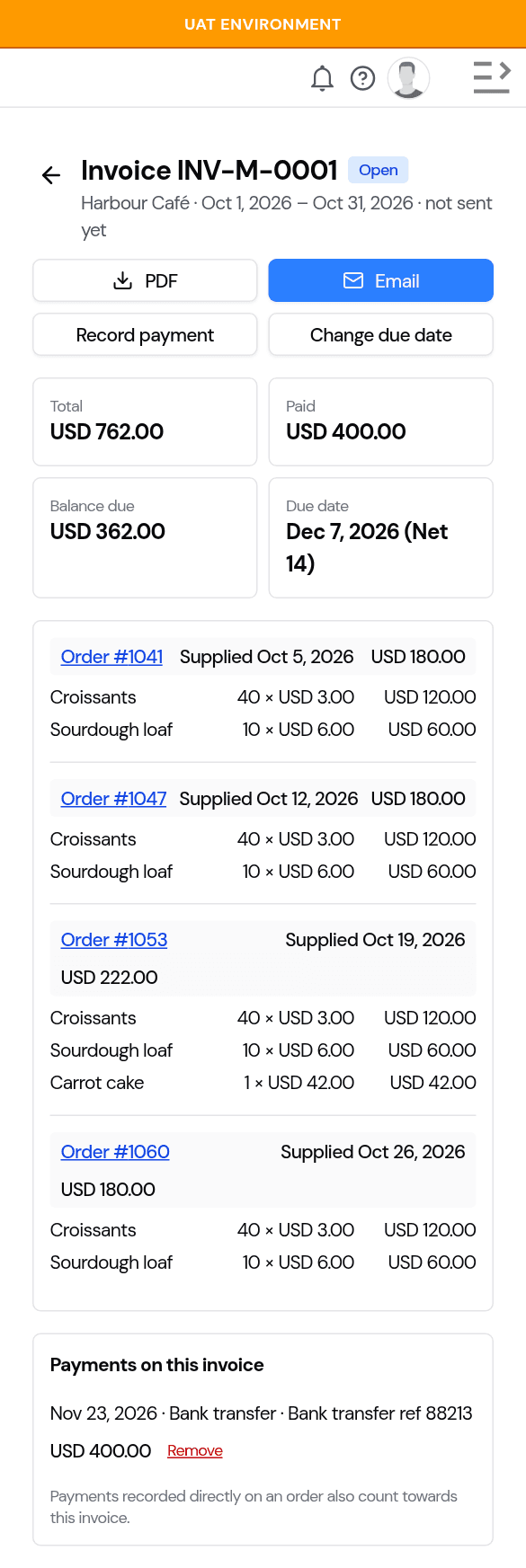
Works on your phone too
Every page works on a phone or tablet, so you can record a payment as soon as it comes in.
Troubleshooting
| Symptom | Likely cause | Fix |
|---|---|---|
| I don't see Monthly invoices in the customer menu | The feature is off | Turn it on in Settings → Business → Customer statements & monthly invoices |
| An order says Cannot be invoiced | It has no price yet ("tbc"), it is already on another invoice, or its payment list doesn't add up | Read the reason under the order, fix the order, then come back |
| I can't edit or refund an order | It is on a monthly invoice | Void the invoice, change the order, then create a new invoice |
| Void is refused | Payments are recorded on the invoice | Remove the payments first (latest first), then void |
| The customer still got a payment reminder | Bill monthly is not ticked for that customer, or the order was made before you ticked it | Tick Bill monthly on the customer's Monthly invoices page |
Good to know
- Statement vs. invoice: Statement (also in the customer menu) is a summary of what the customer ordered and paid — useful as a weekly reminder. The monthly invoice is the bill they pay.
- Tax-invoice timing: some tax authorities set a deadline for issuing a tax invoice after a sale (for example, 14 days in the UAE). Check the rule in your country with your accountant, and invoice more often (for example every two weeks) if you need to.
- Paying by card: customers pay a monthly invoice by bank transfer, cash or another method you record. A single "pay the whole invoice by card" link is not available yet.
Last updated November 23, 2026