
Sell a weekly drop
Drops suit a bakery that sells a weekly menu — cookie boxes, sourdough, a Saturday special — and announces it on Instagram, TikTok or WhatsApp. This guide covers creating a drop, publishing and sharing it, what your customers see, the waitlist, and running the same drop again next week.
1. Create a drop
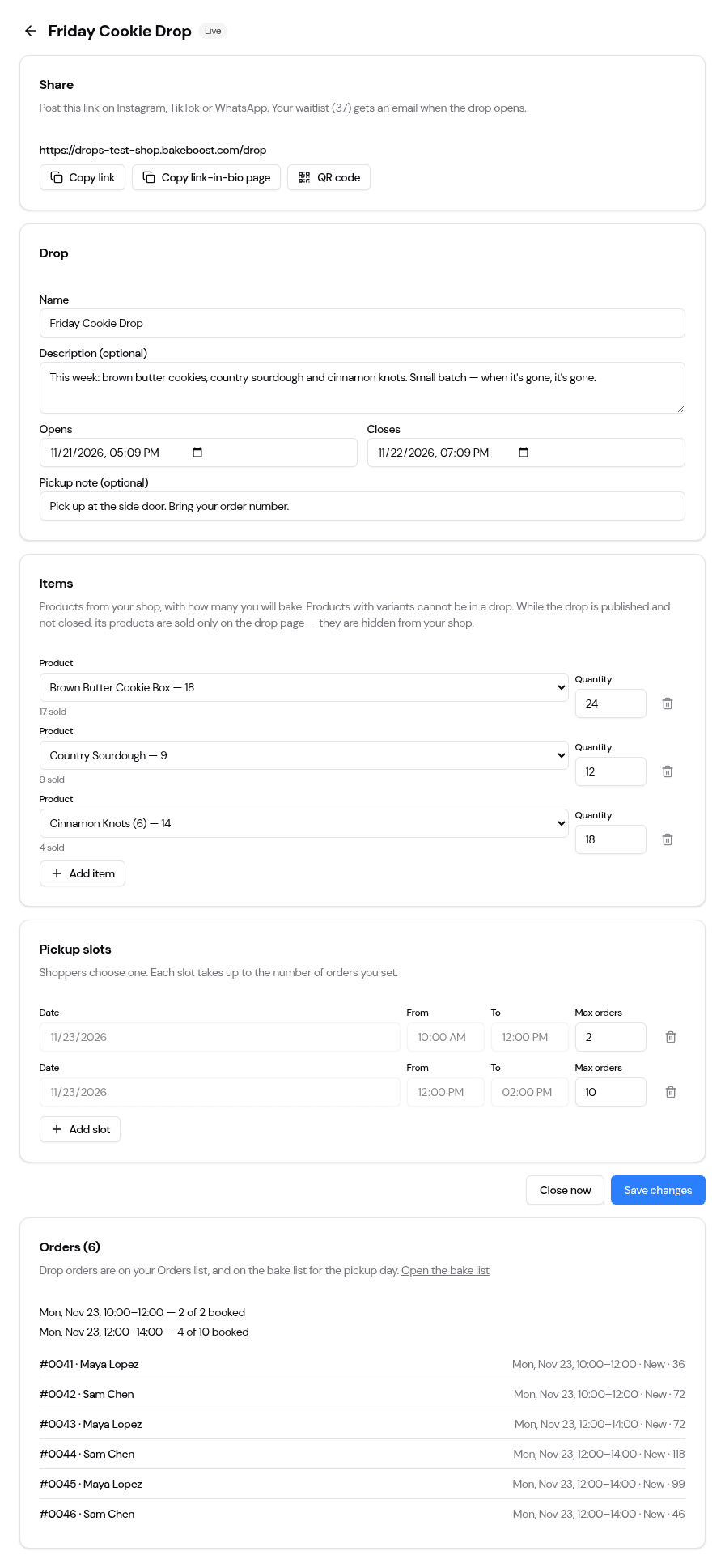
In the sidebar go to Drops, then click New drop.
- Name — what customers see, for example "Friday cookie drop".
- Description (optional) — a short note about this week's menu.
- Opens and Closes — when customers can order. Times are in your own time.
- Pickup note (optional) — for example "Pick up at the side door."
2. Add the items
Under Items, click Add item, choose a product and type how many you will bake. Add one row per product.
- The product must be on your shop (Display or Sell on E-commerce on).
- Products with variants and gift cards cannot be in a drop.
- The price is the product's normal shop price.
3. Add pickup slots
Under Pickup slots, add the times customers can collect: a date, a from and to time, and max orders for that slot. Customers choose one slot at checkout. When a slot has its maximum number of orders, it shows Full.
4. Publish and share
Click Publish. (Click Save draft to finish it later — customers do not see a draft.)
After you publish, the Share card shows your drop link (yourshop.bakeboost.com/drop).
Copy it, copy your link-in-bio page (yourshop.bakeboost.com/links) for your Instagram
or TikTok bio, or show the QR code to print it.
What your customers see
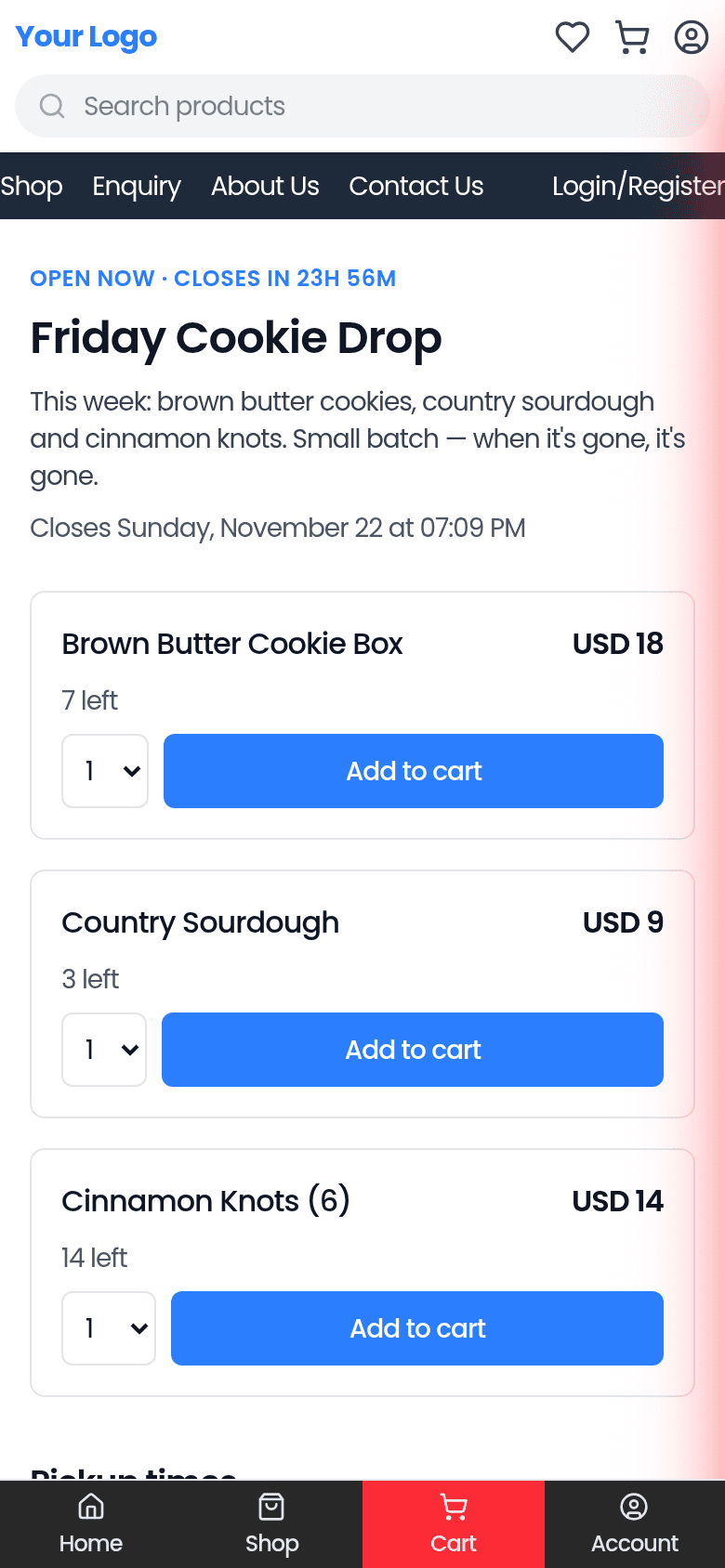
Before the drop opens, the drop page shows a countdown and a form to join your waitlist. When it opens, each item shows how many are left. Customers choose a quantity, add it to the cart, pick a pickup time at checkout, and pay.
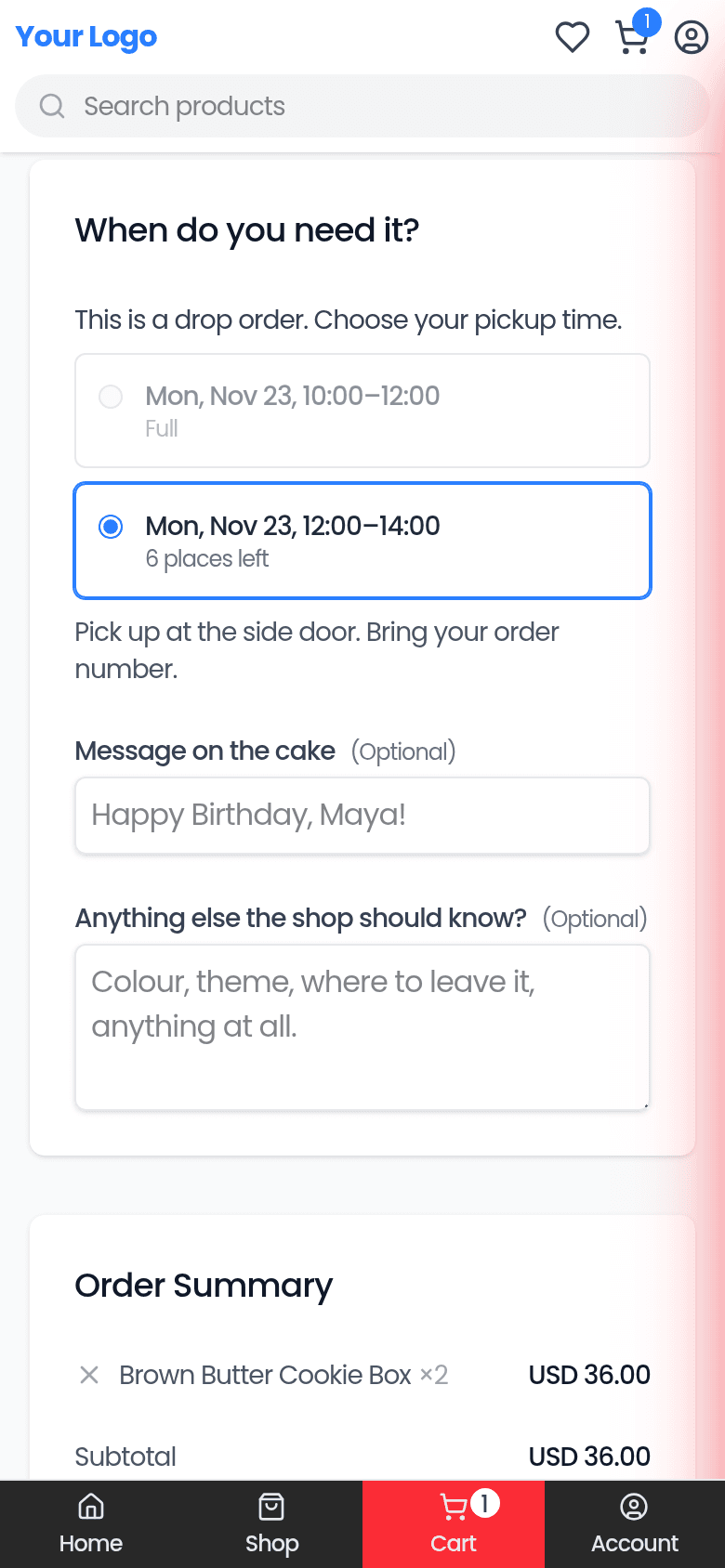
A drop order is always a pickup. It appears on your Orders list like any other order, dated on the pickup day, so it is also on your bake list for that day.
The waitlist
Customers can leave their email on the drop page or the link-in-bio page. When your next drop opens, each of them gets one email from your bakery with a link to the drop. Every email has a link to stop these emails, and a person who leaves the list is not added back.
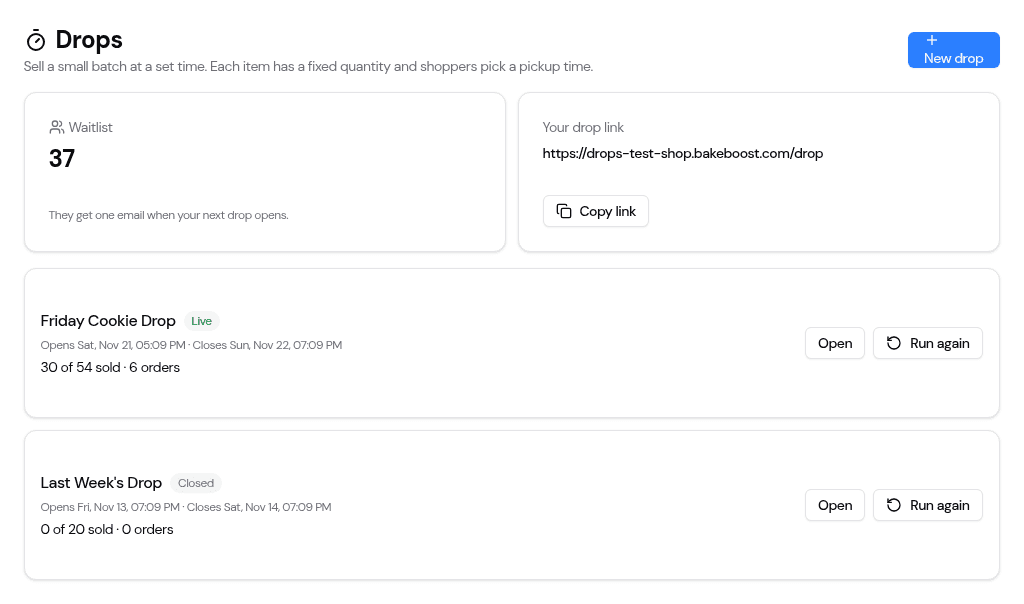
You can see how many people are on your waitlist at the top of the Drops page.
Run it again next week
On the Drops page, click Run again on a drop. You get a draft copy with the same items, quantities and pickup slots, one week later. Check the times, change what you need, and click Publish.
While a drop is running
- Close it early — open the drop and click Close now.
- Add more — raise an item's quantity or a slot's max orders and click Save changes. You cannot lower a quantity below what has already sold, and you cannot remove an item or a slot that already has orders.
- Cancelled orders give their items and their pickup place back to the drop.
Good to know
- Payment: customers pay by card (Stripe or Square) or by your other checkout options. PayPal is not offered for drop orders.
- One drop per order. A drop order holds drop items only. If a customer has other shop items in the cart, they check those out on their own.
- Deleting a product that has orders in a running drop is blocked until that drop closes.
- If an order comes in with a problem (for example the last item sold a second earlier and the customer had already paid), the order is kept and has a ⚠ note for you. Check the payment and contact the customer.
Last updated November 21, 2026